




Welcome back to Jscrambler 101, a collection of tutorials on how to use Jscrambler to protect your JavaScript. This tutorial is about SIEM integration and covers Jscrambler version 7.2.
Introduction
Last time, in Jscrambler 101: Memory Protection, we explored a new Jscrambler feature that ciphers sensitive data using cryptographic algorithms, allowing the application to decipher it only when it needs to access it.
This time, we’re going to explore SIEM Integration, a new Jscrambler feature that lets you forward and aggregate the valuable security Information Jscrambler provides into a SIEM (e.g., Elasticsearch, Splunk).
SIEM Integration
From Jscrambler version 6.0 onwards, we provide a JavaScript Threat Monitoring module that displays a real-time notification on the Jscrambler dashboard as soon as a violation occurs, such as the client’s JavaScript code being tampered with or used in a different environment or date from the one(s) that are set on the protection configuration.
With SIEM Integration, you can access all that valuable information from one place and automate audit log review and alerting.
Setting up your SIEM Integration
To set up the integration between Jscrambler and your SIEM, you need to configure a Jscrambler notification driver and map the fields of the notification body. Let’s explore these steps below.
To access the SIEM Integrations page, go to the Jscrambler dashboard, select the target application, and then click the “Integration” link under the Setup section.
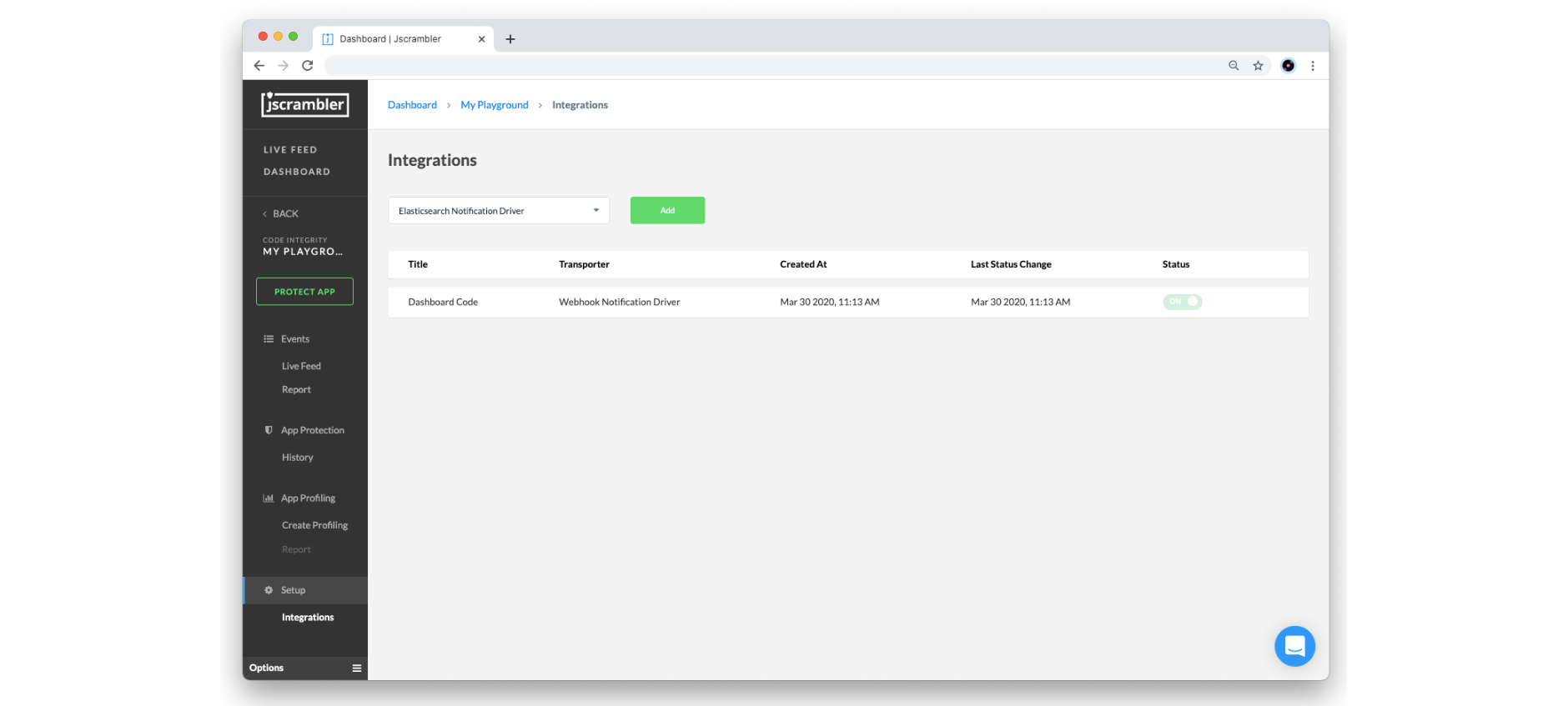
Currently, we provide two driver types that your SIEM will most likely support: Elasticsearch and Webhook. Below, we will explore how to set things up in each of these.
Elasticsearch
To set up real-time notifications with an Elasticsearch instance, select the Elasticsearch Notification driver from the dropdown box and click the “Add” button.
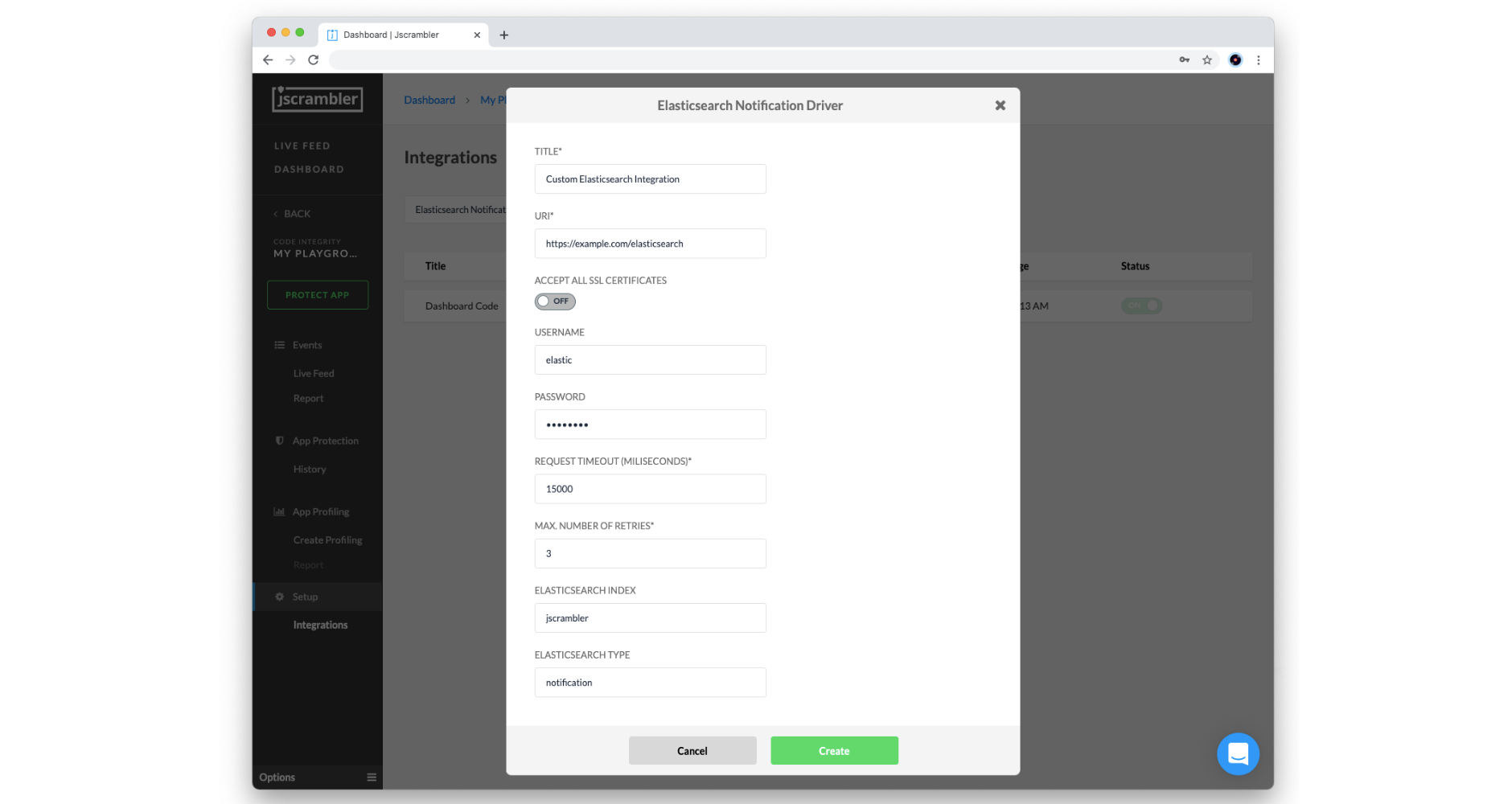
Then, you will need to configure the following parameters according to your Elasticsearch setup:
- Title: Name of this integration
- URI: Network endpoint of your Elasticsearch instance (must be publicly available)
- Accept All Certificates: turn on to allow self-signed certificates
- Username/Password: client authorization to the Elasticsearch instance
- Request Timeout (milliseconds): maximum amount of time waiting for the request to be completed
- Max. Number of Retries: number of times the service attempts to deliver the Real-Time Notification once the first attempt fails
- Elasticsearch Index: name of the Elasticsearch index where your notifications will be grouped
- Elasticsearch Type: name of the Elasticsearch type
When you are done, click on the Create button to validate and store the configured Elasticsearch integration.
Webhook
To set up real-time notifications with a Webhook, select the Webhook Notification driver from the dropdown box and click on the “Add” button.
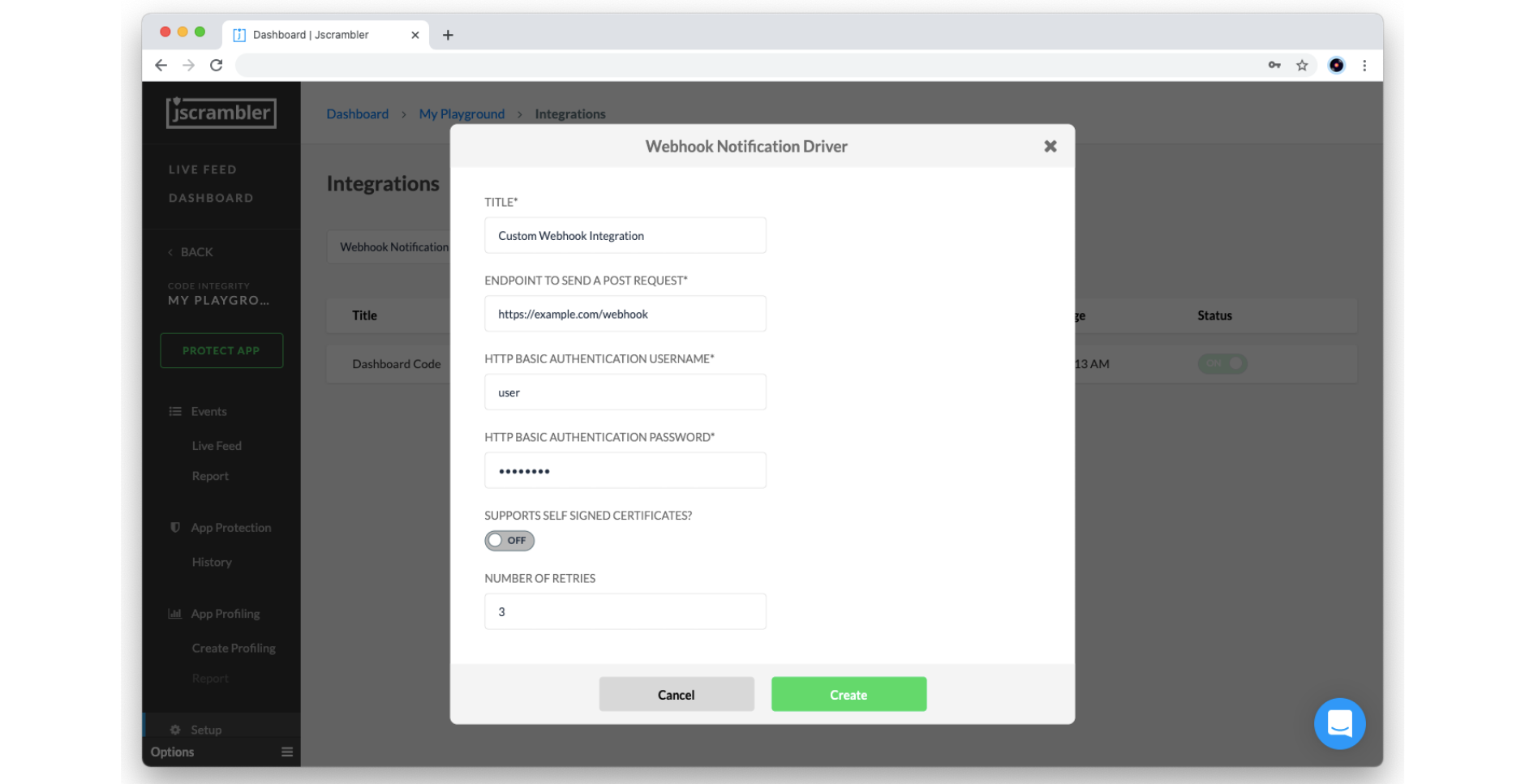
Then, you need to configure the following parameters according to your SIEM (which should be capable of receiving HTTPS requests):
- Title: Name of this integration
- Endpoint to send a POST Request: Network endpoint of your HTTP (S) server instance (must be publicly available)
- Basic Authentication Username/Password: client authorization to the HTTP (S) server
- Support Self-Signed Certificates: turn on to allow self-signed certificates
- Max. Number of Retries: number of times the service attempts to deliver the Real-Time Notification once the first attempt fails
When you are done, click on the Create button to validate and store the configured webhook integration.
And that’s all from the Jscrambler dashboard! Let’s now see how to map the notification body to the respective security alerts.
Mapping the notification body
Each real-time notification sent by Jscrambler will follow the pattern below:
{
  "title": "Real time notification",
  "description": "Code violation: j-003-00001",
  "body": {
	"0": "j-003-00001",
	"1": 1625757006491,
	"2": -60,
	"3": "Linux x86_64",
	"4": "Mozilla/5.0 (X11; Linux x86_64; rv:89.0) Gecko/20100101 Firefox/89.0",
	"5": "https://example.com/index.html",
	"8": "Gecko"
  },
  “clientIp”: “111.111.111.111”
}
To properly visualize this data in your SIEM, you should map these fields to their corresponding descriptions.
Here’s the meaning of each field in the request’s body:
| JSON selector | Field description |
|---|---|
| body[“0”] | Alert codes (see table below for a mapping reference) |
| body[“1”] | Alert timestamp in milliseconds |
| body[“2”] | Timezone |
| body[“3”] | Platform |
| body[“4”] | User Agent |
| body[“5”] | Script URL |
| body[“8”] | Navigator product |
As for the alert codes of body[“0”], find the corresponding alert description below:
| Alert code | Alert description |
|---|---|
| j-001-xxxxx | Browser Lock |
| j-002-xxxxx | Date Lock |
| j-003-xxxxx | Domain Lock |
| j-004-xxxxx | OS Lock |
| j-005-xxxxx | Self Defending |
| j-0012-xxxxx | Root/Jailbreak Detection Lock |
And that’s it! You’re done with the required configuration.
End Result
Now that you have set up your SIEM integration, you should see real-time notifications in your SIEM. In the image below, you can see a preview of the resulting dashboard using Kibana.
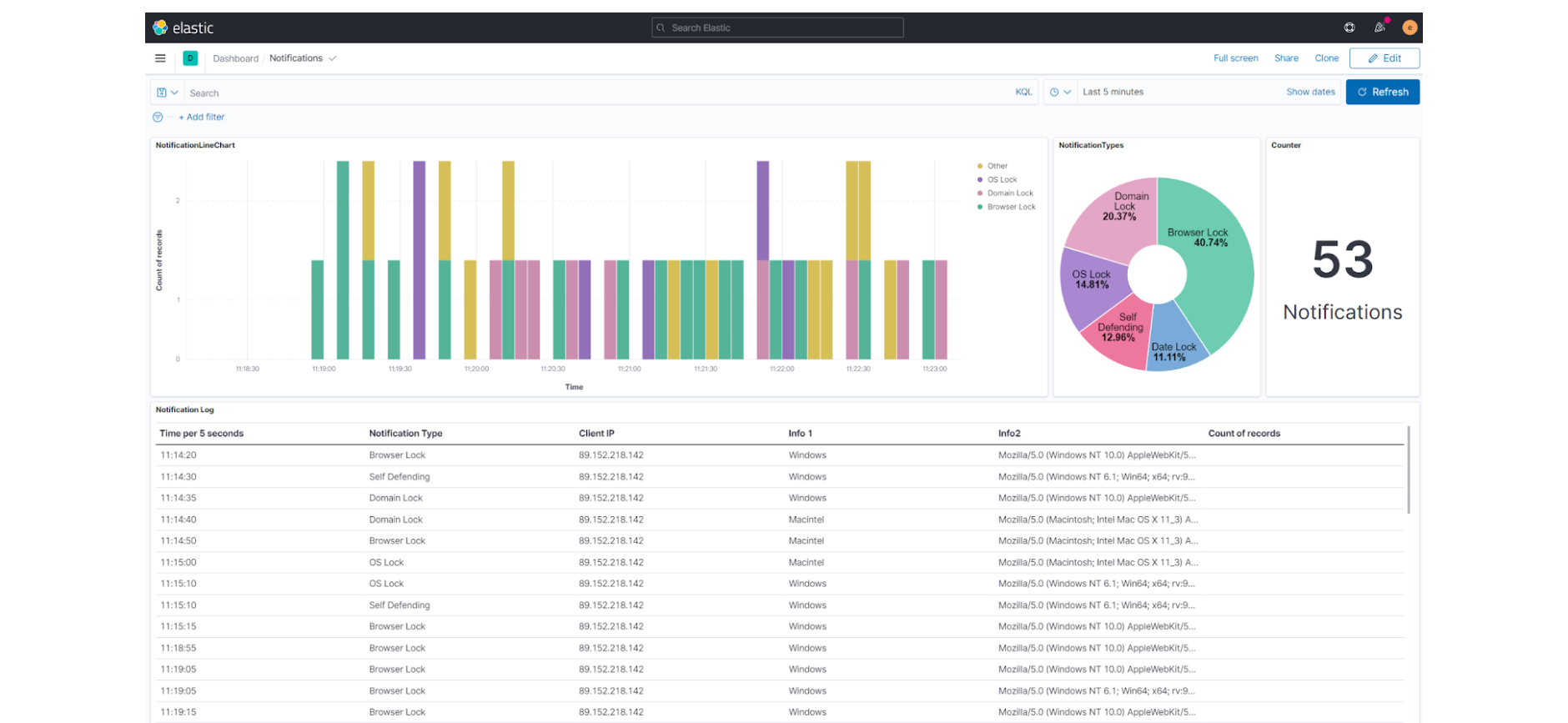
Now that you have centralized your security information in one system, it is easier to start automating your audit logs and alert checkups.
Conclusion
We have reached the end of our Jscrambler SIEM Integration tutorial.
As you saw, getting started with this feature is a simple, one-time process that will enrich your SIEM with valuable information. Don’t miss this chance to start centralizing your security information and making it easier to maintain in-depth security. Enjoy your testing. Start protecting your Applications ASAP! If you have any additional questions, feel free to contact us.