Product: Code Integrity

Time to Upgrade: Jscrambler 5.1 Replaces 3.x

Jscrambler 3.x is being retired in Q1 2018, with all 3.x cloud users migrated to Jscrambler 5.1 — a substantial upgrade across transformations, compatibility, and the overall platform experience.

The main features and benefits include:
– New and improved transformations: Including Control Flow Flattening and a more resilient Self-Defending technique, with several transformations now working together for stronger protection.
– Targets: Choose exactly which JavaScript primitive types or expressions a transformation should apply to.
– ES2015 compatibility: Jscrambler is now fully compliant with the ES2015 spec.
– Fresh features: Randomization Seed, Source Maps, and more flexible Code Annotations join the platform.
– New Node CLI: Customize how your workflows interact with the Jscrambler API.
– Refreshed UI and App Dashboard: A revamped interface streamlines protection and project organization.

Migrating from 3.x requires converting your JSON configuration and reviewing Code Annotations; custom templates are migrated automatically, and default templates have been updated to reflect the new features.

Jscrambler 101 — How to use the CLI

Last updated on May 5th, 2023

Welcome back to Jscrambler 101! A collection of tutorials on how to use Jscrambler to protect your JavaScript. These tutorials cover Jscrambler version 8.1.


Introduction – How to Use the CLI


Last time, we talked about Jscrambler’s Code Locks and how they can protect your JavaScript and enforce licenses.

We’ve decided to step back from transformations and show you a simple way to protect your code with our command-line interface (CLI).

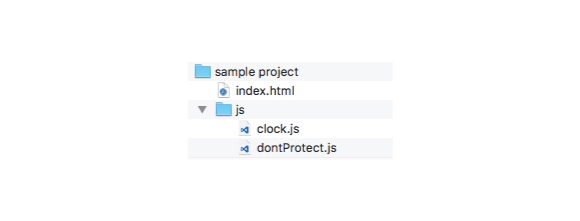
Let’s take a sample project:

sample-project-jscrambler

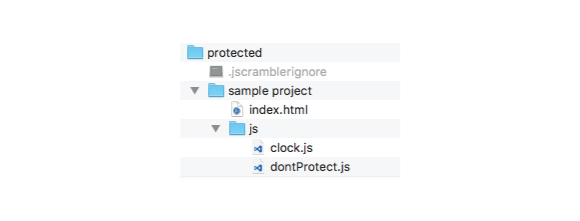
Note that there’s a subfolder structure. Inside the js folder, we have a dontProtect.js file that we don’t want to protect with Jscrambler, but we do want to protect the clock.js and the index.html files.

Ignore files

We’ll start by creating a .jscramblerignore file in order to ignore the dontProtect.js file.

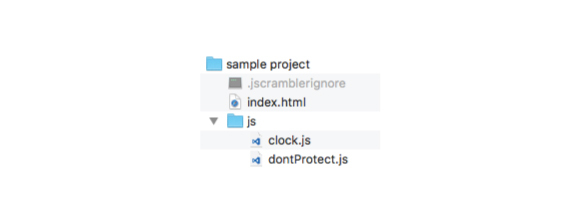
The .jscramblerignore file must be placed at the root of your project. The level where you should place this file depends on how you plan to zip your project.

If you will zip the project from inside the sample project folder, the .jscramblerignore file should be at the same level as index.html.

ignore-files-example

As such, the .jscramblerignore file should include the following:

js/dontProtect.js

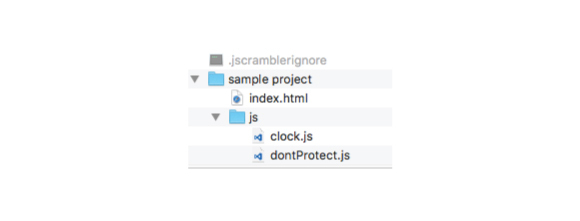
If you want to include the sample project folder in your zip file, then the .jscramblerignore file should be at the same level as this folder.

ignore-files-second-step-tutorial

In this case, the .jscramblerignore file should have the following:

sample project/js/dontProtect.js


You can also use .jscramblerignore for folders, and to include certain files in the protection process. For example:

#ignore all files in js folder
sample project/js/

#except for clock.js
!sample project/js/clock.js

Now, we’re ready to protect our application using the CLI.

Download jscrambler.json

First, we have to go to Jscrambler’s Dashboard and create an application by clicking the Create App button.

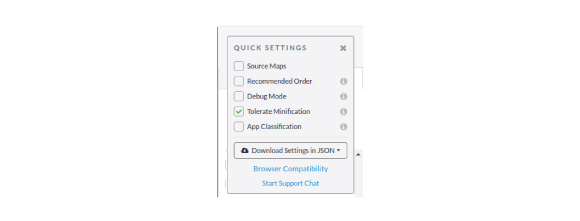
Once you’re inside the app, select the Application Modes and the Transformations you want to apply (or select a template). Then download your selections to a jscrambler.json file by clicking the lower cogwheel in the top-right corner of the screen, then selecting “Download Settings in JSON”. It will give you 2 options: No Secrets or All Parameters. Since the Jscrambler secrets are required to use the CLI, for the sake of this tutorial, you can download the file with All Parameters.

download-jscrambler-json-example

Installing the CLI

Let’s continue by installing the CLI through Node’s package manager:

npm install -g jscrambler

Now let’s zip our project, and remember to include the .jscramblerignore file. For simplicity, we will place our jscrambler.json file next to the zip file, but they can be in different locations.

Now, open your terminal, and after navigating to the same folder where you have your zip and jscrambler.json file, run the following:

jscrambler -c jscrambler.json -o protected sampleProject.zip

This will protect sampleProject.zip and place it in the protected folder.

sampleProject-zip-jscrambler-tutorialNow, you can test if the protection worked correctly. If you open the dontProtect.js file, you’ll notice that no changes occurred in this file. All other JavaScript files which were not included in dontProtect.js will be protected.

You can find further information about the Jscrambler CLI options.

Integrations with Frameworks and Libraries

In case you’re using a specific JavaScript framework or library, see our integration tutorials below:


Conclusion

Feel free to proceed to one of our other 101 Tutorials. Enjoy your testing and start protecting your Applications ASAP! If you have any additional questions, feel free to contact us.

Jscrambler 101 – Code Locks

Last updated on August 16th, 2023

Welcome back to Jscrambler 101! A collection of tutorials on how to use Jscrambler to protect your JavaScript. These tutorials cover Jscrambler version 8.2.

Introduction: Code Locks

Last time, on Jscrambler 101 – Control Flow Flattening, we talked about Control Flow Flattening and its properties against reverse engineering.

This time, we’re going to explore Code Locks.

If JavaScript-based apps are a central part of your business, whether standard JavaScript, mobile web applications, or HTML5, you will want to prevent someone who didn’t pay or whose license has expired from executing your code.

In cases where the app handles sensitive data or critical operations, you will want to prevent the app from running on dangerous devices. This is where our Code Locks come into play.

Code Locks

Jscrambler allows you to lock your code to a predefined list of domains, browsers, and operating systems and set expiration dates.

By using them, you can limit the execution of your code to a given set of browsers, a time frame (avoid demos runnable after the preview period is over), a given domain (usually yours), a particular operating system, or to devices that have not been rooted or jailbroken (dangerous devices).

This means, for example, that you can deliver expirable demos to your clients without risking code or client loss.

Code Locks can trigger a function when someone tries to execute the code outside of the set parameters. You define this function inside the unprotected code, and it can warn you when this unwanted behavior occurs.

Application Locks

Date Lock

As the name suggests, Date Locks lock the code to a period.

You can lock the code to run until a certain date, after a specific date, or between two dates.

You do this by setting the startDate, the endDate, or both. This can help enforce license expiration or send out demos of your code.

If we observe the following API parameters, we can see that the protected code will run from 01-09-2018 to 10-09-2018. If someone runs the code outside these dates, the warningFunc function would trigger.

{
// keys
 "params": [
   {
     "name": "dateLock",
     "options": {
       "startDate": "2018-09-01",
       "endDate": "2018-09-10",
       "warningFunction": "warningFunc"
     }
   }
 ]
}


Domain Lock

Domain Lock locks a code to a domain name or IP address. It helps prevent someone from copying your code and running it on another domain or locally.

Again, it’s a great option if you want to enforce license agreements.

Some accepted examples are:

  • mysite.com: code breaks outside of mysite.com
  • mysite.com, www.mysite.com: code breaks outside of mysite.com or www.mysite.com
  • *.mysite.com: code breaks outside of mysite.com and its subdomains
  • 192.168.*: The code breaks if it runs on an IP outside of the 192.168 network
  • file://Users/you/*: code breaks outside of your user directory

As for the API, several domains can be inserted in a list, like this:

{
// keys
"params": [
   {
     "name": "domainLock",
     "options": {
       "domains": [
         "Domain1",
         "Domain2"
       ],
       "warningFunction": "VALUE"
     }
   }
 ]
}


Platform Locks

Browser Lock

Browser Locks lock the code to a list of Browsers. If you want to enforce license agreements, consider using this transformation.

The browser list works as an allow list, meaning the code can run only on the selected browsers.

As an example, if we observe the following API Parameters, the protected code will only run on Firefox and Chrome:

{
 "keys": {
   "accessKey": "XXXXXX",
   "secretKey": "YYYYYY"
 },
 "applicationId": "ZZZZZZ",
 "params": [
   {
     "name": "browserLock",
     "options": {
       "browsers": [
         "firefox",
         "chrome"
       ]
     }
   }
 ]
}


OS Lock

OS Lock locks the code to a list of operating systems. It’s useful for forcing apps to run on a specific platform.

Like Domain locks and Browser locks, you can use this for license enforcement.

Once again, the OSes can be defined in a list inside the API parameters:

{
// keys
"params": [
   {
     "name": "osLock",
     "options": {
       "oses": [
         "linux",
         "windows",
         "osx",
         "tizen",
         "android",
         "ios"
       ],
       "warningFunction": "VALUE"
     }
   }
 ]
}


Root/Jailbreak Detection Lock

When users root (Android) or jailbreak (iOS) their devices, they become more susceptible to attacks like data exfiltration. This lock prevents the whole app (or some application features) from running on these dangerous devices.

You can also add this lock to specific parts of the code using Code Annotations:

// @jscrambler define rootJailbreakDetectionLock {countermeasures: {breakApplication: 1, customCallback: testFunction}} as rj1
// @jscrambler enable rj1


Conclusion

Using Code Locks helps you protect your code by enforcing licenses and preventing it from running outside your set parameters, whether a Browser, Date, Domain, Operating System, or a Rooted or Jailbroken device.

Select one or more locks and use your domain, current date, browser, or operating system, depending on which locks you have selected, to have the app run properly.

After that, you can select a domain you don’t own, previous or later dates, a different browser, and an operating system from the ones you have, and you’ll see that the protected code won’t run properly.

Enjoy your testing. Start protecting your Applications today!

Jscrambler 101 — Control Flow Flattening

Last updated on August 23rd, 2023

Welcome back to Jscrambler 101! A collection of tutorials on how to use Jscrambler to protect your JavaScript. These tutorials cover Jscrambler version 8.2.

Introduction: Control Flow Flattening

Last time, on Jscrambler 101 — Self Defending, we covered using Self Defending and its anti-tampering and anti-debugging capabilities. This time, we will talk about Control Flow Flattening.

Control Flow Flattening

Control Flow Flattening aims to obfuscate the program flow by flattening it.

To achieve this, the transformation splits all the basic blocks of the source code, such as function body, loops, and conditional branches, and puts them all inside a single infinite loop with a switch statement that controls the program flow.

This makes the program flow significantly harder to follow because the natural conditional constructs that made the code easier to read are now gone.

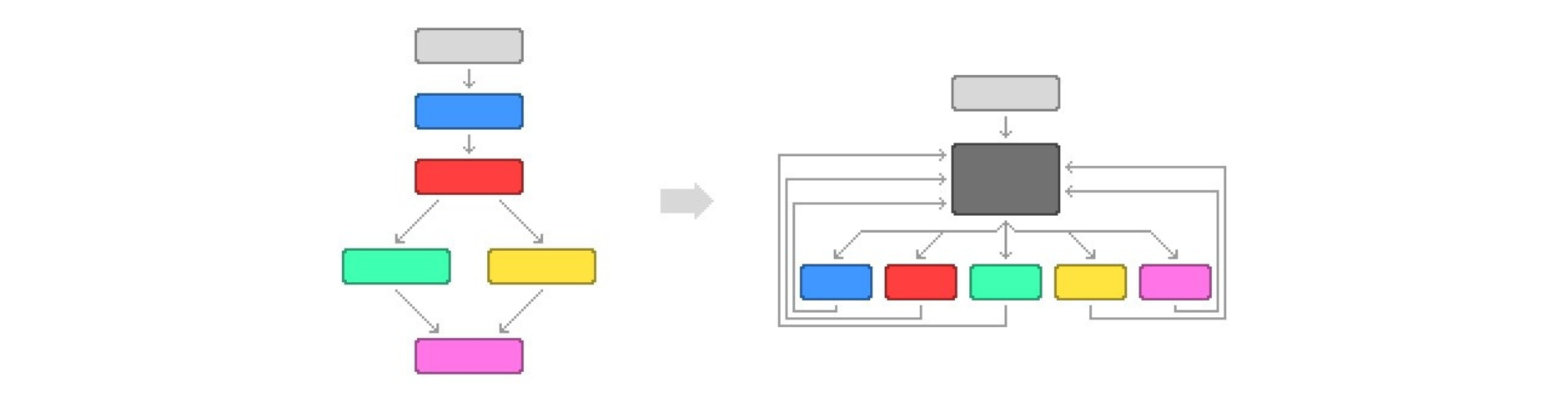
The following diagram is an abstract representation of what happens to control flow. It depicts a simplification of what a Control Flow Graph (CFG) would look like before (on the left) and after (on the right) flattening the program flow with a Static Code Analysis Tool.

diagram-about-control-flow-flattening-process

The CFG on the left has not yet been flattened, and because of that, it is easy to pinpoint conditional statements like the red node that creates a forked path (also known as branches) to the green and orange nodes.

We can see that, after flattening the control flow, the CFG nodes are all on the same nesting level, switching and looping back to the black node to choose the next node to go to.

Control Flow Flattening offers parameterization, allowing it to increase confusion when trying to reverse engineer it and resilience against static code analysis.

Clones

Clones are semantically equivalent copies of basic blocks that can be executed interchangeably with their original basic blocks.
Control-Flow-Flattening-ClonesBy adding these semantically equivalent clones and making the program choose randomly between them, we are adding to the confusion and making the program flow harder to understand.

Dead Clones

Dead Clones are dummy copies of basic blocks that are never executed but mimic and can be confused with the code that will be executed, adding to the confusion factor.
control-flow-flattening-Dead-ClonesDepending on the size and complexity of the source code, Jscrambler may choose not to add dead clones if it determines that they aren’t needed. This will result in a smaller code.

Opaque Steps

Opaque Steps obfuscates the switching variable, making it harder to understand what’s the next switch case that’ll be executed.
control-flow-flattening-Opaque-stepsThis improves the resilience against static code analysis, as opaque steps make it harder for static code analysis to determine the next step without actually executing the code.

Therefore, reversing such a transformation into its unflattened equivalent becomes much harder.

Conclusion

Protecting your application with Control Flow Flattening makes it troublesome to follow the program flow, making it almost impossible to understand and reverse-engineer.

This allows you to add conditional opaqueness, flatten the control flow, and add confusion with irrelevant code clones.

Combining it with other Jscrambler protection transformations is safe, works out of the box, and results in more potent and resilient protection. Also, remember to test it out on the Jscrambler Web App. Enjoy your testing.

Start protecting your Applications ASAP! If you have any additional questions, contact our client-side security experts.

Jscrambler 4.0: Untraceable Protection and App-Centric Platform

Jscrambler 4.0 is a major breakthrough for JavaScript security, reworking the platform around application management while adding new transformations and finer control over how protection is applied.

The main features and benefits include:
– Untraceable protection: Transformations now work together so your code takes a distinct, newly obfuscated form on every run, leaving no consistent trace for attackers to study.
– 18 new transformations: Including full control-flow flattening and regular-expression hiding, adding to Jscrambler’s existing library of unique protection techniques.
– App-centric platform: Create, version, and manage web, mobile, and Node.js applications in one place, with clear visibility into how each version is protected and deployed.
– Side-to-Side comparison tool: Preview original and transformed code side by side, and choose exactly which targets (strings, classes, functions, and more) to transform in real time.
– Code annotation controls: Enable or disable transformations, change transformation parameters, or reorder transformations directly via code comments on the Ignore Code Blocks feature.

Jscrambler 3.8: Fine-Grained Control Over Identifier Renaming

Jscrambler 3.8 gives you precise control over which public identifiers get renamed, making Rename All safe to use instead of settling for Rename Local.

The main features and benefits include:
– Unsafe Mode: Renames every identifier except those from HTML5/JS native APIs, regardless of whether they’re defined — maximum potency, with some risk of breaking undefined references.
– Safest Mode: Only renames identifiers whose definition is found in your source code, avoiding the errors that come with renaming undefined references.
– Include and Exclude Lists: Force specific identifiers to always be renamed (Include) or never be renamed (Exclude), regardless of which mode you’re using — giving you the final word if something breaks.
– Stronger obfuscation: Targeting more identifiers means more of your code’s meaning is stripped away, and those newly-targeted names are also caught by other transformations for a more resilient result.

Jscrambler 3.7: Broader Framework Compliance and JavaScript’s Next Chapter

Jscrambler 3.7 protects all the main JavaScript libraries and frameworks with the most compliant version of Jscrambler yet, and laying the groundwork for ECMAScript 6 support.

The main features and benefits include:
– Broader framework compliance: Jscrambler now handles edge cases across popular libraries and frameworks, including AngularJS custom HTML attributes (module and controller names) and RequireJS module loaders that require special transformation behavior.
– Automated compliance testing: A new automatic testing process continuously verifies compliance against current libraries and frameworks. Compliance test results are available for you to review, and you can submit your own or third-party libraries to be added to the test suite.
– ECMAScript 6 (Harmony) groundwork: Jscrambler introduces JavaScript strict mode compatibility and protection for Harmony generators, laying the foundation to support ES6 features as they roll out across major browsers.
– Atom editor integration: A new plugin lets you request obfuscation directly from GitHub’s Atom text editor, speeding up your protection workflow. (Note: this Atom package was deprecated in 2019.)
– Domain Lock and Expiration Date messaging: Communicate directly with your application’s users when protection stops it from running, whether due to an unauthorized domain or an expired subscription, improving the user experience and reducing support friction.