Product: Code Integrity

Jscrambler 8.0: VM-Based Obfuscation, Memory Protection, and Root/Jailbreak Detection

The central theme of Jscrambler 8.0 is a massive leap forward in anti-reverse engineering capabilities, headlined by the introduction of our groundbreaking VM-Based Obfuscation alongside enhanced AWS compatibility. This milestone release also highlights powerful capabilities introduced in recent minor versions, including Memory Protection, Root/Jailbreak Detection, and Data Exfiltration Prevention. Rated as a high-potency, high-resilience transformation, VM-Based Obfuscation radically raises the barrier for attackers by shifting from traditional JavaScript obfuscation to a compiler-based approach that translates your source code into low-level binary machine code.

When applied strategically via Code Annotations, the feature embeds this binary payload inside a heavily obfuscated JavaScript wrapper file that acts as a secure, specialized Virtual Machine (VM) to interpret the code at runtime. Because reverse-engineering binary code requires an entirely different, highly specialized skill set compared to JavaScript, static analysis becomes exceptionally difficult. Furthermore, the compilation process is fully polymorphic, generating a completely unique binary architecture and “language” with every single build, ensuring that any progress an attacker makes is entirely neutralized on the next deployment.

Jscrambler 7.3: Faster Code Protection

Jscrambler 7.3 brings the major feature advancements from our 7.2 Stable version directly into the latest release cycle. This milestone introduces full compatibility with ECMAScript 2020 specifications, allowing development teams to seamlessly secure modern JavaScript syntax and coding patterns. Alongside this updated language support, the core highlight of version 7.3 is a massive optimization of our underlying code protection engine, engineered to eliminate deployment bottlenecks and significantly streamline development pipelines.

By implementing horizontal scalability across all deployments, Jscrambler has dramatically accelerated processing speeds, delivering protection times up to 5 times faster. This performance breakthrough is especially impactful for enterprise-grade applications and continuous integration (CI) workflows that manage large codebases with hundreds of files. With this upgrade, organizations can maintain an aggressive, high-potency security posture without introducing friction or overhead to their automated build and delivery pipelines.

Jscrambler 101 — SIEM Integration

Welcome back to Jscrambler 101, a collection of tutorials on how to use Jscrambler to protect your JavaScript. This tutorial is about SIEM integration and covers Jscrambler version 7.2.

Introduction

Last time, in Jscrambler 101: Memory Protection, we explored a new Jscrambler feature that ciphers sensitive data using cryptographic algorithms, allowing the application to decipher it only when it needs to access it.

This time, we’re going to explore SIEM Integration, a new Jscrambler feature that lets you forward and aggregate the valuable security Information Jscrambler provides into a SIEM (e.g., Elasticsearch, Splunk).

SIEM Integration

From Jscrambler version 6.0 onwards, we provide a JavaScript Threat Monitoring module that displays a real-time notification on the Jscrambler dashboard as soon as a violation occurs, such as the client’s JavaScript code being tampered with or used in a different environment or date from the one(s) that are set on the protection configuration.

With SIEM Integration, you can access all that valuable information from one place and automate audit log review and alerting.

Setting up your SIEM Integration

To set up the integration between Jscrambler and your SIEM, you need to configure a Jscrambler notification driver and map the fields of the notification body. Let’s explore these steps below.

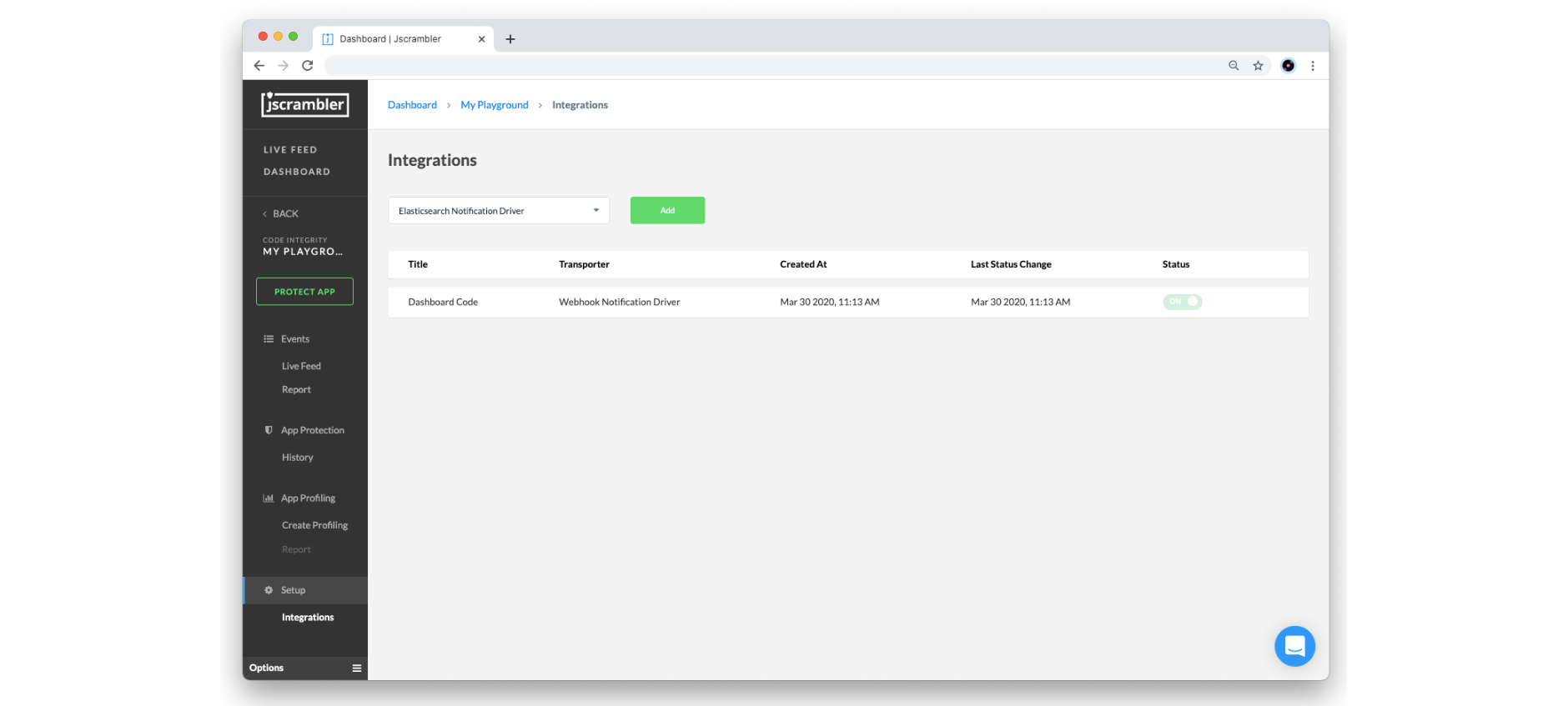
To access the SIEM Integrations page, go to the Jscrambler dashboard, select the target application, and then click the “Integration” link under the Setup section.

siem-integration-jscrambler-dashboard-setup-section

Currently, we provide two driver types that your SIEM will most likely support: Elasticsearch and Webhook. Below, we will explore how to set things up in each of these.

Elasticsearch

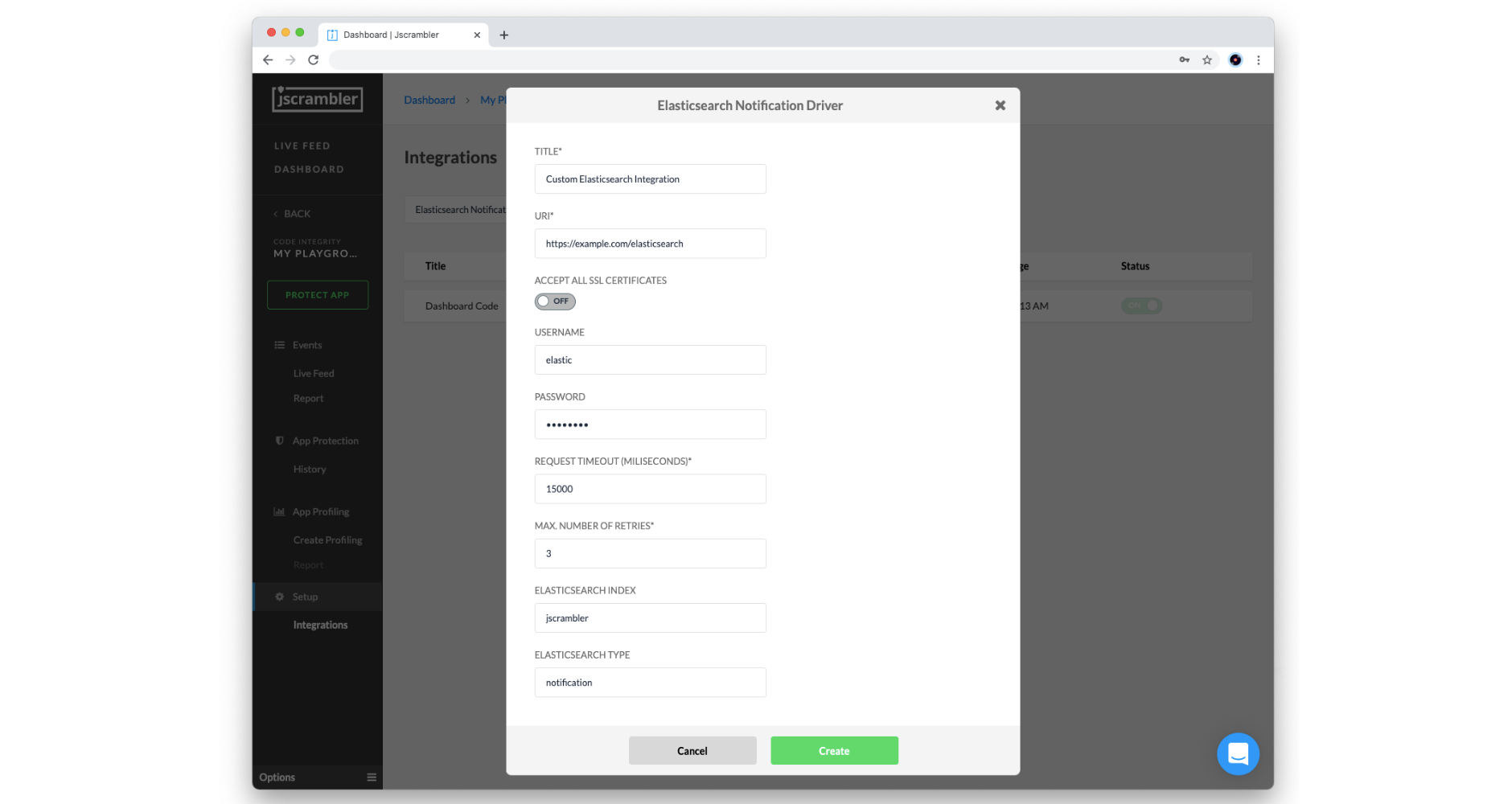
To set up real-time notifications with an Elasticsearch instance, select the Elasticsearch Notification driver from the dropdown box and click the “Add” button.

set-up-real-time-notifications-with-Elasticsearch-instance

Then, you will need to configure the following parameters according to your Elasticsearch setup:

  • Title: Name of this integration
  • URI: Network endpoint of your Elasticsearch instance (must be publicly available)
  • Accept All Certificates: turn on to allow self-signed certificates
  • Username/Password: client authorization to the Elasticsearch instance
  • Request Timeout (milliseconds): maximum amount of time waiting for the request to be completed
  • Max. Number of Retries: number of times the service attempts to deliver the Real-Time Notification once the first attempt fails
  • Elasticsearch Index: name of the Elasticsearch index where your notifications will be grouped
  • Elasticsearch Type: name of the Elasticsearch type

When you are done, click on the Create button to validate and store the configured Elasticsearch integration.

Webhook

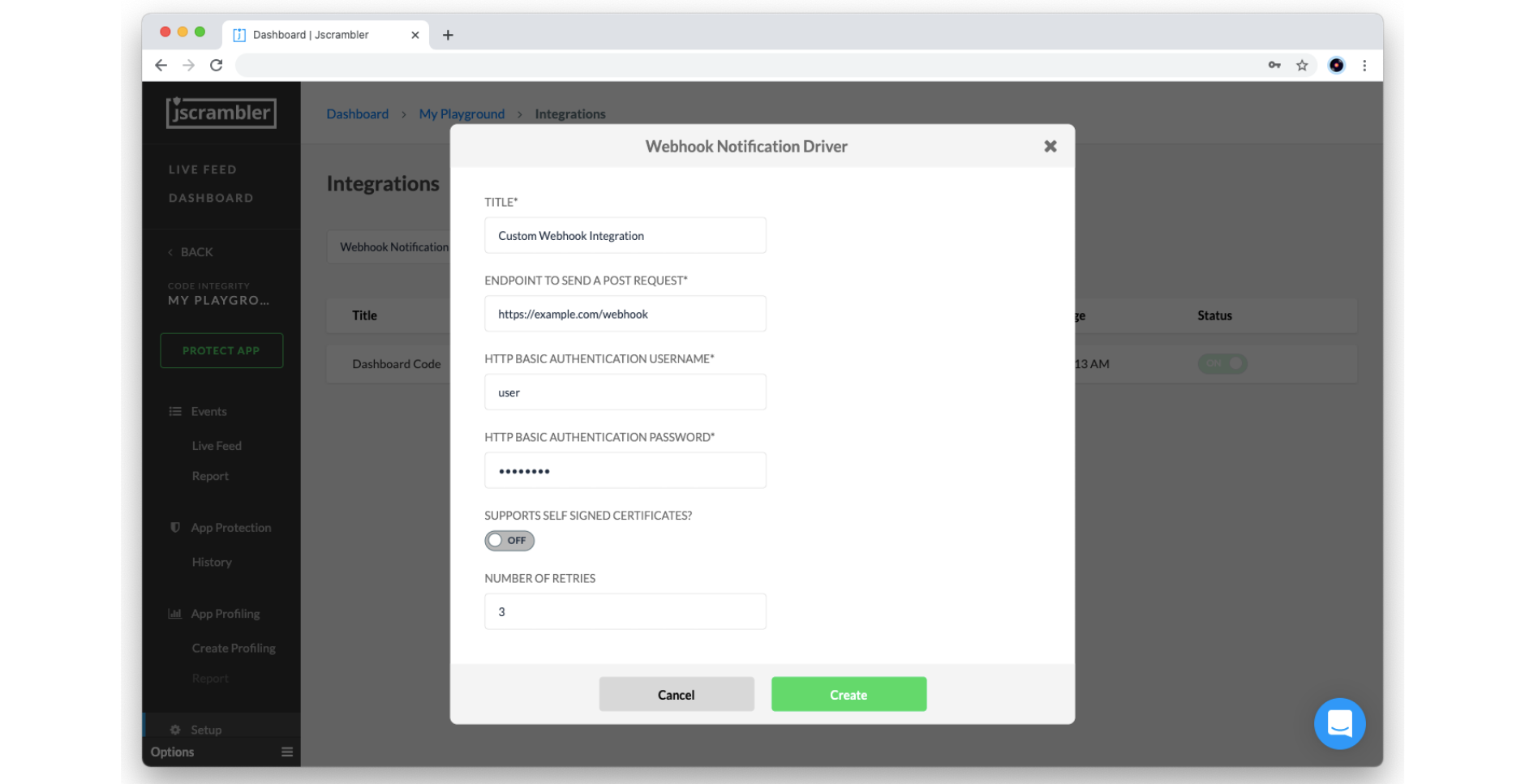
To set up real-time notifications with a Webhook, select the Webhook Notification driver from the dropdown box and click on the “Add” button.

set-up-real-time-notifications-with-webhook

Then, you need to configure the following parameters according to your SIEM (which should be capable of receiving HTTPS requests):

  • Title: Name of this integration
  • Endpoint to send a POST Request: Network endpoint of your HTTP (S) server instance (must be publicly available)
  • Basic Authentication Username/Password: client authorization to the HTTP (S) server
  • Support Self-Signed Certificates: turn on to allow self-signed certificates
  • Max. Number of Retries: number of times the service attempts to deliver the Real-Time Notification once the first attempt fails

When you are done, click on the Create button to validate and store the configured webhook integration.

And that’s all from the Jscrambler dashboard! Let’s now see how to map the notification body to the respective security alerts.

Mapping the notification body

Each real-time notification sent by Jscrambler will follow the pattern below:

{
  "title": "Real time notification",
  "description": "Code violation: j-003-00001",
  "body": {
	"0": "j-003-00001",
	"1": 1625757006491,
	"2": -60,
	"3": "Linux x86_64",
	"4": "Mozilla/5.0 (X11; Linux x86_64; rv:89.0) Gecko/20100101 Firefox/89.0",
	"5": "https://example.com/index.html",
	"8": "Gecko"
  },
  “clientIp”: “111.111.111.111”
}

To properly visualize this data in your SIEM, you should map these fields to their corresponding descriptions.

Here’s the meaning of each field in the request’s body:

JSON selector Field description
body[“0”] Alert codes (see table below for a mapping reference)
body[“1”] Alert timestamp in milliseconds
body[“2”] Timezone
body[“3”] Platform
body[“4”] User Agent
body[“5”] Script URL
body[“8”] Navigator product

As for the alert codes of body[“0”], find the corresponding alert description below:

Alert code Alert description
j-001-xxxxx Browser Lock
j-002-xxxxx Date Lock
j-003-xxxxx Domain Lock
j-004-xxxxx OS Lock
j-005-xxxxx Self Defending
j-0012-xxxxx Root/Jailbreak Detection Lock

And that’s it! You’re done with the required configuration.

End Result

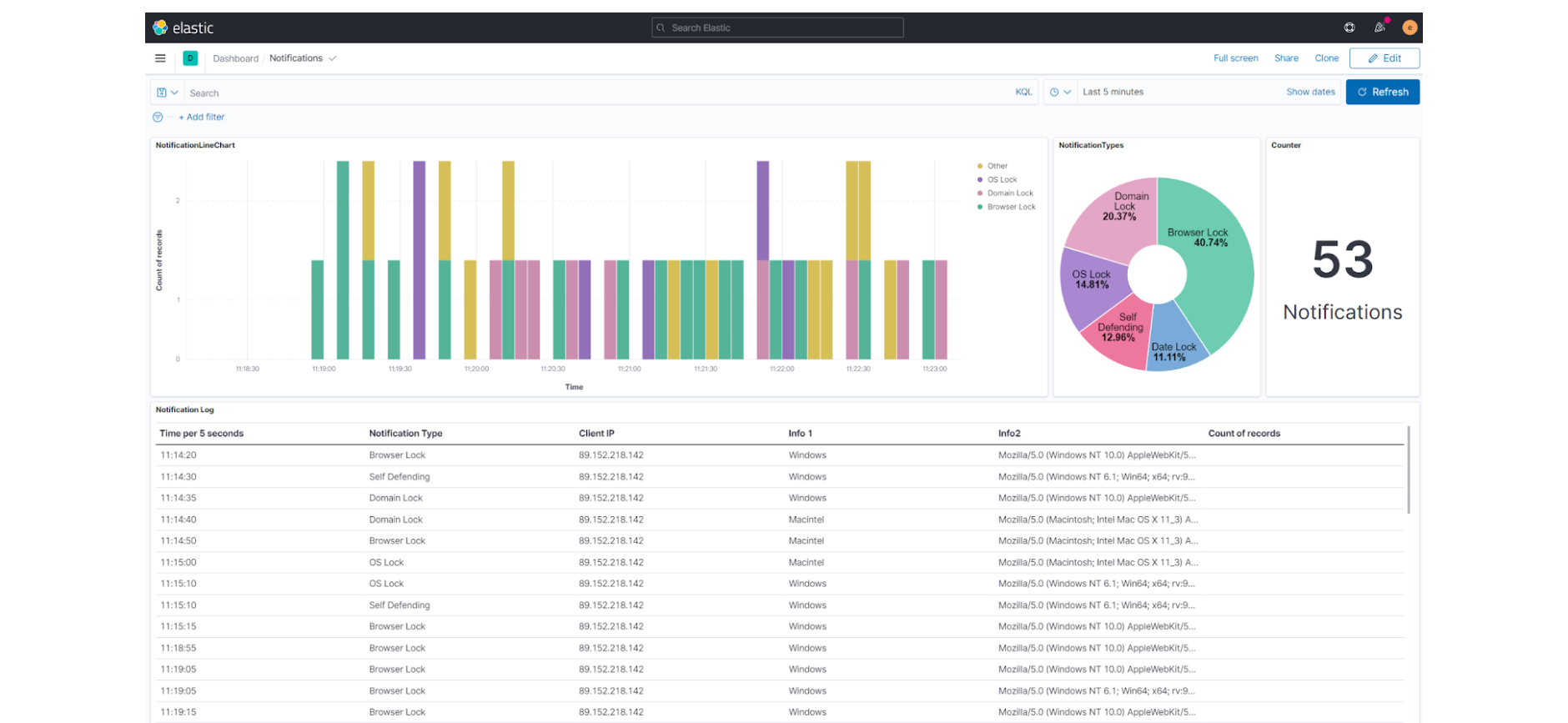
Now that you have set up your SIEM integration, you should see real-time notifications in your SIEM. In the image below, you can see a preview of the resulting dashboard using Kibana.

set-up-real-time-notifications-with-webhook

Now that you have centralized your security information in one system, it is easier to start automating your audit logs and alert checkups.

Conclusion

We have reached the end of our Jscrambler SIEM Integration tutorial.

As you saw, getting started with this feature is a simple, one-time process that will enrich your SIEM with valuable information. Don’t miss this chance to start centralizing your security information and making it easier to maintain in-depth security. Enjoy your testing. Start protecting your Applications ASAP! If you have any additional questions, feel free to contact us.

Jscrambler 7.2: SIEM Integration, Data Exfiltration Prevention, ChromeOS lock, and global built-in names obfuscator

Jscrambler 7.2 introduces powerful ecosystem integrations and advanced runtime defenses, headlined by native SIEM Integration and a new Data Exfiltration Prevention countermeasure. Building on our real-time JavaScript Threat Monitoring, the SIEM Integration allows enterprise clients to automatically forward and aggregate security violation logs, such as code tampering or environment lock breaches, directly into platforms like Splunk and Elasticsearch. By enriching existing security dashboards with Jscrambler’s real-time runtime insights, security teams can seamlessly centralize their audit logs, streamline security operations, and automate threat alerting within the monitoring tools they already use.

To further mitigate runtime threats, this release introduces a groundbreaking Data Exfiltration Prevention countermeasure alongside a ChromeOS environment lock and an optimized global built-in names obfuscator. When a tampering or debugging attempt triggers Jscrambler’s defenses, this new countermeasure instantly blocks the application from transmitting data to external networks or unauthorized third-party services. Working seamlessly across browsers, Node.js, and hybrid frameworks like React Native, this feature provides a critical layer of data protection that actively stops data leakage and secures sensitive user information the moment a breach is detected.

Jscrambler 101 — Memory Protection

Welcome back to Jscrambler 101! A collection of tutorials on how to use Jscrambler to protect your JavaScript. This tutorial covers Jscrambler version 7.1.

Introduction

Last time, on Jscrambler 101 — App Classification, we explored a new Jscrambler feature that classifies your apps and adjusts Jscrambler’s protections to maximize their security and performance.

This time, we’re going to explore Memory Protection, a new Jscrambler feature that increases the security of sensitive data in your apps.

Memory Protection

In Web and Mobile applications, sensitive data often passes through the client-side. More specifically, values stored in memory can be accessed and tampered with at runtime.

Attackers’ motivations to exploit the app’s memory may vary from lower-risk to critical-risk. Generally, they will do it for one of these reasons:

  • to reverse-engineer the code and understand its mechanics;
  • to modify the app’s behavior and, for example, access new features;
  • to access and retrieve sensitive data, for example, in Contact Tracing apps.

In comes Memory Protection, is a new Jscrambler feature that ciphers sensitive data using cryptographic algorithms, only allowing the data to be deciphered when it needs to be accessed by the application.

Memory Protection can be applied to strings and numbers that are present in complex structures like objects and arrays.

Memory Attack Example

Let’s look at an attack example using our Jscrambler Racer HTML5 app.

In this simple HTML5 game, you do some laps with a racing car, attempting to keep your lap time as low as possible. We even have a Fastest Lap scoreboard at the top.

Jscrambler Racer Screenshot

Without question, a next-gen AAA racing game.

So let’s assume we are an attacker wanting to cheat by changing our current lap time. This is a perfect example of a value that’s typically stored in memory.

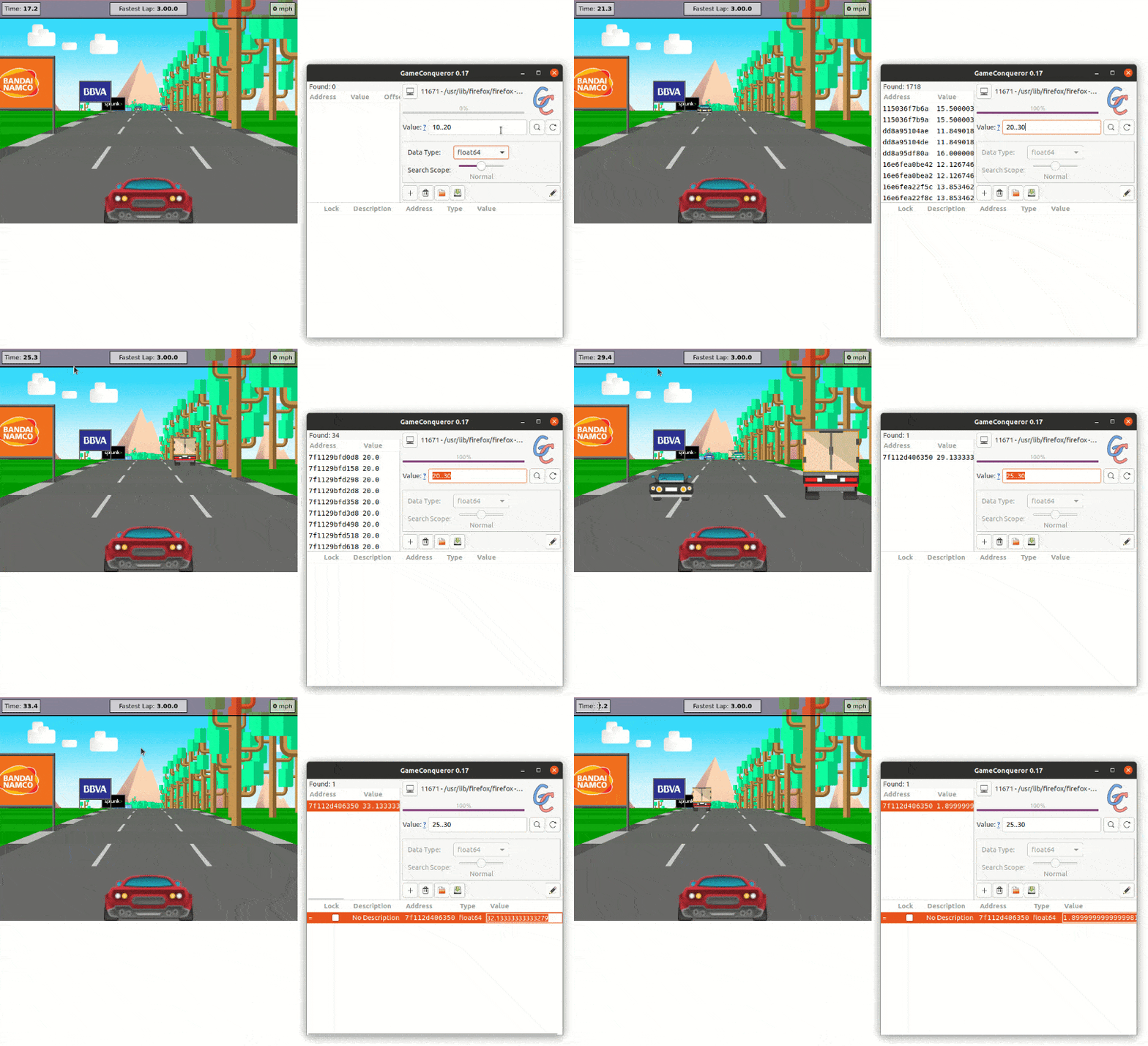
So, using one of many widely available tools for tampering with the memory, we can start looking for the Time value by trial and error at runtime.

So, when the time is at 15 seconds, we can look for values between 10 and 20. This retrieves 1718 results. Then, we keep refining our search as the time increases and, when we finally get 1 result, we can directly modify its value. Et voilà, we are now the best Jscrambler Racer player of all time.

Memory Protection Example

Memory Protection Example

Now, let’s look at how this attack would unfold if this app’s JavaScript and HTML5 code were protected using Jscrambler with the Memory Protection feature.

First off, we need to upload our app to the Jscrambler Web app and open the file that contains its source code.

We can apply Memory Protection using Code Annotations. In our example, we want to protect the function that handles the Time value:

// @jscrambler enable memoryProtection
function () {
    // other variables
    var currentLapTime = 0;
    var lastLapTime    = null;
    var keyLeft        = false;
    var keyRight       = false;
    var keyFaster      = false;
    var keySlower      = false;
    var hud = {
      speed:            { value: null, dom: Dom.get('speed_value')            },
      current_lap_time: { value: null, dom: Dom.get('current_lap_time_value') },
      last_lap_time:    { value: null, dom: Dom.get('last_lap_time_value')    },
      fast_lap_time:    { value: null, dom: Dom.get('fast_lap_time_value')    }
    }
    // other nested functions below
    function update(dt) {
      var n, car, carW, sprite, spriteW;
      // other variables in nested functions
    }
}

Using the settings we defined above, Memory Protection will be applied both to the primary function and all nested functions.

Because we know that these nested functions don’t pose a security risk, we should disable Memory Protection on them to ensure maximum performance of the protected app.

We do this by adding the // @jscrambler disable memoryProtection code annotation before each nested function:

// @jscrambler enable memoryProtection
function () {
    // variables
    }
    // other nested functions below
    // @jscrambler disable memoryProtection
    function update(dt) {
      // variables in nested functions
    }
}

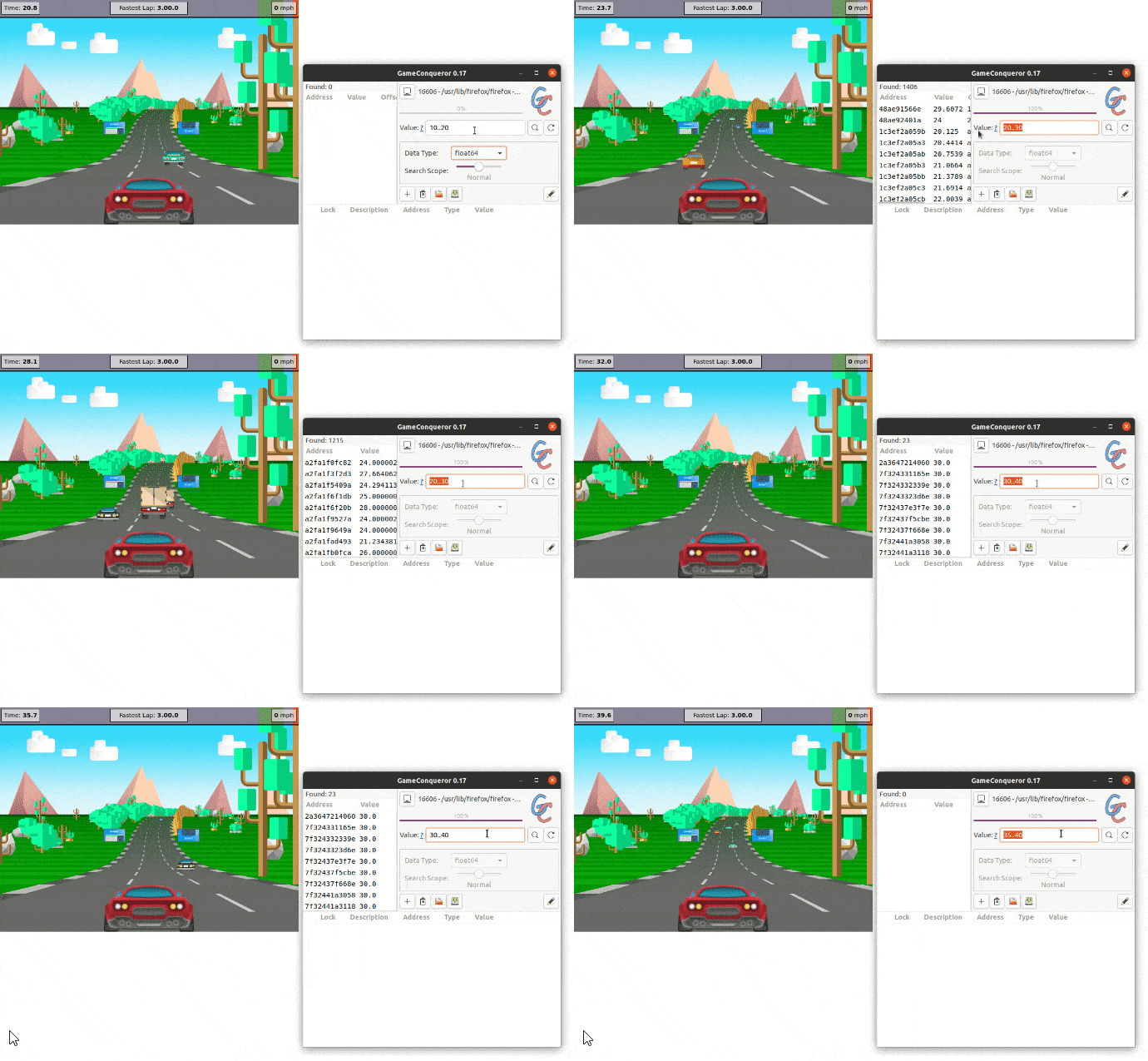
Now that we have added Memory Protection to all high-risk objects, we can protect the app and run the newly protected version. Let’s try to replicate the attack on the protected app.

Memory Protection Example ProtectedAs we can see, Memory Protection prevents the attacker from gaining access to the value in memory, eventually getting 0 results.

Use Cases

Looking back at the 3 main scenarios for memory attacks that we presented earlier, our demo above is a good example of “modifying the app’s behavior and, for example, accessing new features”. So, changing values stored in memory can allow attackers to cheat.

However, another very significant scenario is with applications that handle critically sensitive data, such as government, healthcare, and financial apps. In those, an attack on the memory can have devastating results, with the exfiltration of extremely sensitive user data when certain conditions are met.

Conclusion

And so we reach the end of our Jscrambler Memory Protection tutorial.

As you’ll see in our upcoming tutorials, this is one of the new Jscrambler features aimed at protecting sensitive data within web and mobile applications. Now more than ever, companies have the duty of keeping their users’ data secure. Enjoy your testing and start protecting your Applications ASAP! If you have any additional questions, feel free to contact us.

Jscrambler 7.1: Jailbreak/Root detection, Memory Protection, and Single Sign-On (SSO)

Jscrambler 7.1 introduces powerful new mobile security layers and enterprise management capabilities, headlined by native Jailbreak and Root Detection, Memory Protection, and Single Sign-On (SSO). Engineered to fortify mobile applications that handle highly sensitive client-side data, the new Jailbreak/Root Detection capability allows app owners to instantly identify if an iOS or Android device has been compromised with root or administrative privileges. By detecting these high-risk runtime environments, Jscrambler provides an essential line of defense against data exfiltration and advanced client-side tampering.

Operating similarly to Jscrambler’s existing application locks, this feature gives organizations full flexibility to define automated runtime responses when a compromised device is detected. App owners can deploy a vast array of flexible countermeasures, ranging from safely terminating the application session or disabling specific high-risk features to executing completely customized security actions. This ensures that sensitive mobile workloads remain protected and compliant, even when deployed on untrusted or hostile operating systems.

Jscrambler 7.0: One Platform for Web and Mobile App Protection

Jscrambler 7.0 extends its JavaScript protection technology to mobile apps, making it a one-stop shop for protecting both web and mobile applications from a single platform.

The main features and benefits include:
– Cross-platform mobile protection: Protect React Native, Ionic/Cordova, NativeScript, and PWA apps alongside your web JavaScript, with integrations thoroughly documented and tested for a seamless setup.
– App Classification: Upload your code to get an automatic analysis of its compatibility and frameworks, which Jscrambler uses to fine-tune protection to your specific app.
– Browser Compatibility: Set the specific browser versions you need to support, and Jscrambler helps ensure your selected transformations stay compatible with them.
– Improved Application Profiling: New profiling modes help you act on performance recommendations and integrate profiling into your CI/CD pipeline, with process management now available via CLI.

Jscrambler 101 — App Classification

Welcome back to Jscrambler 101! A collection of tutorials on how to use Jscrambler to protect your JavaScript. This tutorial covers Jscrambler version 6.3.

Introduction

Last time, on Jscrambler 101 — Profiling, we explored a major new feature that helps you achieve optimal performance in your protected apps.

This time, we’re going to explore App Classification, a huge leap forward in Jscrambler’s technology. We will cover the main benefits of App Classification and how you can start using this feature.

App Classification

In a nutshell, App Classification brings two benefits: intelligent, tailor-made protection and configurable compatibility.

Both these benefits come from the actual classification that Jscrambler automatically makes when you create or upload your code to the Web App.

By extracting and analyzing metadata such as language spec, type of app, and used dependencies, Jscrambler seamlessly enhances its protection to fit your specific app. Additionally, you get a new tab “App Information” with a summary of your application.

In parallel, this classification gives you full visibility and granular control over compatibility. You can set specific compatibility goals and Jscrambler will help you ensure that these goals are met.

Knowledge is power and, with App Classification, your protected app will have optimal performance, compatibility, and security.

Navigating App Classification

Because App Classification is a seamless step in the Jscrambler Web App from version 6.3 onwards, getting started is very simple.

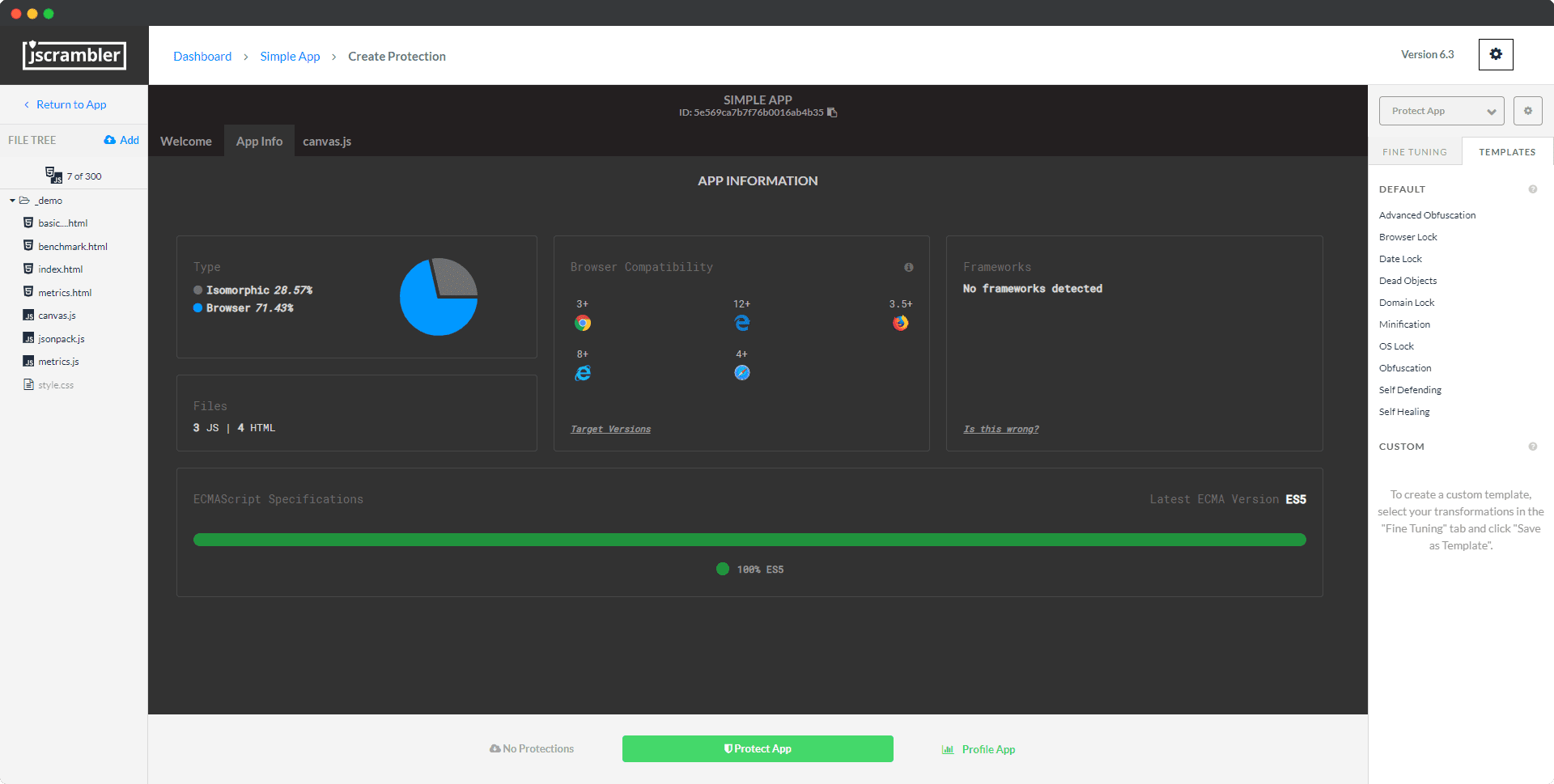
Let’s upload a zipped file with an example JavaScript app. Immediately, we can navigate to the “App Info” tab, which contains the results of App Classification, as shown below:

Jscrambler App Classification

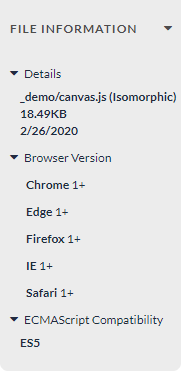
Besides this app overview, we can also check App Classification details for each individual file. We need to click one of these files and check the details in the bottom left corner:

Jscrambler App Classification

Configurable Compatibility

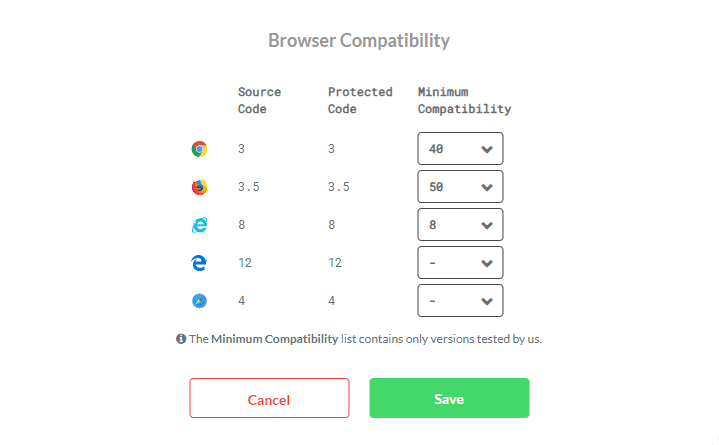
Going back to the “App Info” tab, we have a “Browser Compatibility” section. This displays the compatibility of our source code. We can now click on “Target Versions” to set our actual compatibility requirements. Another way to get to this screen is by clicking the lower cogwheel icon on the top right and selecting “Browser Compatibility”.

As an example, let’s set our requirements as shown below:

Jscrambler Browser Compatibility

Note that, by leaving Safari and Edge blank, we are essentially ignoring compatibility checks for both. As for our other requirements, we are enforcing Jscrambler to ensure that the protected code retains compatibility with Chrome version 40+, Firefox version 50+, and IE version 8+. Now, let’s save these requirements to exit this screen.

Our next step would be to select a Jscrambler template (or handpick transformations) and protect our app. Let’s select the “Self-Defending” template.

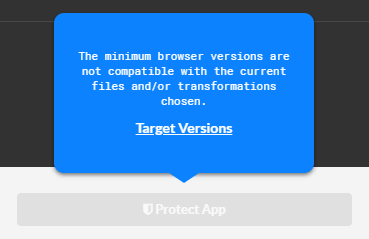
Once we do that, Jscrambler will show us some compatibility warnings.

First, a tooltip will appear on the “Protect App” button and the button will be greyed out. This prevents us from getting a protected app version that doesn’t meet our compatibility requirements.

Jscrambler Browser Compatibility

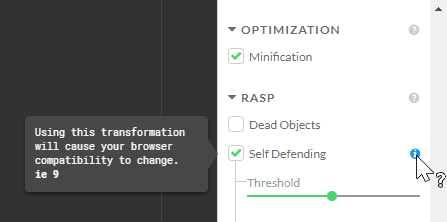
Now, we can investigate a bit further which transformations are responsible for this compatibility change. Heading over to the “Fine Tuning” tab, we will see a blue icon next to some transformations. In our case, it appears next to the “Self-Defending” transformation:

Jscrambler Browser Compatibility

As we can read on the tooltip, selecting this transformation causes our minimum supported IE version to increase from 8 to 9.

Taking this into consideration, we have some decisions to make:

  1. Change our IE target browser versions to version 9 and above, or
  2. Skip the Self-Defending transformation or look for an alternative

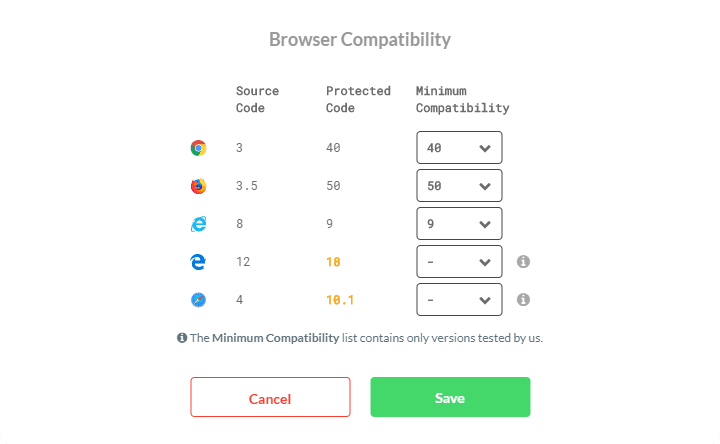
If we choose the first option, it’s as simple as heading back to the “Browser Compatibility” screen and adjusting the IE version, as shown below:

Jscrambler Browser Compatibility

(Note that Jscrambler also shows us all compatibility changes on the “Protected Code” column in yellow. In this case, the known compatibility with Edge will change from version 12 to 18, and Safari will change from 4 to 10.1).

If we prefer the second option, we can look for alternative transformations that fulfill our goal. As an example, if we were choosing “Self-Defending” because we wanted its anti-tampering features, we could use the “Self-Healing” transformation instead. You can find alternative transformations in our help center.

Once we take one of these actions, the “Protect App” button will be usable again and we can go ahead and protect our app. Our resulting protected code will be compatible with our selected browser versions.

Not only that but, because of App Classification, Jscrambler will seamlessly optimize the protection for better performance and security.

Jscrambler CLI

As usual, you can also enjoy the benefits of this new Jscrambler feature when using the CLI.

First off, you can enable/disable App Classification quickly with a single line on the Jscrambler config file:

{
// other Jscrambler configurations
  "useAppClassification": true
}

Then, you can easily set your compatibility requirements in the Jscrambler config file, as shown below:

{
// other Jscrambler configurations
  "browsers": {
    "chrome": "40",
    "firefox": "50",
    "ie": "8"
  }
}

After setting these requirements, the protection via the CLI will fail whenever the selected transformations do not match the compatibility requirements. The error message also displays further details to quickly address incompatibilities.

Jscrambler Browser Compatibility

Conclusion

And so we reach the end of our Jscrambler App Classification tutorial. As we saw, by intelligently analyzing our app, Jscrambler seamlessly helps us increase the performance, compatibility, and security of our protected code. Enjoy your testing and start protecting your Applications ASAP! If you have any additional questions, feel free to contact us.

Jscrambler 101 — Profiling

Welcome back to Jscrambler 101! A collection of tutorials on how to use Jscrambler to protect your JavaScript. This tutorial covers Jscrambler version 6.3.

Introduction

Last time, on Jscrambler 101 — Self-Healing, we explored a new anti-tampering approach that ensures that the app doesn’t break when tampering is detected while regenerating the original code.

This time, we’re going to delve into a new Jscrambler feature: Profiling. We will explain why Profiling is a valuable feature for performance-critical apps, how you can use it in your own apps, and its main use cases.

Profiling

When protecting JavaScript, it’s desirable to achieve the optimal balance between three key metrics: potency, resilience, and cost. The first two correlate to the overall strength of the code protection, while the last refers to eventual impacts on performance and code size.

Often, applying a strong set of protections to the whole source code doesn’t affect the performance of the app. However, some applications tend to perform less than ideal when this is done. In those cases, we can reduce Cost manually using Code Annotations — specifying different protection templates to parts of the code that we know to be crucial to performance.

Jscrambler Profiling is a new way of achieving this goal effortlessly by understanding which parts of the code are performance-critical and applying the best transformations when you protect your code.

When To Use Profiling

Now that we understand the basics of Jscrambler Profiling, it begs the question: when should we use Profiling?

As a general rule, before using Profiling, you should protect your application normally and check if the protected app has any performance issues. If it doesn’t, then there is no reason to use Jscrambler Profiling.

Setting Up Profiling

From Jscrambler version 6.3 onwards, Profiling can be set up both via the Web App and via the CLI. We’ll cover both strategies step-by-step. If you intend to use the CLI, please don’t skip the instructions on the Web App Setup, as they cover essential Profiling concepts.

We will be using the “Jscrambler HTML5 Racer” app as an example.

Initial Setup Using The Web App

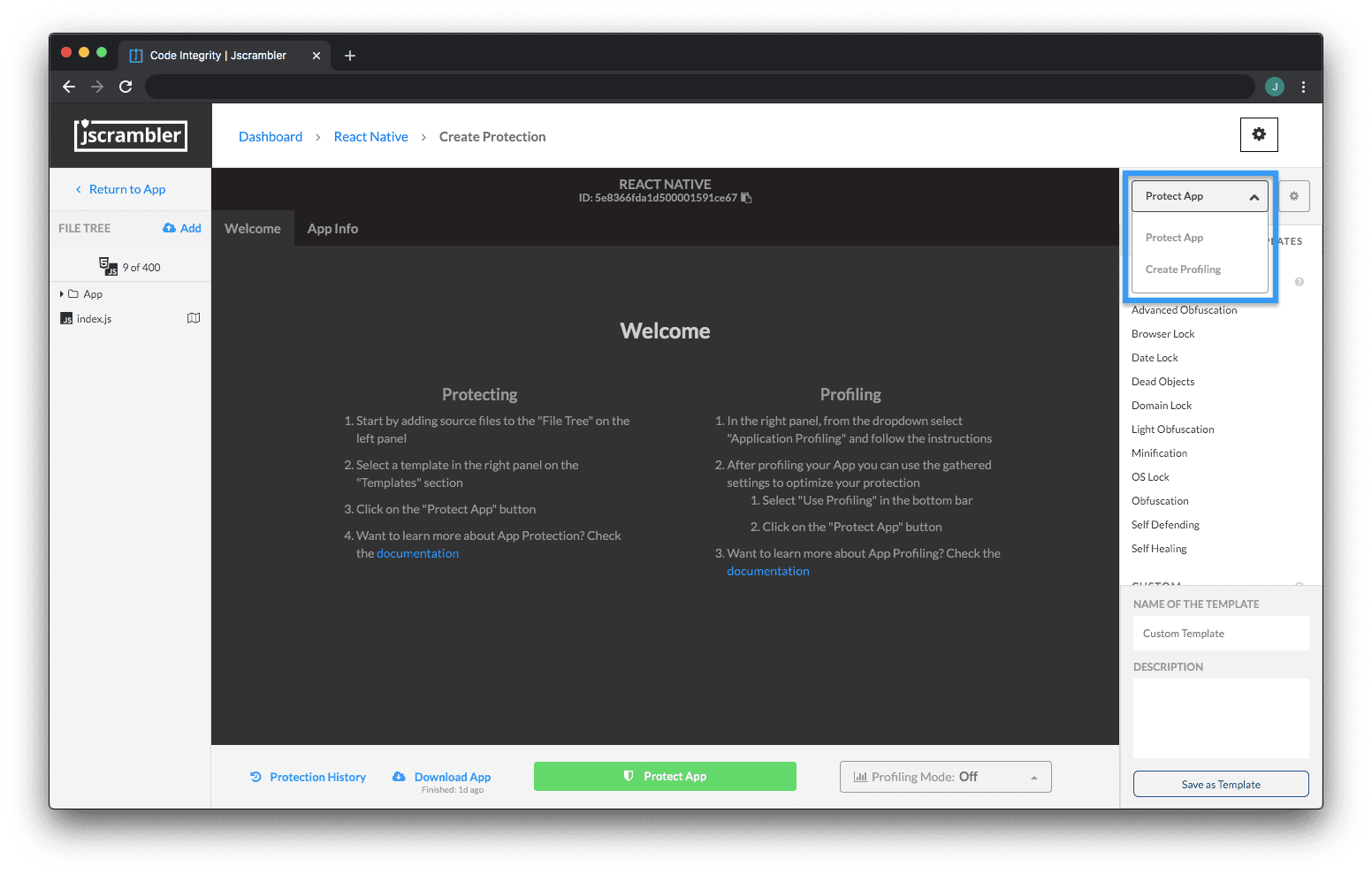
Once you’re on your app’s Code Protection Builder page on the Jscrambler Web App, switch from the “Protect App” context to “Create Profiling” by using the dropdown on the right sidebar as shown below:
Profiling ContextNow, we need to instrument our app. This step adapts the application to include tools that will measure the performance of the original application and report data back to Jscrambler. It’s as simple as clicking “Instrument Application” and then downloading the newly instrumented app.

This instrumented app is not protected — do not send it to production! Instead, we will be using it to run the app in a testing environment so that it sends performance data to the Jscrambler profiler. To do so, let’s click “Start Profiling”.

From this point onwards, Jscrambler Profiling is actively receiving data whenever the profiled app is run. Our objective here is to run the app in a way that “exercises” as many functions of our code as possible, and/or the application “flows” that you believe to be less performant than usual.

So, let’s unzip the previously downloaded instrumented app and run it in our browser.

Don’t worry if the profiled app doesn’t run smoothly — this slowdown is due to the overhead of measuring the properties of the application, and will not be present in the final protected version.

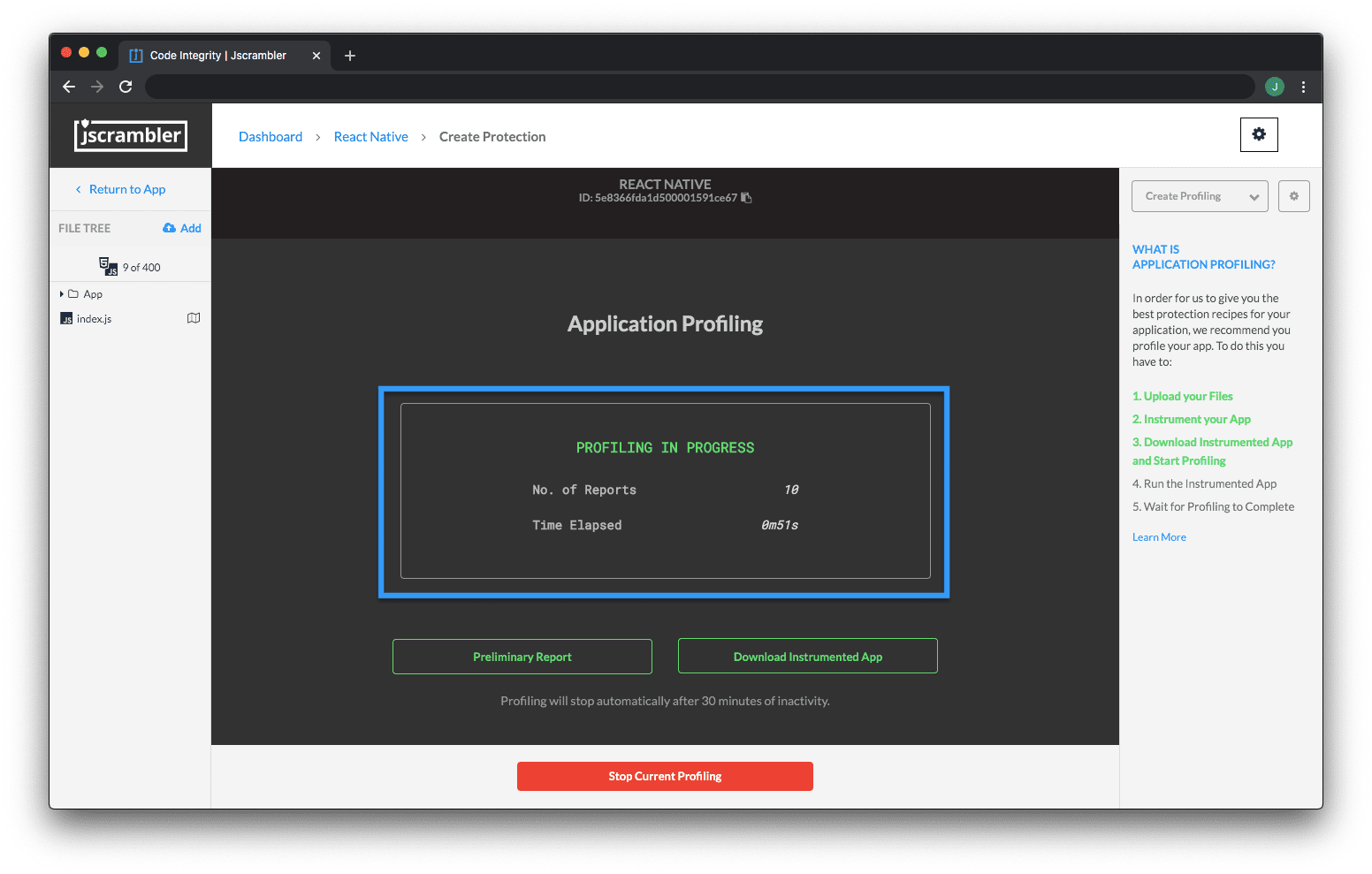
Instrumented AppAs we do this, we can check the Jscrambler Profiling progress in the Web App. There, we will see a number of reports coming in as shown below — this is the collected performance data that will be essential to let Jscrambler figure out which parts of the code are performance-critical.
Jscrambler Profiling RunningYou can also run your automated unit tests with the instrumented code so that all program flows are tested.

Once we consider that we have tested most of the application, we can click “Stop Current Profiling”. Note that Profiling will also finish automatically if no data is received for 30 minutes.

Now that we have finished Profiling our app, the next step is to check the results. This step is the same for the Web App and CLI approaches.

Initial Setup Using The CLI

Note: The instructions for the CLI can also be seen in a small video.

Let’s consider that we have a simple project with our example app within the following directory:

simpleRacerDemo/
|-- profiling-ready/
|-- protected/
|-- unprotected/
| |-- *.js
| |-- *.html
|-- jscrambler.json

Our first step is to generate the jscrambler.json file through the Web App as shown below and place it on our root folder.
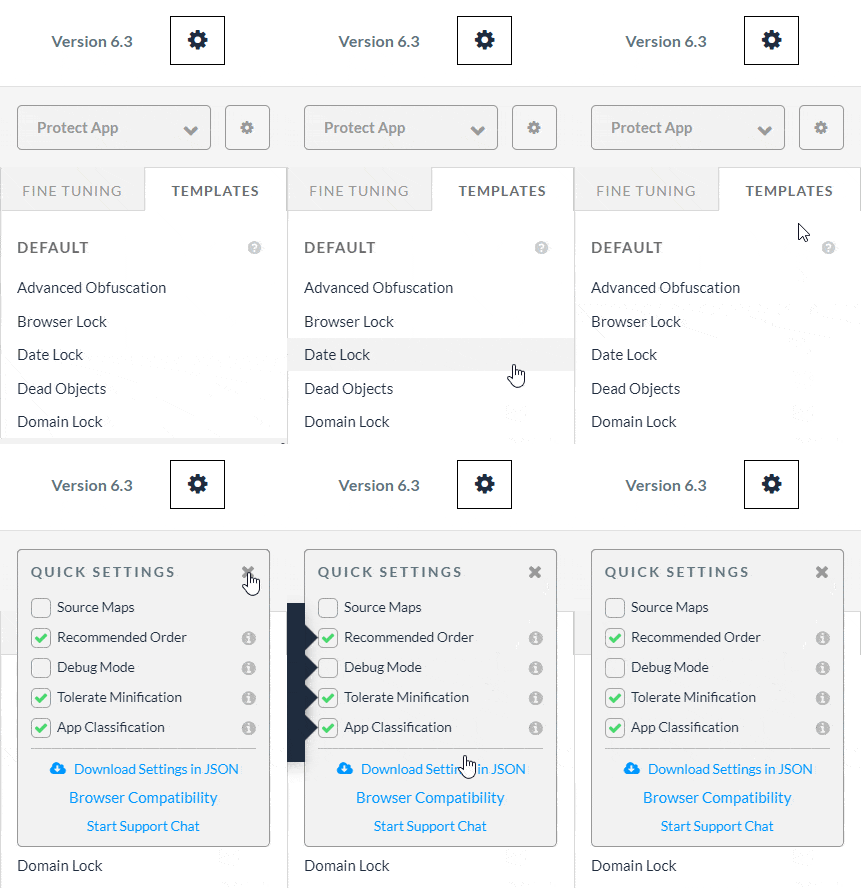
Download JSONNow, let’s generate the instrumented version of our app (placing it on the profiling-ready/ folder) with the following command:

jscrambler -c jscrambler.json --instrument --output-dir profiling-ready/ unprotected/**/**

We’re now ready to exercise the logic of our instrumented app. Let’s initiate the Profiling process with:

jscrambler -c jscrambler.json --start-profiling

The next step is to start running tests that cover as many possible use cases of our app as possible (luckily, in our case, this means taking our Jscrambler race car for a spin!).

Once we’re happy with our tests, let’s stop the Profiling process with:

jscrambler -c jscrambler.json --stop-profiling

And there we have it! Our app is now Profiled and our next step is analyzing the Profiling results and fine-tuning them if needed.

Profiling Results

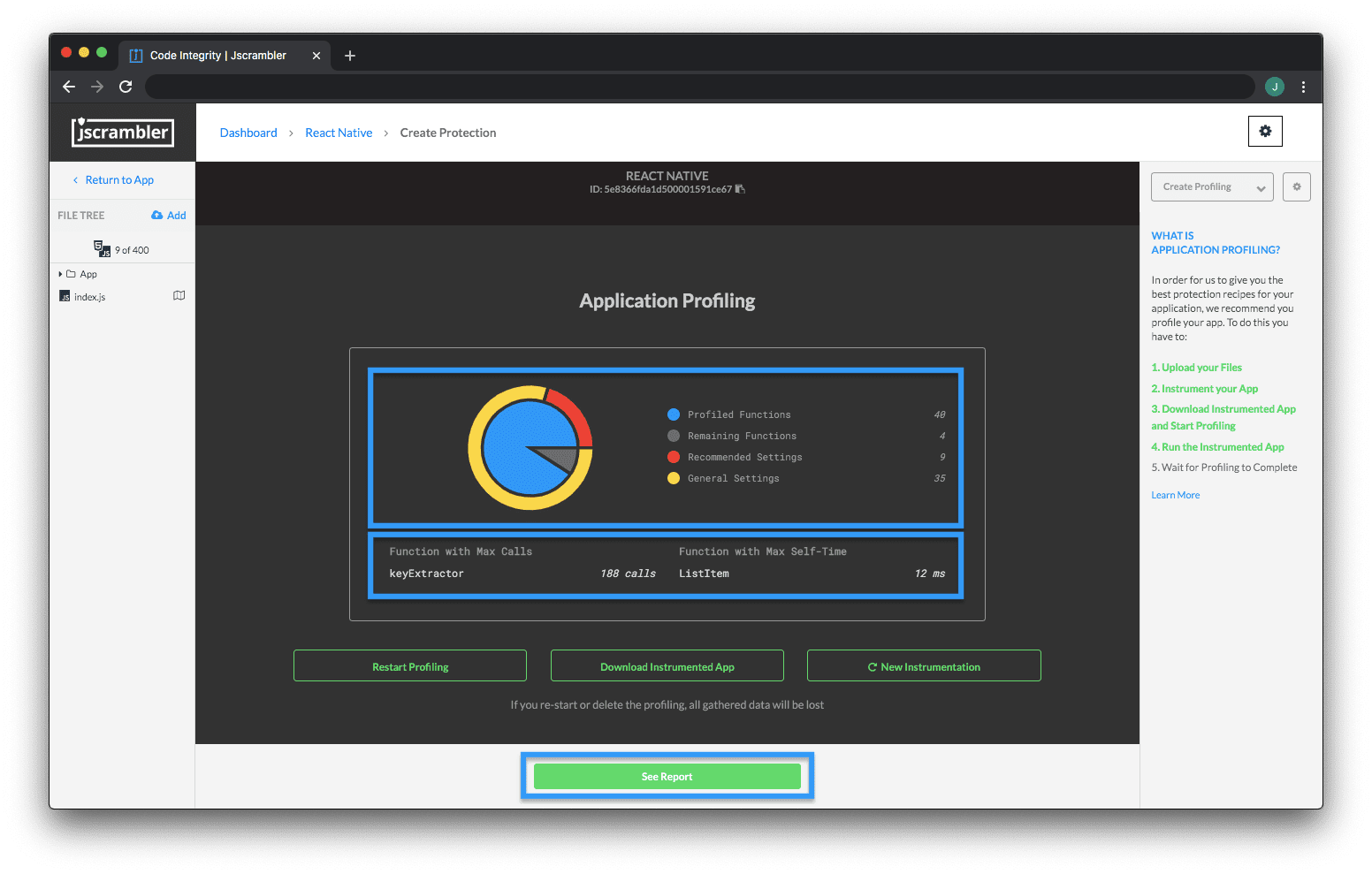
When we stop the Profiling process, Jscrambler will process all the collected data and we will see a summary of the Profiling results on the Web App.

On this updated screen, we see 4 main results:

  • Profiled Functions: Functions that were executed during Profiling;
  • Remaining Functions: Functions that were not executed during Profiling;
  • Recommended Settings: Functions that will be protected with the recommended settings by Profiling; for example, recommending the “Light Obfuscation” default template when a function is profiled as being performance-critical;
  • General Settings: Functions that will be protected with the general settings selected by you in the Protection Builder.

We can also click “See Report” to check each profiled function of your app and their Profiling recommendations.

On this page, we can change the template that Profiling suggested in each instance — perhaps we know that a certain function is security-critical but Profiling suggested a “Light Obfuscation” template; we can change this template to “General Settings” to ensure that this specific function will be protected with the overall protection settings.
Jscrambler Profiling ReportNote that you should upload Source Maps in cases where you are using transpilers or module bundlers, for example. Simply use the “Source Maps” toggle for this.

We will also see some references to “Annotations”. This has to do with the different Profiling modes that can be used to apply Profiling recommendations when it’s time to protect the app. Let’s explore that next.

Protecting a Profiled App

Since Jscrambler version 6.3 onwards, there are 3 different Profiling modes: Annotations, Automatic, and Off.

Deciding which to choose depends on your objectives. The Annotations mode requires a one-time additional step where you have to annotate your code – meaning that Profiling results will persist after source code changes. The Automatic mode automatically applies Profiling results at protection time, but new Profiling is needed after source code changes.

So, as a rule of thumb, you will find the Automatic mode more useful when you’re first trying out Profiling or just wanting to see its results quickly. The Annotations mode is more beneficial when you want to easily integrate Profiling into your CI/CD pipeline.

The Off mode, as the name implies, doesn’t use the Profiling results at all when protecting the code.

Choosing a Profiling mode and protecting the app varies depending on whether you’re using the Web App or the CLI. Let’s explore both below.

Protecting Profiled App Via the Web App

Let’s change our Web App context from “Create Profiling” to “Protect App” using the dropdown on the top right. Now, we can choose a Profiling mode on the bottom dropdown, as shown below.
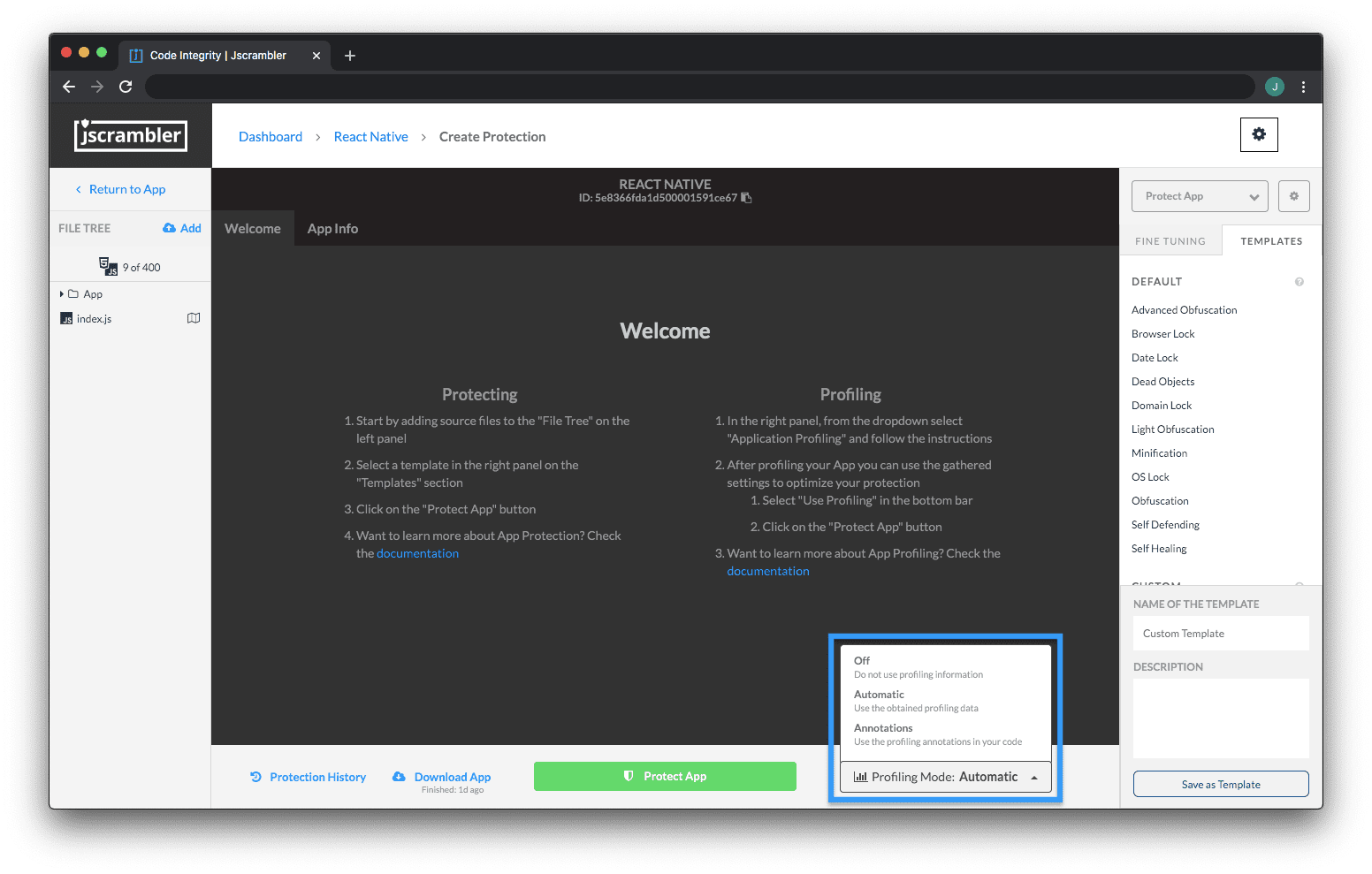
Protected Profiled AppIf we’re using the Automatic mode, then our next step is simply to click “Protect App”. Jscrambler will automatically apply the Profiling results and we’ll get our protected code.

But if you want to use the Annotations mode, you’ll have to get back to the Profiling Results page. Once there, you can either download a .csv file with all Annotations or copy them one by one, as shown below.
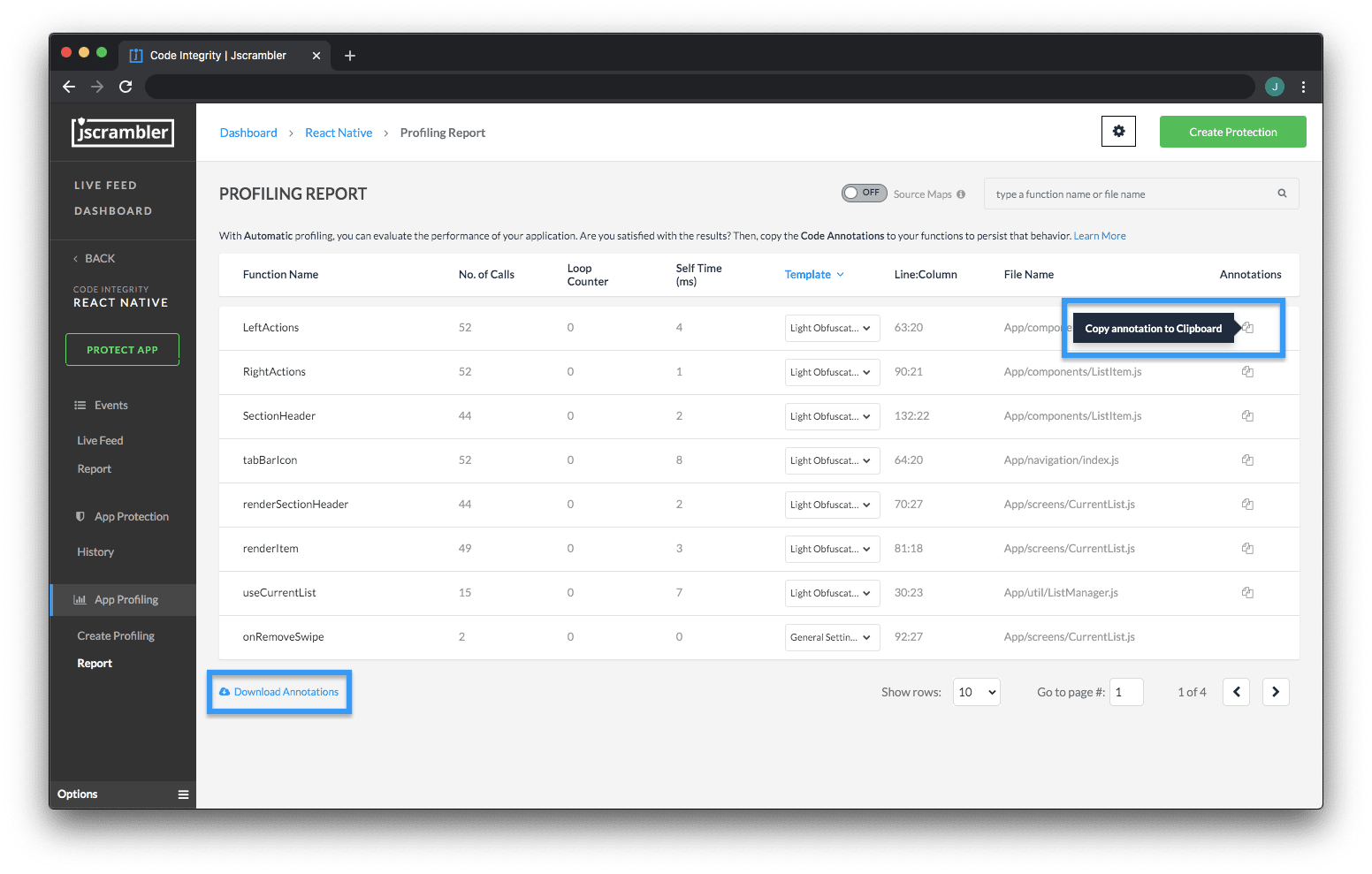
Protected Profiled AppIn both instances, you’ll have clear instructions about the position (line/column) of the annotation. Let’s look at an example:

"// @jscrambler profiling default lightObfuscation","highCostFunction",1:10,"index.js"

This means that we have to find function highCostFunction on line 1, column 10, and add the Profiling annotation so that the final result looks like this:

// @jscrambler profiling default lightObfuscation
function highCostFunction() {
 // performance-intensive logic
}

If you plan on using minifiers, consider adding these annotations as strings to avoid having them removed.

After placing the required annotations, we go back to the “Protect App” context, change the Profiling mode to Annotations, and click the “Protect App” button. Jscrambler will use our Profiling annotations and protect the code accordingly.

If, after this, we make some minor changes to our source code, we probably won’t have to profile the app again — Profiling is necessary after major changes.

Now, all that’s left for us to do is check the performance of our protected app.

Protecting Profiled App Via the CLI

Now that we understand the different Profiling modes, we are one command away from protecting our code.

So, if we want to use the Automatic mode, we use the command:

jscrambler -c jscrambler.json --profiling-data-mode automatic

This will create a new folder inside the protected/ folder with our newly protected app. Following our example, we can serve it locally with:

http-server protected/unprotected/


Final App Test

We can now test our final app, which was protected using Profiling recommendations. Let’s take our Jscrambler race car out of the garage for another spin:
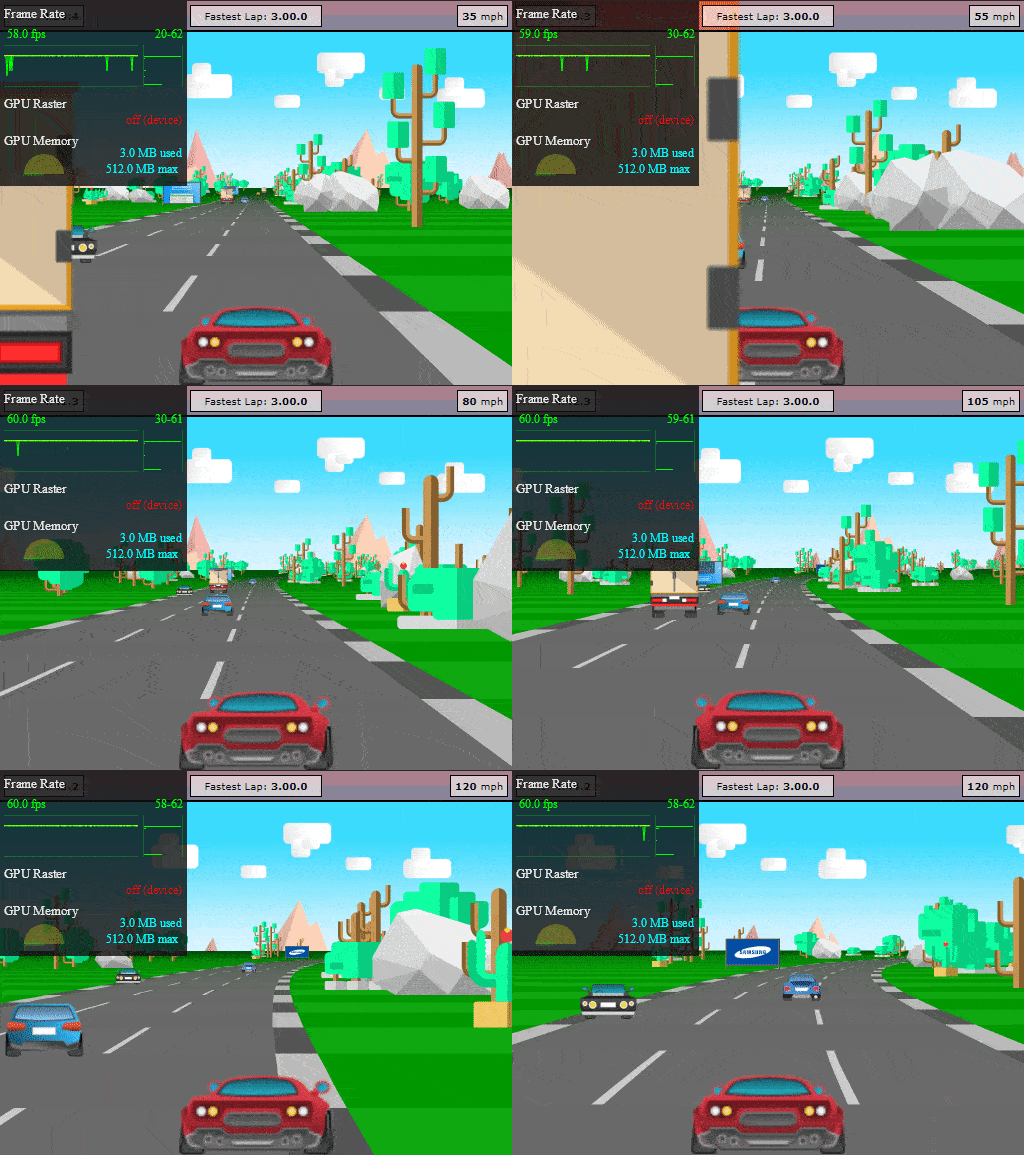
Protected Profiled AppNot only does our HTML5 app run with great performance, but all of its code is also protected with an excellent potency-resilience-cost balance. Based on our tests for this HTML5 app, the average performance of the protected profiled app (measured in FPS) was 35% better than the un-profiled protected app.

And remember, our code is still protected with the best JavaScript protection available today:
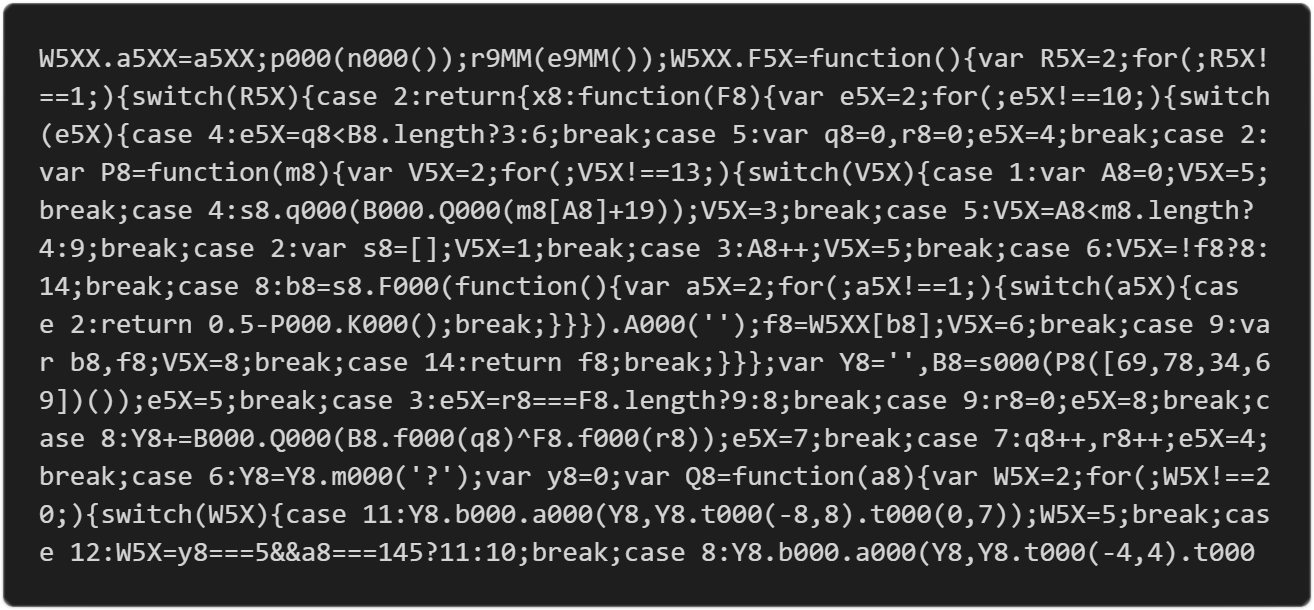
Jscrambler Profiling Protected CodeWith Jscrambler Profiling doing all the heavy lifting to obtain most of the gain, we could now still use Code Annotations if we wished to tweak performance even further.

Conclusion

This sums up Jscrambler Profiling — a feature that enables effortlessly improving the performance of protected code in complex apps.

Enjoy your testing and start protecting your Applications ASAP! If you have any additional questions, feel free to contact us.


Jscrambler 6.0: JavaScript Threat Monitoring Arrives

Jscrambler 6.0 introduces JavaScript Threat Monitoring, giving you real-time visibility into every attempt to debug, tamper with, or break a code lock in your protected code — backed by a new unified dashboard.

The main features and benefits include:
– JavaScript Threat Monitoring: Get notified whenever someone attempts to debug, tamper with, or break a code lock in your protected code — for example, every attempt to run browser-locked code outside the allowed browser.
– New Jscrambler dashboard: View threat statistics at a glance, categorized by type, location, IP, and timestamp, as a unified home for both Code Integrity and Webpage Integrity.
– Webpage monitoring: Set up and manage webpage monitoring to see threats to the client side of your application, including the specific injected code and its location.
– Stronger Application Shielding: New transformations and increased protection against specific reverse-engineering tools and techniques.