
Product: Code Integrity

Jscrambler 101 — Code Annotations

Last updated on May 28th 2024.

Welcome back to Jscrambler 101! A collection of tutorials on how to use Jscrambler to protect your JavaScript. These tutorials cover Jscrambler version 8.3.

Introduction

Last time, on Jscrambler 101 — First Use, we talked about using our web app, applying transformations, creating templates, and learning how to export transformations as a JSON file, among other tips.

This time, we’re going to talk about Code Annotations.

What are Code Annotations?

Code Annotations are JavaScript comments you can add to your code. They are used to change Jscrambler’s behavior when protecting your app.

Sometimes, the transformations that you apply to protect your code can cause performance issues or obfuscate your code in an undesired way. Code Annotations can be used to counteract these situations.

Streamline This Process with Jscrambler Profiling

Using the Profiling feature, you can let Jscrambler do most of the heavy lifting towards minimizing eventual performance impact. Then, you can still tweak the final result using code annotations.

The existing Code Annotations directives are:

  • enable — enables transformations and transformation aliases
  • define — defines a transformation alias with custom options
  • disable — disables transformations, transformation targets, and transformation aliases
  • order — enables transformations and transformation aliases in a specific order (allows repetition)
  • target — enables all transformations available for a transformation target

To show you how Code Annotations work, we’re going to use several code snippets. Each snippet will focus on a certain directive.

Enable

Starting with the getSecret function, let’s assume we have a string with sensitive information such as a secret:

function getSecret() {
    return 'This is the secret.';
}

We want to specifically encode this string which has sensitive information, so we add the enable directive locally.

// @jscrambler enable stringEncoding
function getSecret() {
    return 'This is the secret.';
}

This will enable the String Encoding transformation on our string.

function getSecret() {
    return 'u0054u0068u0069u0073u0020u0069u0073u0020u0074u0068u0065u0020u0073u0065u0063u0072u0065u0074u002e';
}

It still looks a bit too easy to decode, so we’re going to add String Concealing as well:

// @jscrambler enable stringEncoding, stringConcealing
function getSecret() {
    return 'This is the secret.';
}

This will become:

var uPIi = {
//string concealing and encoding
};
//...
function getSecret() {
    return uPIi.o(0);
}

Let’s say you’ve added other strings with sensitive information and found it best to simply encode and conceal every string in the file.

function getSecret() {
    return 'This is the secret.';
}
//…

function getAnotherSecret() {
    return 'This is another secret.';
}

We can use global enable to affect the whole file, like this:

// @jscrambler global enable stringEncoding, stringConcealing
function getSecret() {
    return 'This is the secret.';
}
//…

function getAnotherSecret() {
    return 'This is another secret.';
}

This will be transformed into:

var pLZi = {
//string concealing and encoding
};
//...
function getSecret() {
    return pLZi.n(1);
}
function getAnotherSecret() {
    return pLZi.n(0);
}

Now, both displayed secrets have been transformed by String Concealing and String Encoding.

Disable

Imagine you’re using a file that has a global String Encoding, and you have a code block that does operations on a string.

// @jscrambler global enable stringEncoding, numberToString
var a = 'some string';
var b = 1;

//...
for (i = 0; i < 1000; i++) {
    //something happens with strings
    var s = 'disable string encoding here';
    //...
}
var t = 'should be transformed';

Say you don’t want String Encoding to transform the strings inside the loop — as it would affect code performance — but you want all the other strings outside of this loop to be transformed. You can use the disable annotation.

// @jscrambler global enable stringEncoding, numberToString
var a = 'some string';
var b = 1;
//...
// @jscrambler disable stringEncoding
for (i = 0; i < 1000; i++) {
    //something happens with strings
    var s = 'disable string transformations here';
    //...
}
var t = 'should be transformed';

Now Jscrambler will act so that the strings inside the loop won’t be affected by the transformations, but everything else will be affected.

As we only have the String Encoding disabled, you’ll notice that Number to String still works on the for loop.

var a = 'u0073u006fu006du0065u0020u0073u0074u0072u0069u006eu0067';
var b = "1" + 0;
//...
for (i = "0" * 1; i < "1000" - 0; i++) {
    var s = 'disable string transformations here';
}
var t = 'x73x68x6fx75x6cx64x20x62x65x20x74x72x61x6ex73x66x6fx72x6dx65x64';

If you don’t want transformations to occur at all in a code block, use //@jscrambler disable *

// @jscrambler global enable stringEncoding, numberToString
//...
// @jscrambler disable *
function foo() {
    var a = 'I won't be affected';
    function bar() {
        var b = 'I won't be affected either';
    }
    // @jscrambler global enable stringEncoding, numberToString
    var c = 'But I wan't to be affected';
    var d = 2;
}

You will notice that the strings in var a and var b aren’t affected by any transformation. We wanted var c to be affected by these transformations though, so we had to insert a new Jscrambler to enable annotation.

function foo() {
    var a = 'I won't be affected';
    function bar() {
        var b = 'I won't be affected either';
    }
  var c = 'x42x75x74x20x49x20x77x61x6ex27x74x20x74x6fx20x62x65x20x61x66x66x65x63x74x65x64';
  var d = 2;
}

If we want var d=2; to be affected by Number to String though, we’ll have to add another code annotation directly above it, as so:

// @jscrambler enable stringEncoding, numberToString
var c = 'But I wan't to be affected';
// @jscrambler enable stringEncoding, numberToString
var d = 2;

This would become:

var c = 'x42x75x74x20x49x20x77x61x6ex27x74x20x74x6fx20x62x65x20x61x66x66x65x63x74x65x64';
var d = "2" * 1;

Define

Define can be used for transformations that include options, such as Self-Defending, CharToTernaryOperator, and ControlFlowFlattening.

Define works by using both define and enable.

//@jscrambler define charToTernaryOperator {tern: [0,1]} as iR1
//@jscrambler enable iR1
var a = 'o';
var b = 'o';

Here, we’re using the Char to Ternary Operator transformation and setting its option tern, which is the minimum number of ternary operators between 0 and 1. This includes 0 and 1 as the minimum number of ternary operators and generates a random output.

var a = (730.08, 860.34) < 4.43 ? 0x13c4 : 'o';
var b='o';

We could use other numbers such as 2 and 3, so that:

//@jscrambler define charToTernaryOperator {tern: [2,3]} as iR1
//@jscrambler enable iR1
var a = 'o';
var b = 'o';

Would become:

var a = (5523, 8821) < (634, 4753) ? 108.94 < (230.23, 2050) ? 2880 <= 9190 ? 610.76 : (4.35e+2, 521.21) : (false, 6.46e+2) : 'o';
var b='o';

Define is local and will only affect the code block below it — so remember to use global when you want to affect more than one location. For example:

//@jscrambler define charToTernaryOperator {tern: [0,1]} as iR1
//@jscrambler enable iR1
var a= 'o';
//@jscrambler enable iR1
var b= 'o';

Won’t affect var b. But, if we use global, iR1 can be reused in var b.

//@jscrambler global define charToTernaryOperator {tern: [0,1]} as iR1
//@jscrambler enable iR1
var a= 'o';
//@jscrambler enable iR1
var b= 'o';

The transformed code will look like this:

var a = (730.08, 860.34) < 4.43 ? 0x13c4 : 'o';
var b = (273.32, 907.6) === (1500, 5782) ? (9.92e+2, false) : 'o';

Aliases — as all other code annotations — are inherited from upper blocks. So, if you define an alias for a block, you can enable it not only in that block but also in any of the inner statements and blocks without using global.

// @jscrambler define charToTernaryOperator {tern: [0,1]} as iR1
function foo() {
 function bar() {
   // @jscrambler enable iR1
   function baz() {}
 }
}

In this case, only baz() will be affected by the charToTernaryOperator.

Order

Order allows transformations to be executed in a set order. As an example:

// @jscrambler order numberToString, stringEncoding
var strNum= 123;
// @jscrambler order stringEncoding, numberToString
var numStr= 456;

The strNum variable will first be affected by numberToString, followed by stringEncoding, while numStr will first be affected by stringEncoding, then numberToString.

You’ll notice that numStr was only affected by numberToString since at the time stringEncoding was performed, there wasn’t any string to act on.

var strNum = +'x31x32x33';
var numStr = "456" | 0;

Order is best used to handle situations such as these — where the order in which the transformations are applied severely affects the outcome.

Imagine you want to set a specific order for the whole JavaScript source code. To do this, you can use the global modifier.

// @jscrambler global order numberToString, stringEncoding
var strNum = 123;
var numStr = 456;

Will become:

    var strNum = +'u0031u0032u0033';
    var numStr = 'u0034u0035u0036' - 0;

You can also repeat transformations, but the same transformation can only be repeated up to 3 times. Something like:

// @jscrambler order dotToBracketNotation, numberToString, stringEncoding, numberToString, stringEncoding
map.moveTo(0, 0);

It is transformed to:

map['u006du006fu0076u0065u0054u006f'](+'u0030', 'u0030' - +'u0030');

By repeating numberToString and stringEncoding, the numeric arguments produced by the first stringEncoding were transformed and all strings were encoded twice.

Some transformations can only be used once per node. These are:

  • charToTernaryOperator
  • selfDefending

The order can also be inherited — so if you define a specific order for a block, any inner statement and block will inherit it and combine it with any directive defined at that point. This means that:

// @jscrambler order A, B, C
function foo() {
 // @jscrambler order D, E
 function bar() {}
}

Will be applied in the following order:

// [A, B, C]
function foo() {
 // [D, E, A, B, C]
 function bar() {}
}

Code annotations prioritize local order, so D and E will always be performed before A, B, and C.

Transformations are also merged if they are repeated such as:

// @jscrambler order A, B, C
function foo() {
 // @jscrambler order A, A
 function baz() {}
 // @jscrambler order B
 function qux() {}
}

This will be merged to act in the following manner:

// [A, B, C]
function foo() {
 // [A, A, B, C]
 function baz() {}
 // [B, A, C]
 function qux() {}
}

For the baz function, transformation A is executed twice, as it was defined locally that way.

For the qux function, B is executed before A and C, because the local code annotation has priority over the global annotations and the global B ends up being merged with the local B.

Target

Now, say you have the following function.

function foo() {
    var reallySuperMegaHugeBigLongVar = 'target me!!';
}

You want to target the strings and identifiers in the function but aren’t sure what transformations you should apply. If you were to add a target strings, and identifiers as we do below:

//@jscrambler target strings, identifiers
function foo() {
    var reallySuperMegaHugeBigLongVar = 'target me!!';
}

Then run a protection, you’ll notice that both the string and identifiers are affected. This happens because Jscrambler will target strings and identifiers, applying transformations accordingly.

var aWua = {
//string transformations
};
//...
function foo() {
    var i = aWua["f"](0);
}

The available targets are:

  • booleans
  • controlFlow
  • functions
  • identifiers
  • numbers
  • objects
  • predicates
  • regularExpressions
  • statements
  • strings
  • variables

Target is equivalent to a global enable of a set of transformations, so it will affect all functions in a file. It’s easy to use — especially if you don’t know what transformations are available but know what you want to protect.

You can test all these Code Annotations on your Dashboard. Simply create a new app, insert the code snippets, and run protection without selecting any transformations.

You’ll see that the resulting code has the protections applied according to the used code annotations. Since we didn’t apply powerful sets of transformations, you can easily see how each code annotation affected each snippet.

Conclusion

You should now be able to use Code Annotations to change Jscrambler’s behavior when protecting specific code blocks.

Don’t forget to use the global modifier when you want to affect the whole source file. Feel free to proceed to one of our other 101 Tutorials:

Enjoy your testing and start protecting your Applications ASAP! If you have any additional questions, feel free to contact us.

Jscrambler 101 — Countermeasures

Last updated on April 9th, 2024

Welcome back to Jscrambler 101! A collection of tutorials on how to use Jscrambler to protect your JavaScript. This tutorial covers Jscrambler version 8.3.

Introduction

Last time, on Jscrambler 101 — Source Maps, we detailed how you can leverage Jscrambler’s Source Maps to achieve painless debugging of protected apps.

This time, we’re going to talk about one of Jscrambler’s most valuable capabilities: Client-Side Countermeasures. We will show you how to set up these countermeasures and highlight some common use cases where they help you ensure that your applications remain protected.

Countermeasures

As you’ve read in our previous 101 tutorials, two of Jscrambler’s protection layers are Code Locks and Self-Defending.

By locking your code to specific browsers, domains, OS’es, and date ranges, you can prevent someone from breaking the lock and trigger an action when a lock-breaking attempt is made.

The same goes for the self-defending module. This feature prevents someone from trying to debug the code or tamper with it and also enables you to trigger specific actions when these debugging/tampering attempts occur.

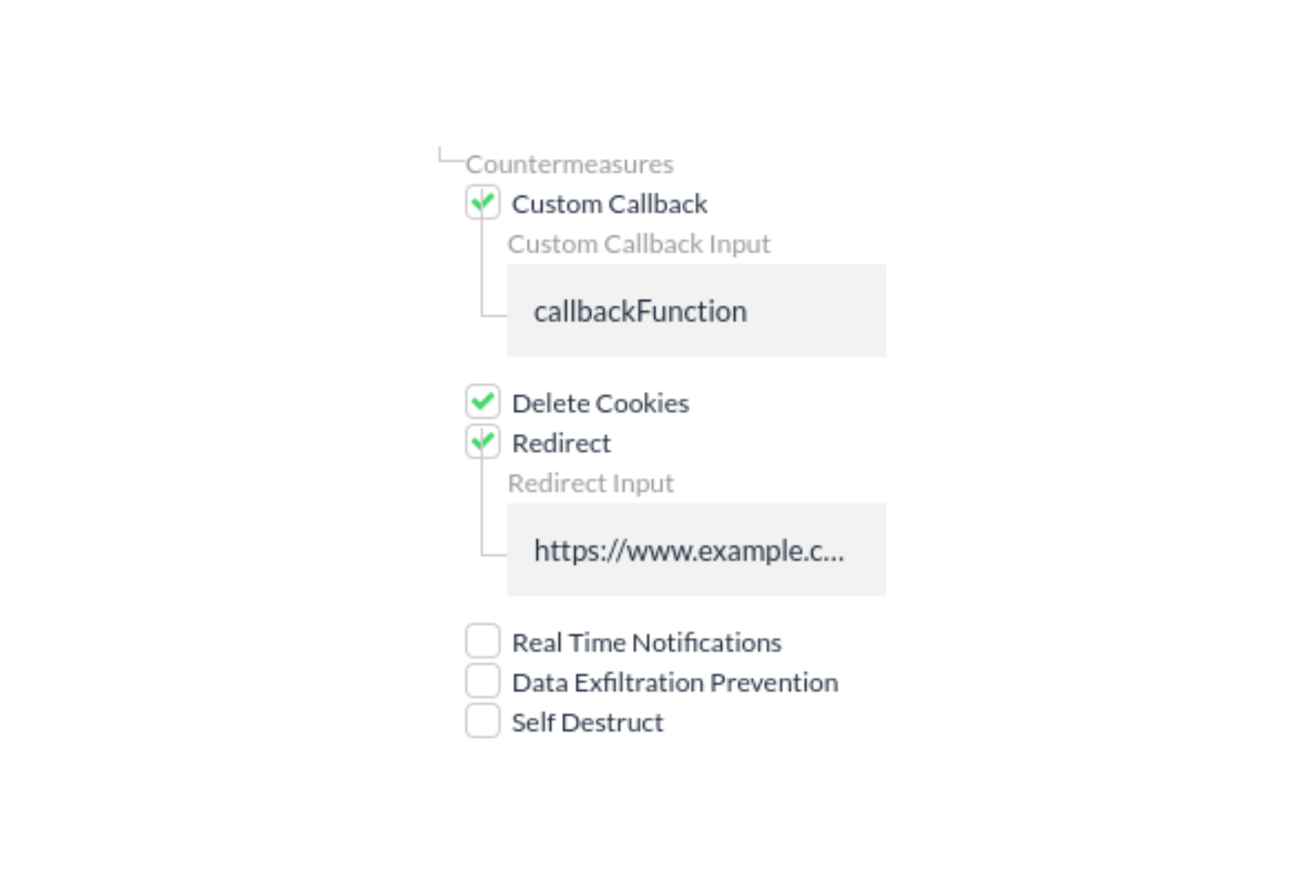
These actions, which we call countermeasures, come in seven flavors: Break Application, Custom Callback Function, Delete Cookies, Redirect, Real-Time Notifications, Self-Destruct, and Data Exfiltration Prevention. Let’s go over each of them.

Break Application

Breaking the application is Jscrambler’s default client-side countermeasure.

It works straightforwardly: every time someone tries to break a lock in your code, or whenever the self-defending module triggers, the application stops working completely.

This behavior is always enabled on the self-defending module.

Custom Callback Function

This countermeasure gives you full control over the action you want to trigger.

To make it work, you need a specific function in your original source code with the desired behavior. Then, supply the function name when setting up the custom callback, and it will trigger as a countermeasure.

Delete Cookies

The delete cookies functionality immediately deletes all end-user cookies that don’t have a path property set or have been created with the HttpOnly flag.

We will cover a specific use case for this countermeasure further below.

Redirect

As the name implies, with this option you are able to automatically redirect the user to a specified URL, such as a warning page.

This countermeasure is supported for browser versions that were released after Internet Explorer 9 but can be adapted to earlier versions as described in our docs.

Real-Time Notifications

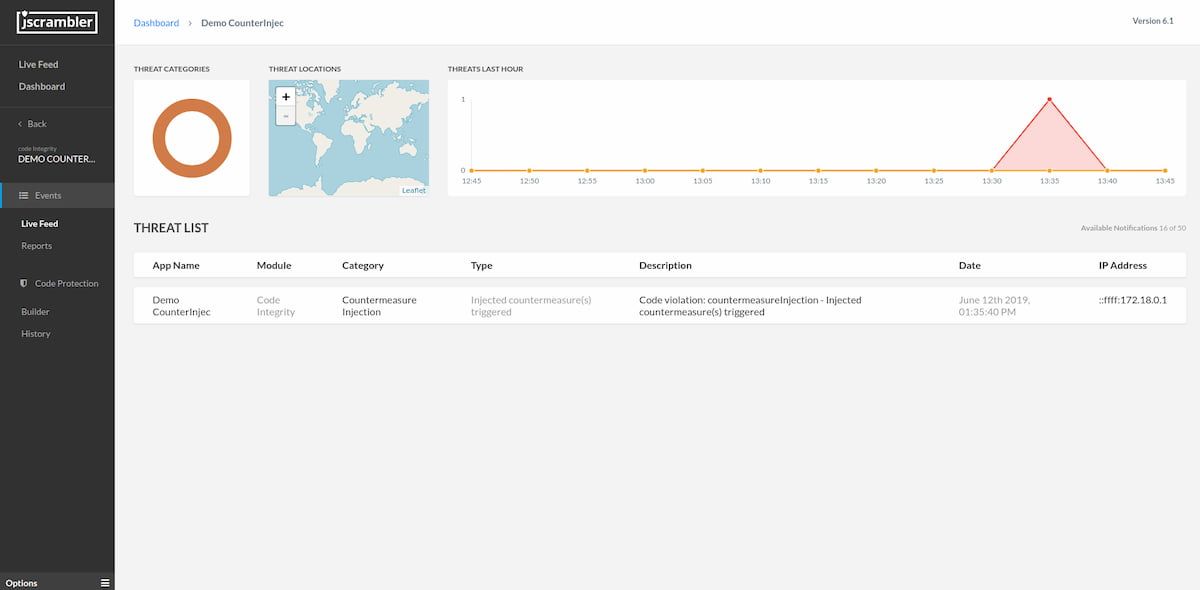
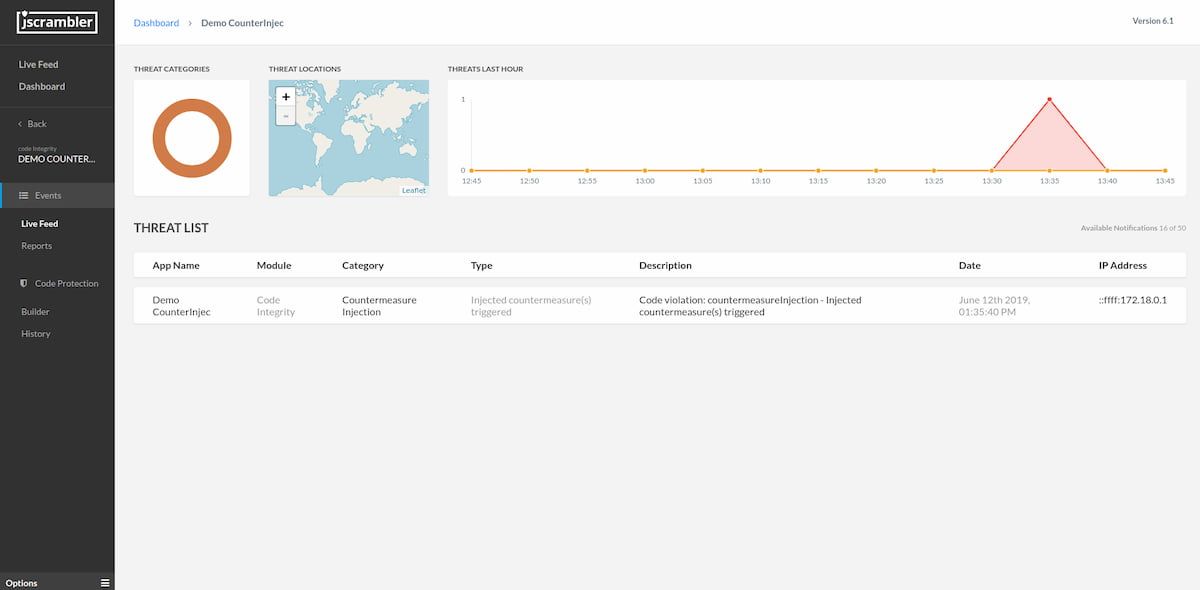
This countermeasure enables you to receive notifications in the Web App’s Live Feed whenever a violation occurs to the specified lock or self-defending code.

All instances contain details to enable a better understanding of each violation, as seen below:


Live-Feed-example- countermeasures-tutorial

Self-Destruct

Self-destruct enables going beyond breaking the app. A combination of actions, such as crashing memory, destroying the session, and destroying objects, destroys your app and its environment for every malicious user, possibly even crashing the attacker’s machine.

Attackers will lose all progress in a reverse-engineering attempt, including all data from the app’s memory and objects.

Data Exfiltration Prevention

This countermeasure blocks the application from sending data to external services as soon as it triggers. It provides another layer of protection for sensitive data and helps prevent data leakage, especially in data protection use cases.

The Data Exfiltration Prevention works for browsers, Node.js, and hybrid applications (React Native, NativeScript, etc).

Setting Up Countermeasures

Specifying Countermeasures Globally

As mentioned earlier, client-side countermeasures trigger in one of two scenarios: when someone breaks a code lock or when the self-defending module activates (during a tampering or debugging attempt).

You can set up countermeasures easily via the Jscrambler Web App. On the screen with the application you want to protect, go to the Fine-Tuning tab and select either the self-defending feature or a code lock.

In either case, you’ll see a “Countermeasures” section where you can specify which countermeasures to apply.

Specifying-Countermeasures-Globally-jscrambler-code-integrity-tutorials

You can also set up countermeasures directly through the Jscrambler CLI and the Jscrambler packages for webpack and gulp. You can specify countermeasures directly in the Jscrambler configuration file, as shown below:


{
  "keys": {
    "accessKey": "myAccessKey",
    "secretKey": "mySecretKey"
  },
  "applicationId": "myApplicationID",
  "params": [
    {
      "name": "browserLock",
      "options": {
        "browsers": [
          "firefox"
        ],
        "countermeasures": {
          "customCallback": "callbackFunction",
          "deleteCookies": true,
          "realTimeNotifications": true,
          "redirect": "https://www.example.com",
          "breakApplication": true
        }
      }
    }
  ],
  "areSubscribersOrdered": false,
  "applicationTypes": {
    "webBrowserApp": true,
    "desktopApp": false,
    "serverApp": false,
    "hybridMobileApp": false,
    "javascriptNativeApp": false,
    "html5GameApp": false
  },
  "languageSpecifications": {
    "es5": true,
    "es6": false,
    "es7": false
  }
}


Specifying Countermeasures Locally

From Jscrambler 6.1 onwards, countermeasures can be specified and triggered for specific portions of the code by using Countermeasure Injection. This gives you additional control over countermeasures, which you can tailor to your specific needs.

To set this up, you have to use code annotations like shown below:

// @jscrambler define countermeasureInjection { countermeasures: { breakApplication: 1, deleteCookies: 1 } } as cmi
// @jscrambler enable cmi

Note that if you don’t specify countermeasures in this code annotation, only Break Application will be applied.

Countermeasures Use Cases

Now that we have covered what countermeasures are and how to set them up, let’s go through some examples of use cases where using Jscrambler’s countermeasures can be vital to ensure the security and integrity of your applications.

Redirect to the Warning Page

Sophisticated attacks like malvertising or adware try to redirect users from a legitimate website to a malicious copycat page that asks for credentials.

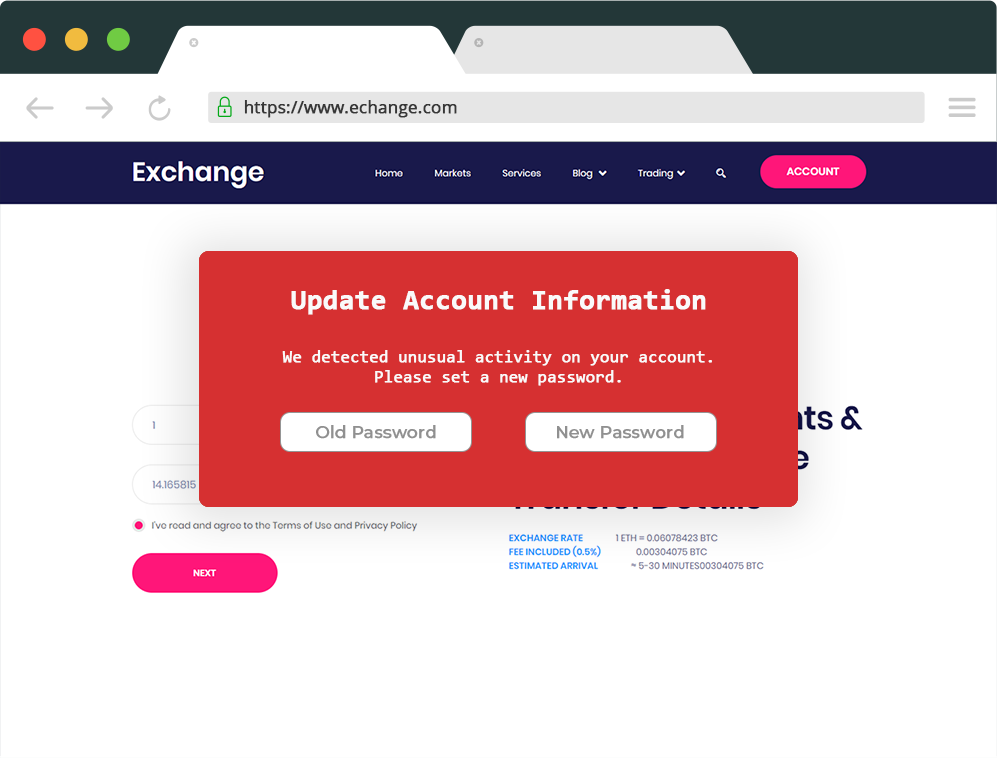
One example is a cryptocurrency exchange under the domain www.exchange.com. If some users have compromised devices (for example, with a malicious browser extension), they may be redirected to an external website that is copying the original one (under a similar domain such as www.echange.com, and the same user interface).

The external website can display a warning asking the user to create a new password or to set up 2FA again. Users may be unaware of the malicious intent and enter the requested data, which attackers receive.

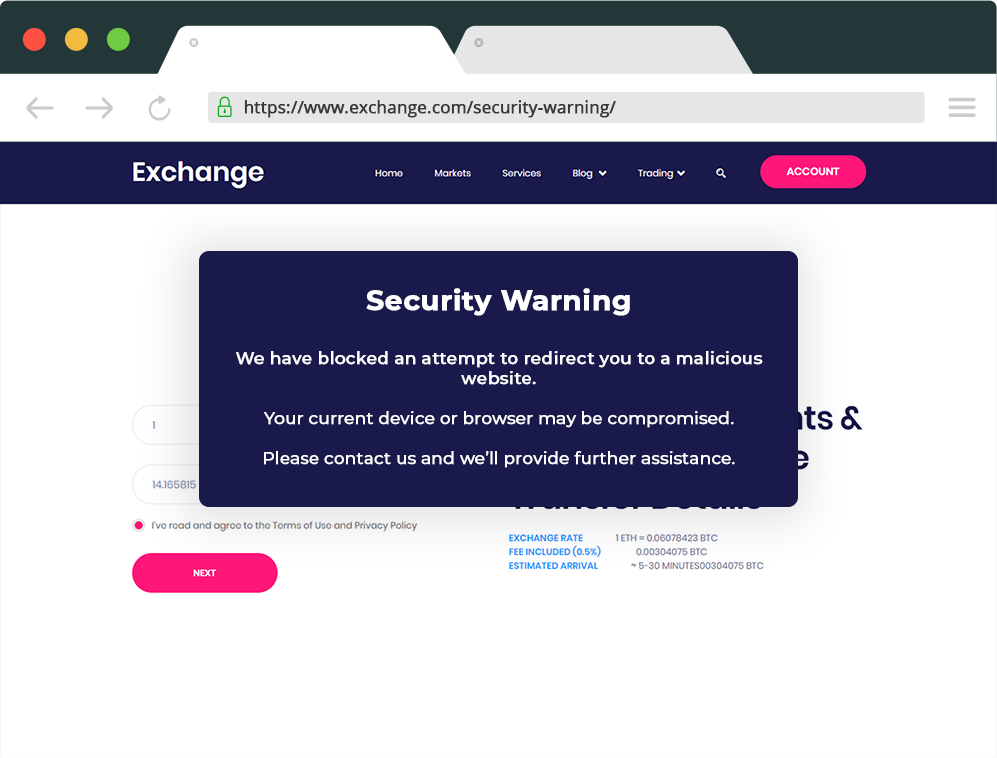
Example-of-PhishingNow, if this cryptocurrency exchange used a client-side monitoring solution like Webpage Integrity, it could set up an automatic redirect when it detects such an attack. So, infected end-users would not reach the malicious website and instead see a warning message such as the one shown below.


Example-Preventing-Phishing

Custom Callback to a SIEM

Picking up on the example above, a redirect to a warning page would be one of many viable countermeasures to be applied.

Another possible reaction mechanism would be to set up a custom callback to an SIEM, with the goal of sending an immediate alert to security teams whenever someone tries to run the code outside of the specified environment.

This would be a valid approach for any of the other locks (domain, OS, browser, and date range) and the self-defending feature as well.

Delete Cookies to Prevent Scraping

Several web apps require authentication in order to access user-specific pages. Imagine a social media platform or even a SaaS web app with a trial plan. In both cases, the user has to log in before accessing the platform’s content.

Automated scraping attacks may seek to obtain this (often private) information to feed it to an external platform or exploit the web app itself.

When the attack starts, Jscrambler’s anti-tampering features come into play, detecting the tampering attempt and enabling a countermeasure. In this case, an effective one would be to delete cookies — this would immediately end the user session and deny access to private pages.

Custom Callback to Prevent App Features Abuse

For this last use case, let’s consider an application with a free and premium mode, such as an HTML5 game.

While the “premium” state is often managed on the server-side, there are several cases where this must be done on the client-side, such as with offline apps.

In these cases, an attacker would be able to easily access the app’s core logic, which resides in the JavaScript code. Then, it’s a matter of time until the attacker is able to identify how the premium state is managed and force it to “premium” instead of “free”. This effectively grants the attacker a tampered version of the app with all the premium features, bypassing the need to pay in order to unlock them.

App developers could set up a custom callback when a tampering or debugging attempt is detected by Jscrambler.

A practical example of this scenario is the tampering of the “Space Shooters” game, which we detailed in our Jscrambler 101 — Self-Defending article.

Custom Anti-Cheat Mechanism with Countermeasure Injection

Let’s consider that you have a mobile game that implements a custom anti-cheat mechanism. When a cheater is detected, using a Jscrambler countermeasure injection, you could also set the code to supplement the custom anti-cheat actions with existing countermeasures:


if (detectCheat()) {
    customAntiCheat();
    // @jscrambler define countermeasureInjection { countermeasures: { breakApplication: 0, realTimeNotifications: 1 } } as cmi
    // @jscrambler enable cmi
}

By setting realTimeNotifications: 1, every time this injected countermeasure is triggered, it will also appear in your Jscrambler Live Feed, with details of the incident.


Countermeasure-injection-live-feed

Conclusion

And we’re done! Now you can unleash the full power of using Client-Side Countermeasures to protect your applications.

Enjoy your testing and start protecting your Applications ASAP! If you have any additional questions, feel free to contact us.
Jscrambler 101 — First Use

Last updated on September 3rd, 2024

Welcome to Jscrambler 101! A collection of tutorials on how to use Jscrambler to protect your JavaScript. These tutorials cover Jscrambler version 8.1.

Introduction

In this tutorial — First Use — you will be introduced to our interface, and we will guide you through the process of making your first protection request. You will learn how to navigate the Web App, make different protections, and protect your own apps. In the final section, we’ll also explain the first steps to using our command-line interface (CLI).

How to Access Your Dashboard

To start using Jscrambler, sign in with the credentials you used to create your account. If you don’t have a Jscrambler account, now is the time to create one by clicking Try Jscrambler for Free or going to the login page.

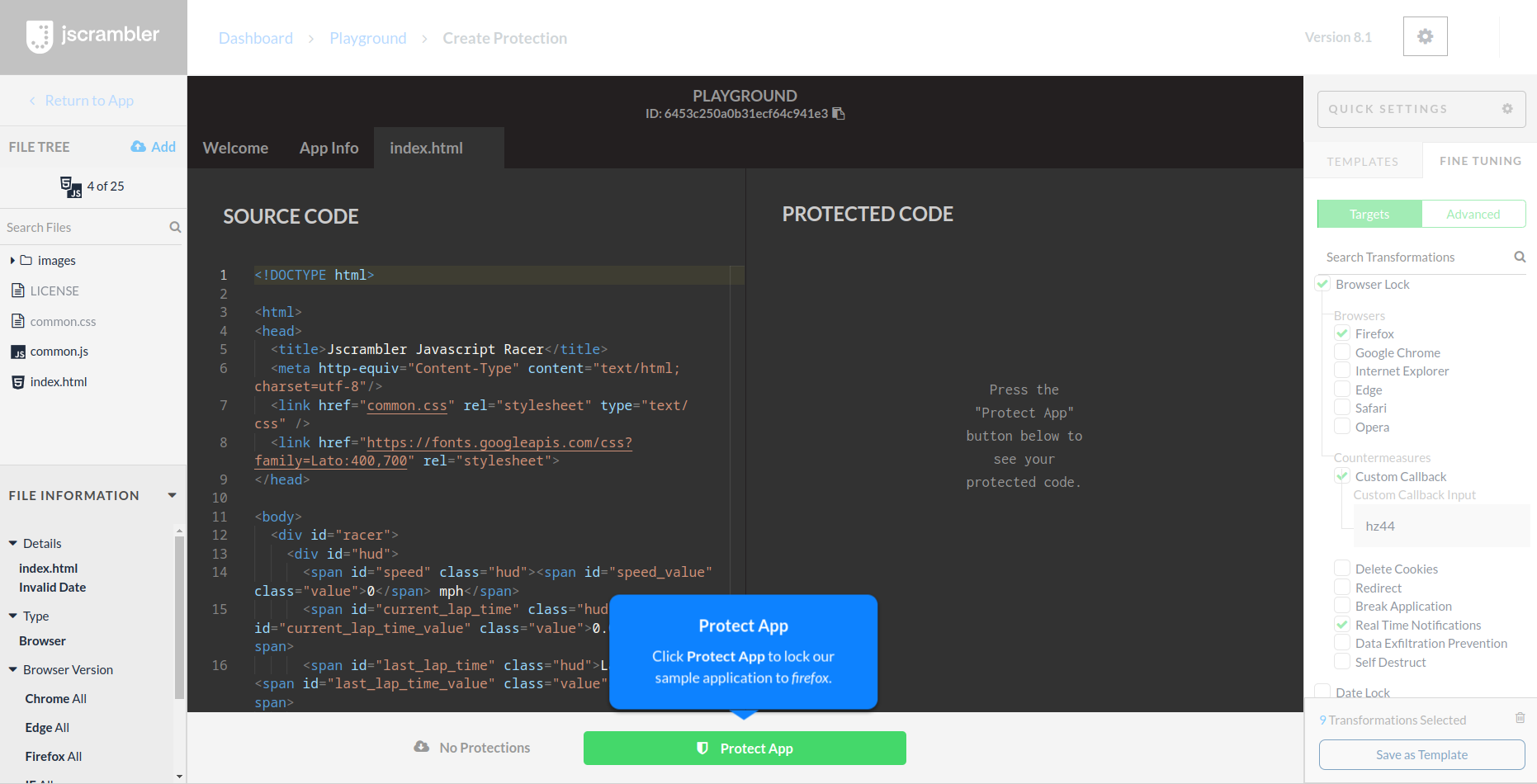
The first time you open Jscrambler’s web app, you will see a callout message to click the Playground app. After clicking it, you will see a demo screen as shown below:

demo screen of Jscrambler's web application

In this demo, sample code appears on the left side of the text editor. Follow the message bubble and click the Protect App button. Jscrambler will apply code lock protection with real-time notifications, preventing the app from running on any browser except the allow-listed one.

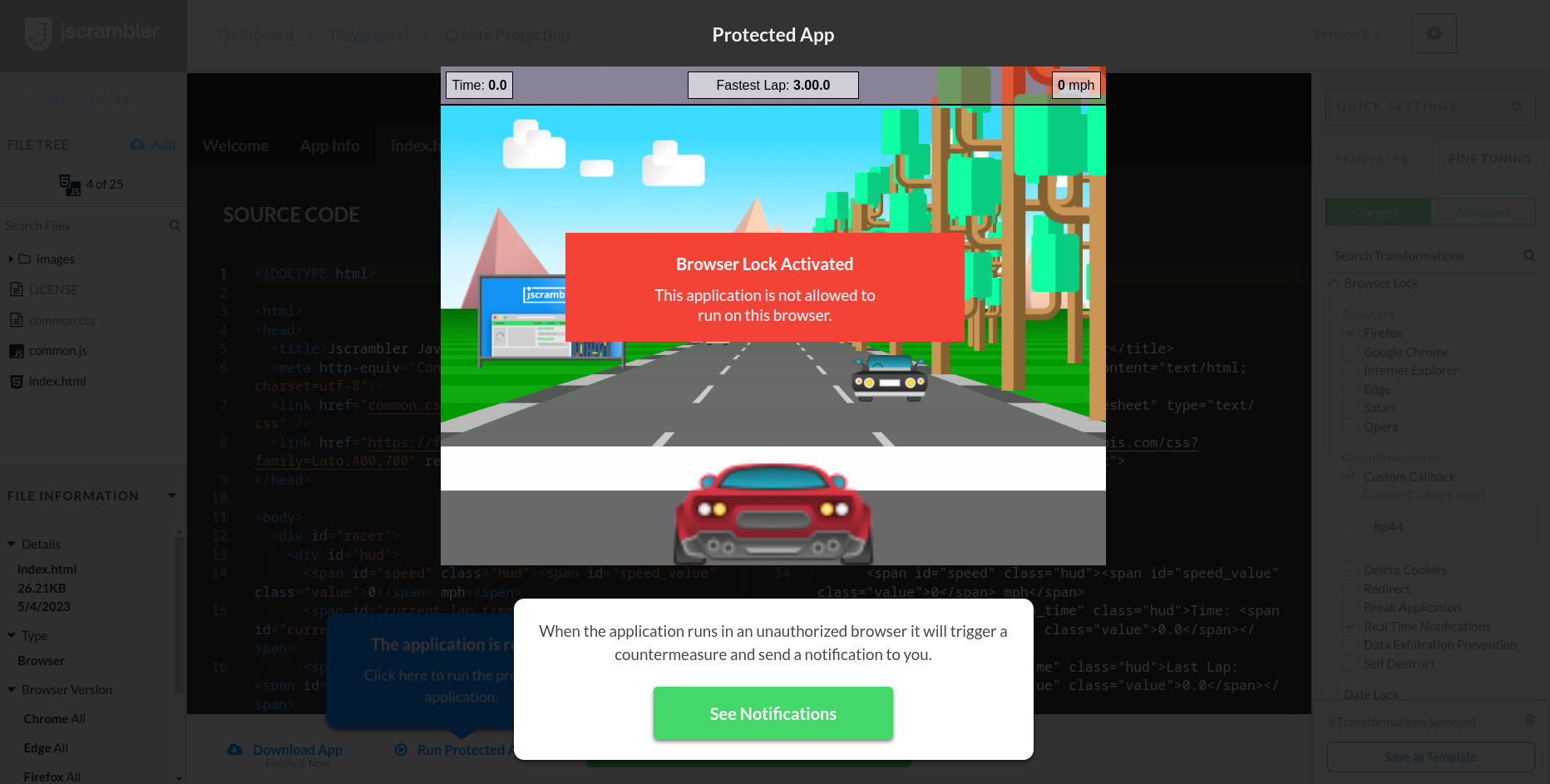
You’ll now be prompted to run your newly protected app. When you run it, our HTML5 racing game will try to run in your current browser, which triggers the code lock.

run your newly protected app to trigger the code lock and to see our HTML5 racing game

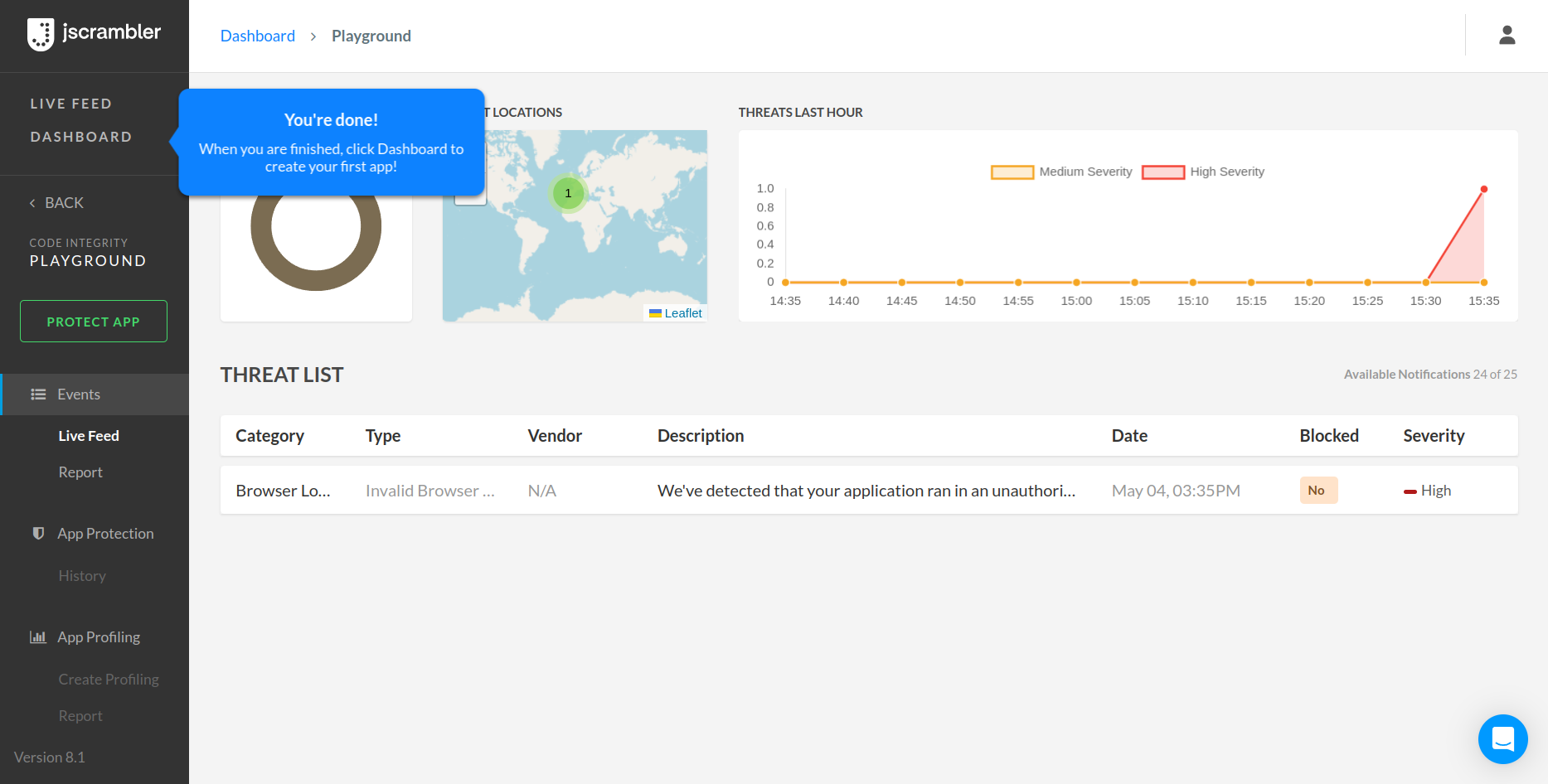
Because the code lock has the real-time notifications feature enabled, you can now click “See Notifications”. This will lead you to your Live Feed, where you’ll see an alert that someone tried to run the code outside of the lock.

live feed to see alerts when someone try to run the code outside the lock

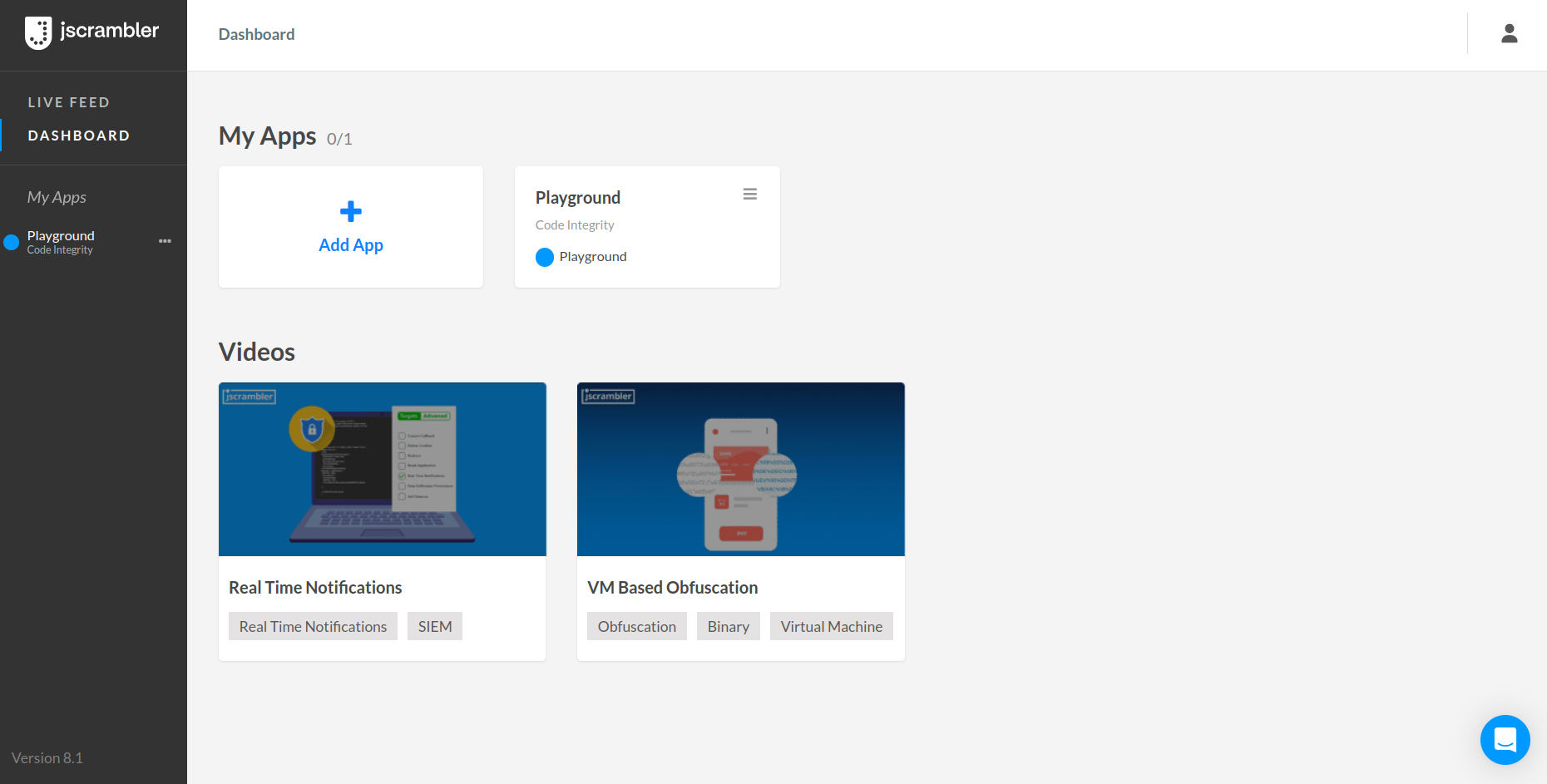
Now, you can proceed to your own dashboard simply by following the message bubble and clicking Dashboard on the top-left menu.

see your dashboard of Jscrambler web app

Navigating the Playground App

To use your Dashboard, you must verify your email address.

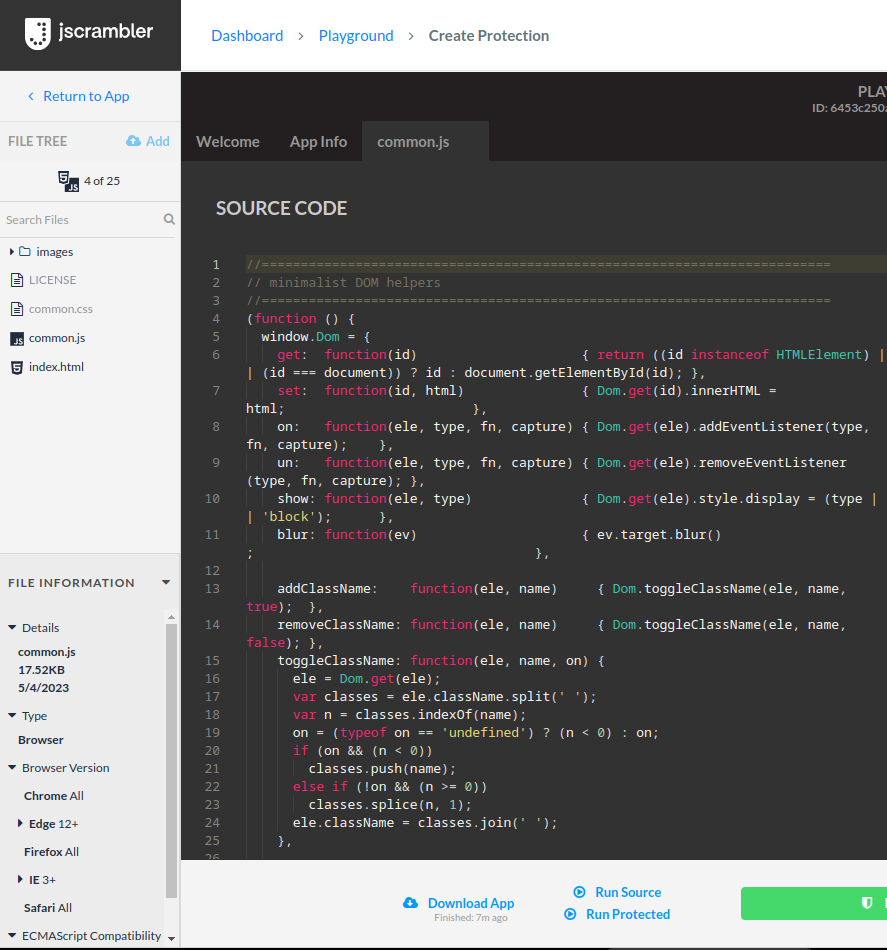
In the Dashboard, click Playground. This is a sample HTML5 racing game that will enable you to test our transformations. After opening the Playground, you will see a set of pre-configured sample files in the File Tree on the left.

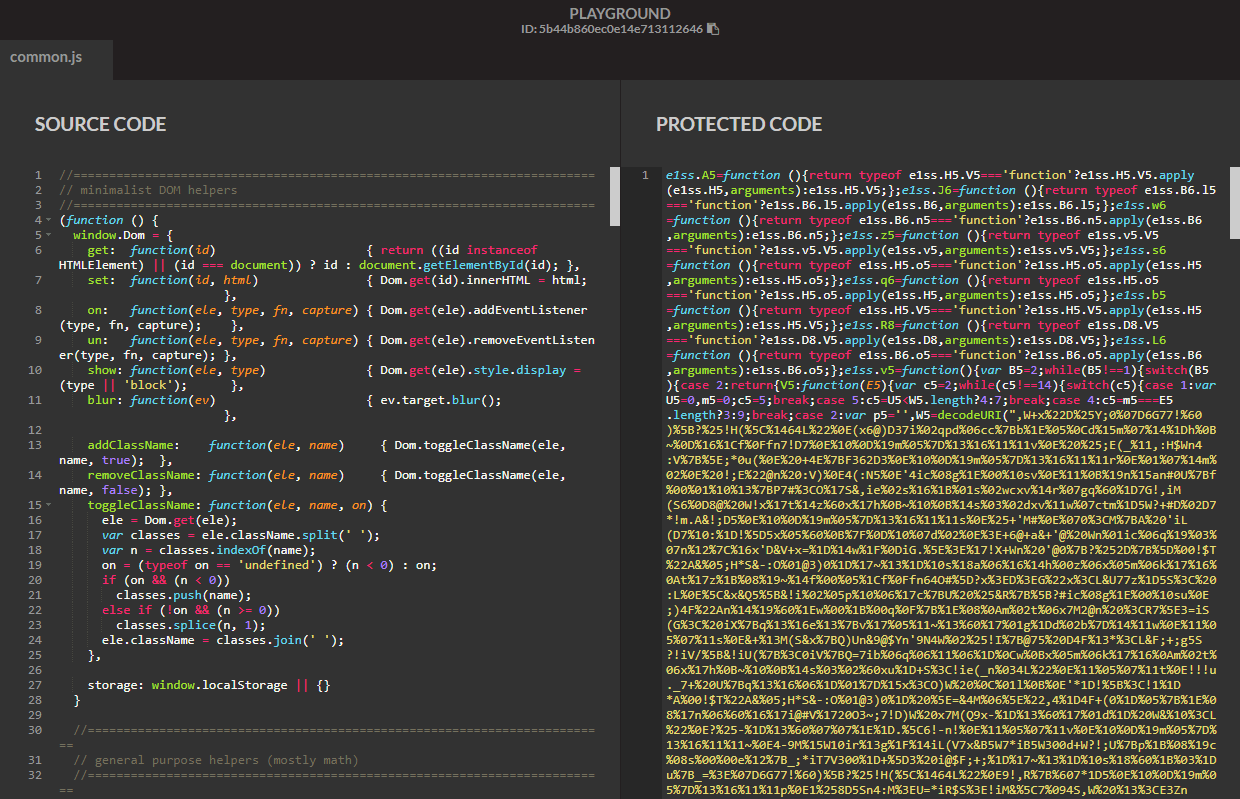
Click the JavaScript file common.js to see its content in the left side of the Text Editor and file information at the bottom-left of the page (as shown in the screenshot).

Navigating the Playground App of Jscrambler web application

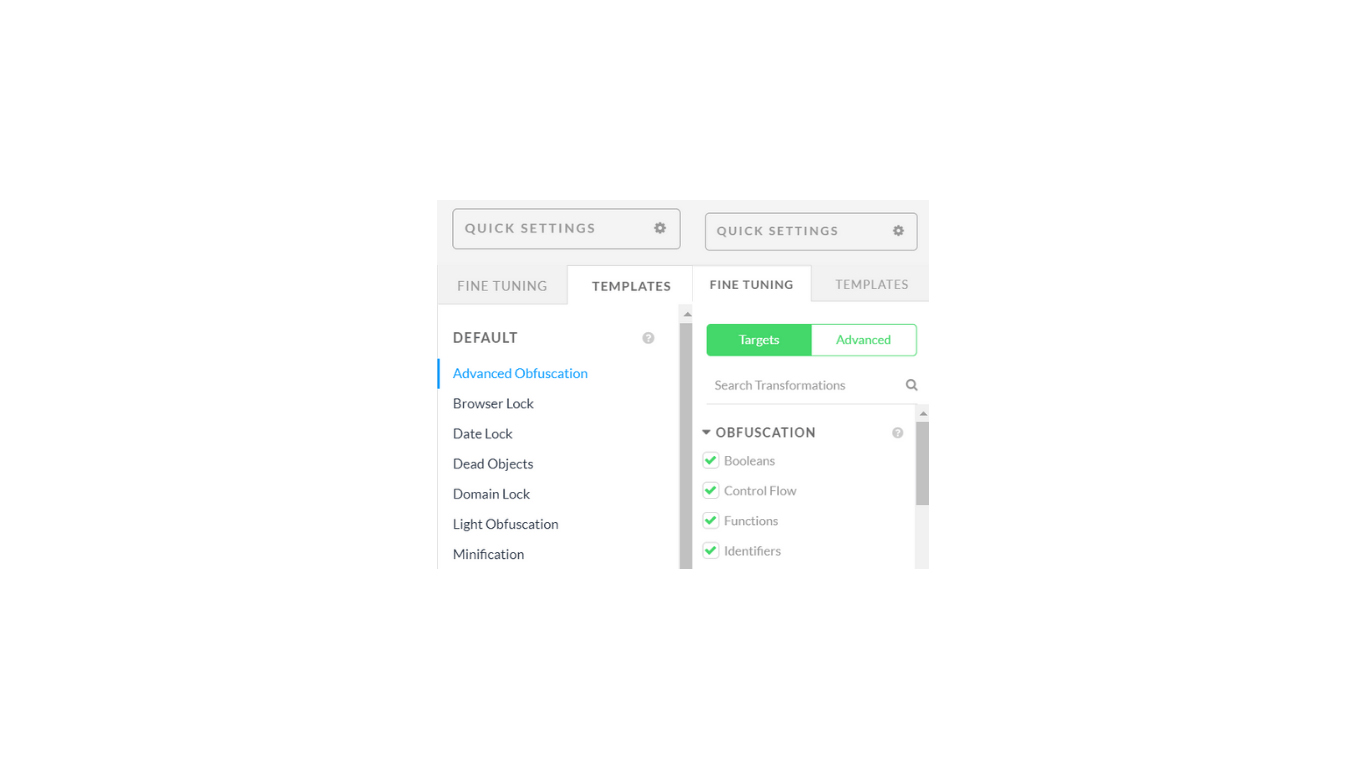
Now, let’s move on to the right side of the text editor. Here is where you will find the protected code after you apply for protection. You can also find two available tabs:

  • Templates — where you can select one of our default templates (or use a template you created) in order to apply a saved set of transformations to the sample code.
  • Fine-Tuning — where you can select which individual transformations you want to apply to the source code.

fine tuning is where you can select which individual transformations you want to apply to the source codeWe’ll now go over each of these tabs separately.

Fine-Tuning

On this tab, you can specify the code transformations you want to apply to the source code one by one.

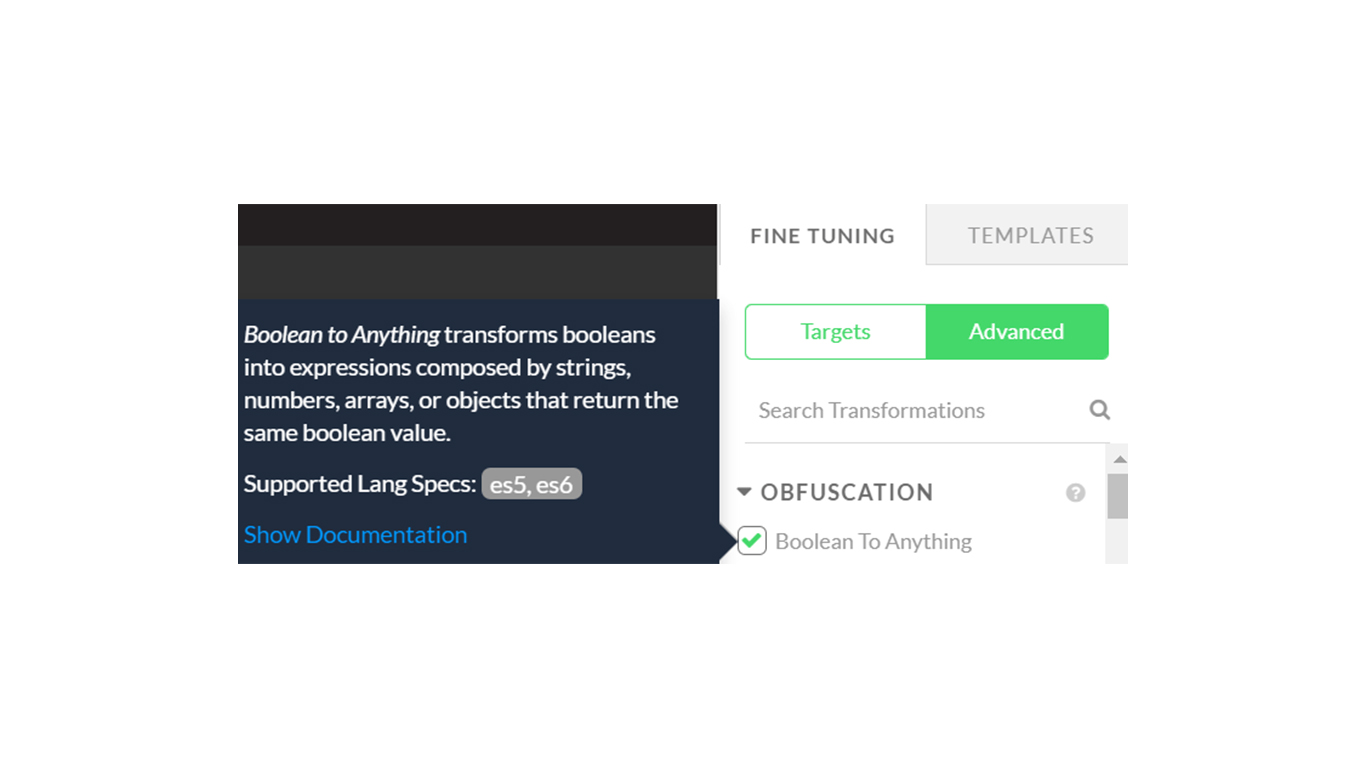
At the top, you’ll see Targets and Advanced tabs. You can select targets and choose the transformations you want to apply easily. If you want to take it one step further, you can select the Advanced tab, where you’ll get an additional set of options for your transformations.

If you hover over each transformation in the Advanced tab, a brief explanation will appear. Take this as an example:
If you hover over each transformation in the Advanced tab, a brief explanation will appear on each one

Templates

Templates are saved sets of code protections. As such, they enable you to apply multiple pre-defined transformations without needing to choose them one by one every time.

On this tab, you will find Default Templates and Custom Templates. Default Templates are provided directly by us and contain sets of protections with self-explanatory purposes. As an example, the Advanced Obfuscation template will apply a set of protections that give your code the highest level of obfuscation.

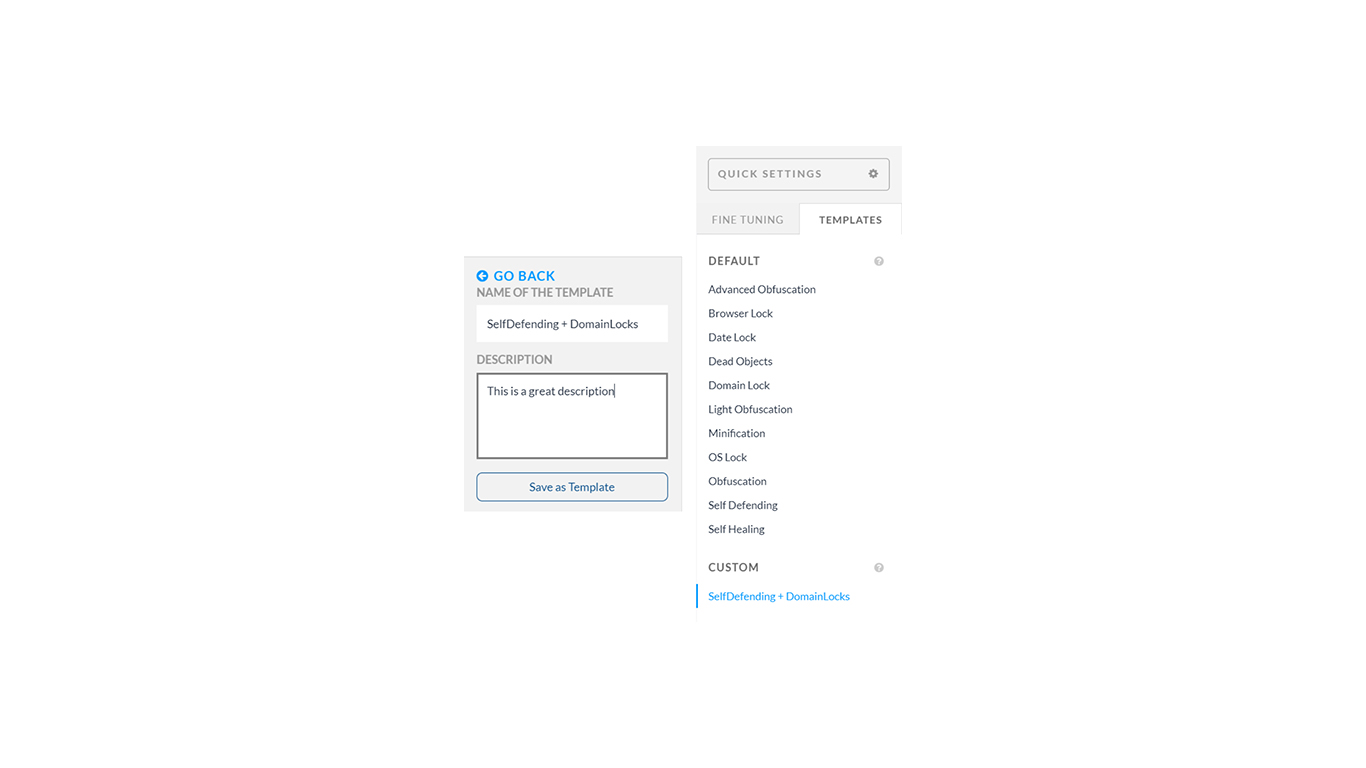
Custom Templates consist of templates you created. Creating a template is simple: head over to the Fine-Tuning tab and select some protections. From there, just click the Create Template button below the transformations. Give your template a name and a description, click Save Template and you’re done!

If you go into the Templates tab you should now see your new Template.

Templates consist of a saved set of code protections and you choose from Default Templates and Custom Templates

Protecting, Testing, and Downloading the Code

It’s time to start protecting our HTML5 racing game. As you may remember, we can do this two different ways: either by picking protections one by one on the Fine-Tuning tab or by selecting a pre-defined template on the Templates tab.

Let’s test the Advanced Obfuscation template. Select it on the Templates tab. If you’re curious to see which transformations this template includes, simply go to the Fine-Tuning tab and check for yourself.

We’re ready to apply these protections. To do that, press Protect App at the bottom. After the app is protected, you will see the result on the right side of the text editor. If nothing shows up, just click on the common.js file. The result will be similar to this:

the result of pressing Protect App at the bottom is protected code

All protections you apply in the Playground won’t affect your account balance in any way — you can try everything without any worries.

Now, you can test the newly protected file. To do that, simply click “Run Protected” at the bottom of the screen. You will notice that the app will run normally, even though it’s using obfuscated code.

Downloading your newly protected code is also straightforward: simply press Download App (bottom left) and that’s it.

The transformations we applied during this simple process already go a long way toward protecting your code. They are suitable for obfuscating your functions and objects and concealing their logic.

How to Protect Your Own App

So far, we have covered the basics of Jscrambler by using the Playground app. Now, we will guide you through the process of protecting your own app. To return to the dashboard, click the Dashboard link on the menu.

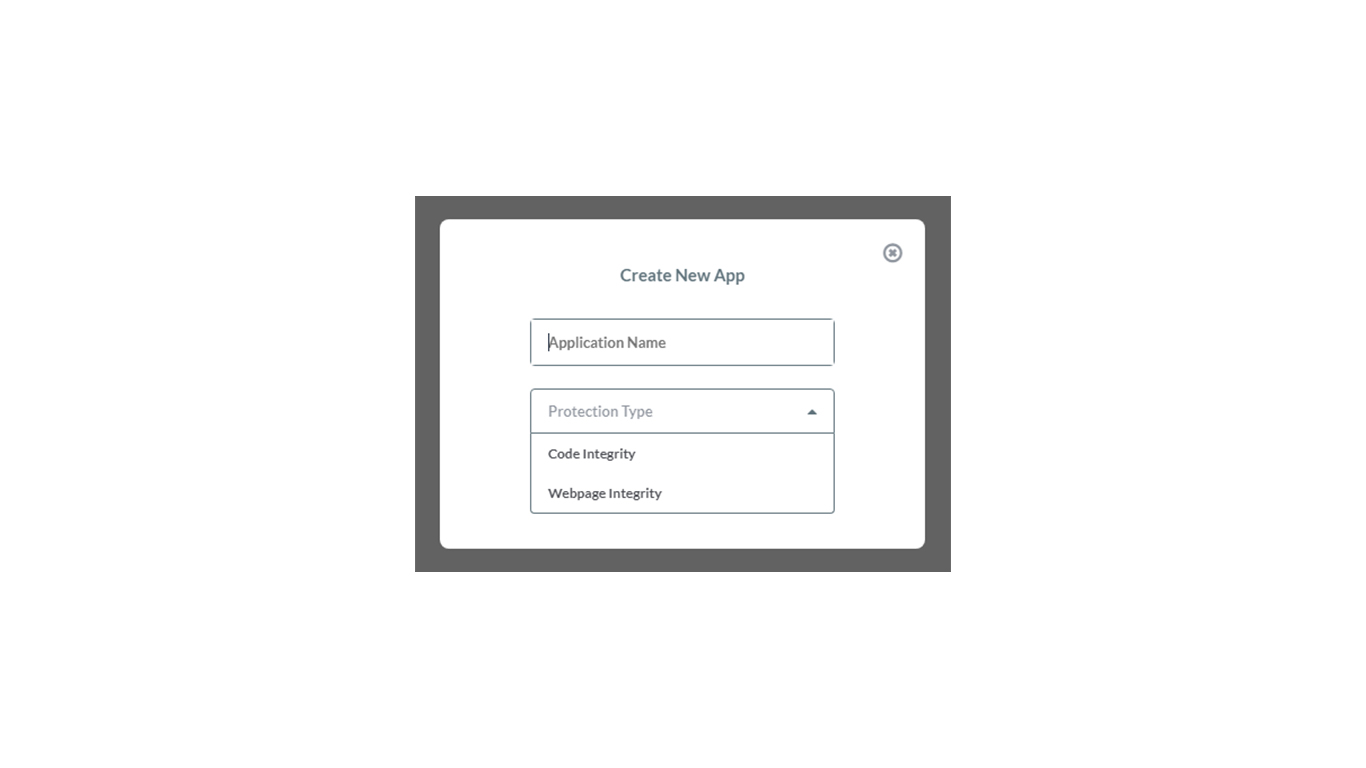
Once there, you should click the Add App button, enter a name in the input field, like Hello World, select the Protection Type as “Code Integrity”, and click Create to create your own Jscrambler project.
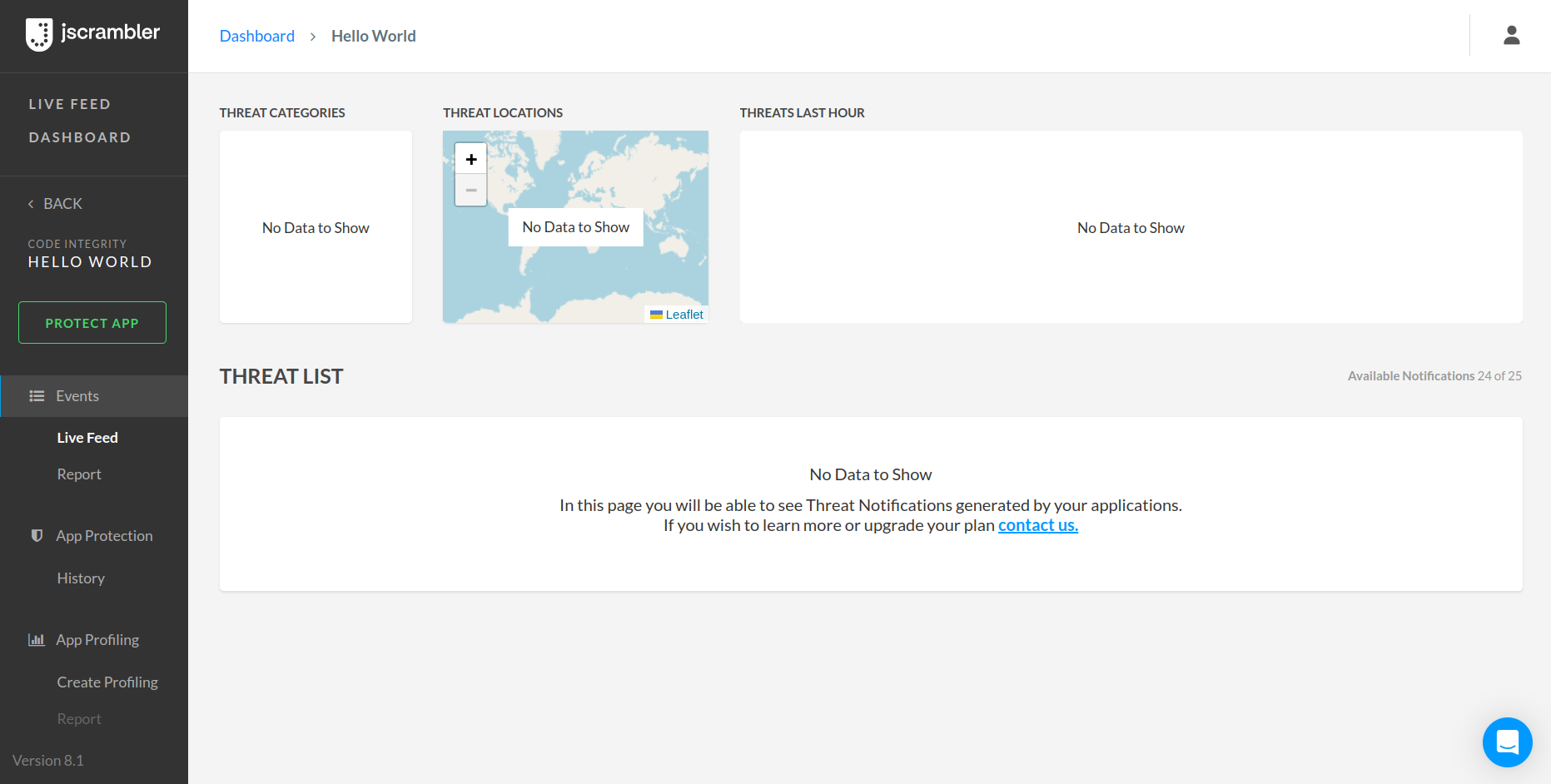
create your own Jscrambler projecrt by clicking the Add app button and select the protection type as code integrityThis will redirect you to the Live Feed for your newly created app. To enter the Code Integrity protection builder, click the Protect App option on the left sidebar.


click the protect app option on the left sidebard to enter the code integrity protection builder

How to Add Your Own File to Be Protected

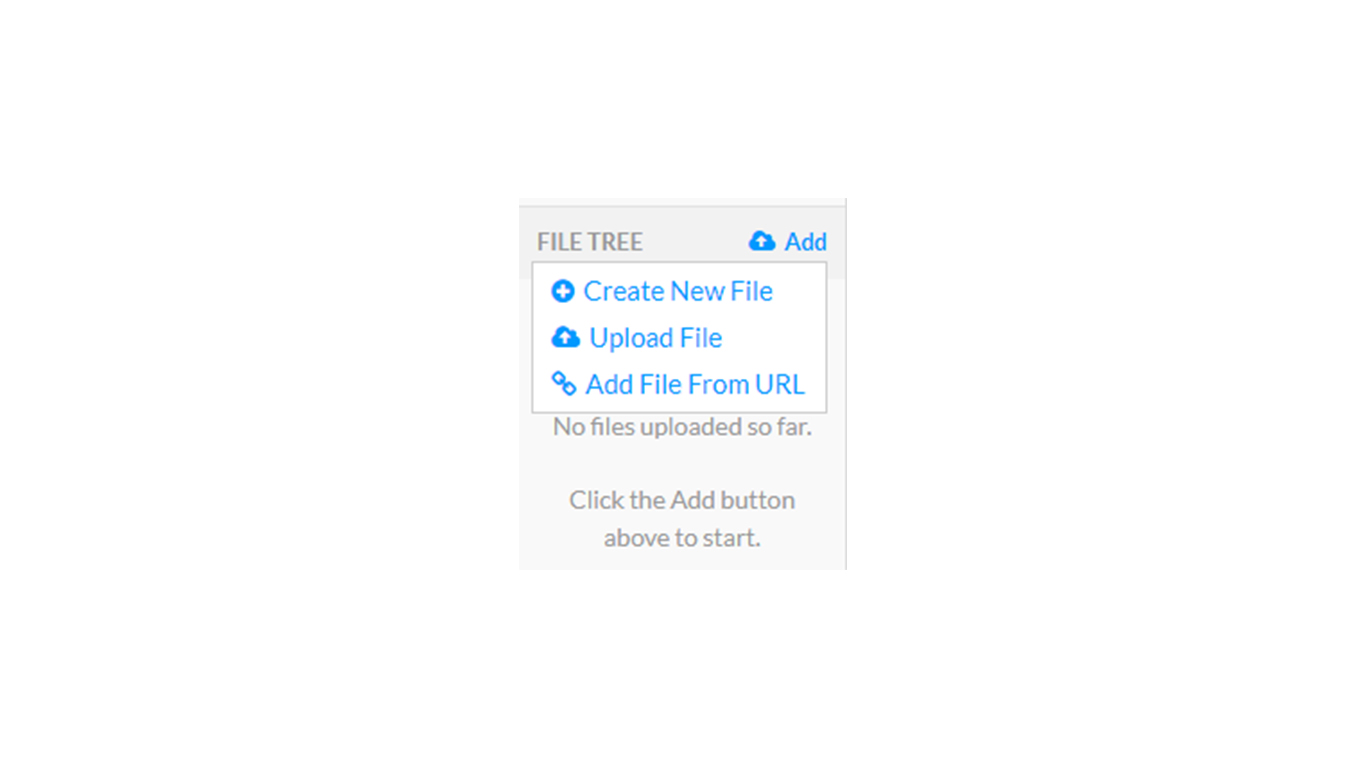
On the left side of the screen, you’ll see the file tree, where you can check which files have been uploaded to the app. You can add your JavaScript and HTML files or add a single ZIP archive containing your project to the app.

If you click the “Add” button on the left, you can see that a file can be created directly from the interface, uploaded from your device, or obtained through a URL. Choose the most suitable option to add your app.

add your own file to be protect by clicking the add buton on the left side of the screenAfter you have some files in your file tree, you can apply transformations to your own code.

For tutorial purposes, let’s choose Identifiers Renaming and Whitespace Removal as our transformations (find them after toggling Advanced Options, in the Fine-Tuning tab).

You may notice that some of the transformations are greyed out. This happens because you’re currently using a free trial account. If you want to unlock all Jscrambler features, please upgrade your plan.

With your trial account, you can still try the greyed-out transformations, but only by selecting a predefined template.

You can now protect your app with these transformations and check out what your protected code looks like. After that, it’s ready to be downloaded and used. Remember, you can always create new templates to apply these transformations later.

Jscrambler CLI First Steps

With the Jscrambler CLI, you can easily integrate Jscrambler into your build process.

Jscrambler CLI first steps include the download of a JSON file

To get your Jscrambler configuration settings quickly, select the transformations you want (or a template) directly from the dashboard, and then download a JSON file by clicking the cogwheel above the Fine Tuning tab, and then clicking “Download Settings in JSON”.

You can choose whether to download the entire file or the file without your Jscrambler secrets. For the sake of this tutorial, download the entire file by selecting “All Parameters”.

You should have downloaded a file similar to the one below:

{
  "keys": {
    "accessKey": "myAccessKey",
    "secretKey": "mySecretKey"
  },
  "applicationId": "myApplicationID",
  "params": [
        {
      "name": "identifiersRenaming"
    },
    {
      "name": "whitespaceRemoval"
    }
  ],
  "areSubscribersOrdered": false,
  "applicationTypes": {
    "webBrowserApp": false,
    "desktopApp": false,
    "serverApp": false,
    "hybridMobileApp": false,
    "javascriptNativeApp": false,
    "html5GameApp": false
  },
  "languageSpecifications": {
    "es5": true,
    "es6": false,
    "es7": false
  },
  "useRecommendedOrder": true,
  "jscramblerVersion": "8.1",
  "tolerateMinification": true
}


The AccessKey and SecretKey vary by user, while applicationId changes based on the application you are protecting. You can check your application inside the app, above the text editor:
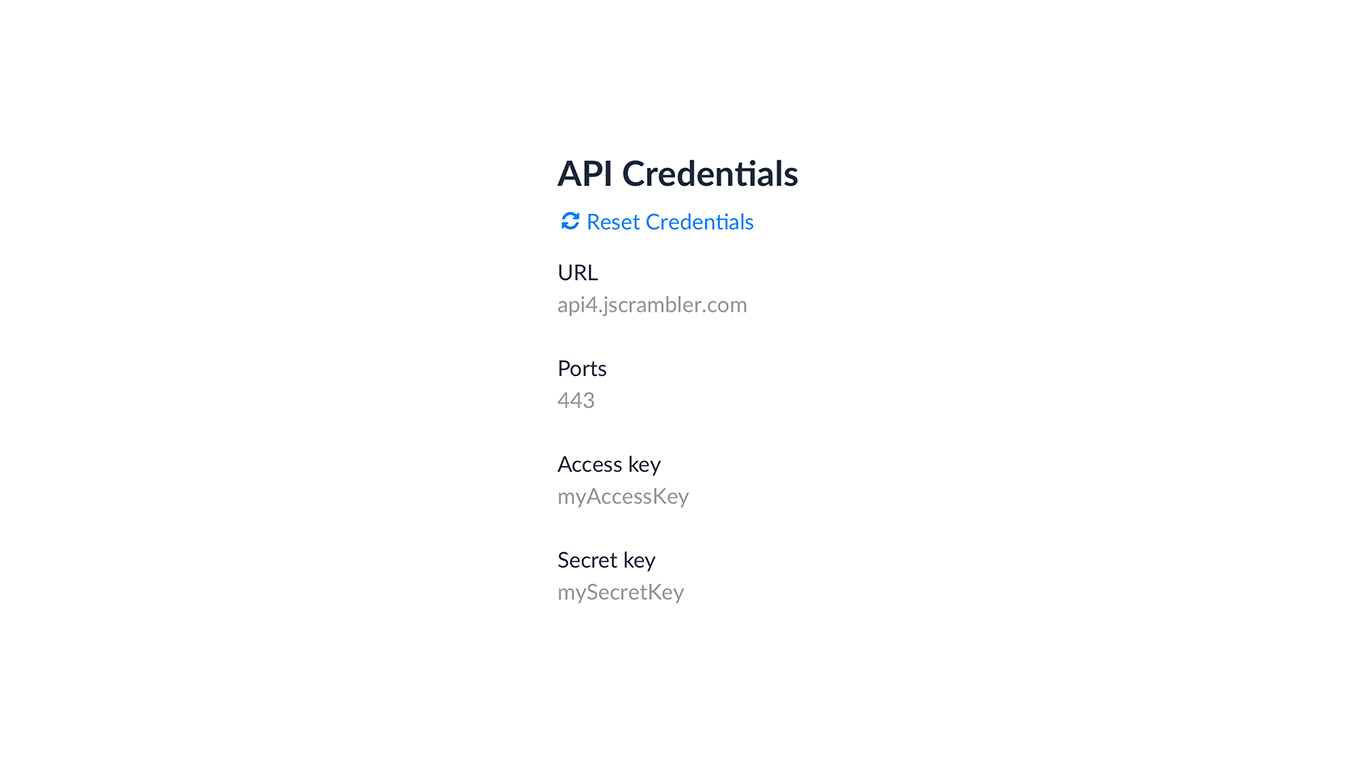
verify your accesskey and secretkey inside the appAs for your AccessKey and SecretKey, you can check them on the My Profile page, under the “API Credentials” section:
check your API credentials on the my profile pageFor further directions on using the Jscrambler CLI, check our following 101 article.


Conclusion

This concludes our first tutorial on how to use Jscrambler.

You should now be able to navigate the available apps, create new projects, apply transformations to your code, save them as templates, and download them as a JSON file to use with the API. Enjoy your testing and start protecting your Applications ASAP! If you have any additional questions, feel free to contact us.
Jscrambler 101 – One-Click Code Protection

Updated on October 1st, 2024

Welcome back to Jscrambler 101! A collection of tutorials on how to use Jscrambler to protect your JavaScript. This tutorial covers the One-Click Code Protection feature, included in the Jscrambler version 8.4.


Introduction


In this article, we’ll explore One-Click Code Protection, a new Jscrambler feature released in version 8.4. This feature allows all Code Integrity users to secure their app in minutes by choosing an Automatic Configuration mode.


About the One-Click Code Protection feature


How was the feature inspired?


Initially, Code Integrity was designed to give users the freedom to select and configure the techniques and transformations for the protection of their code. However, some users found that they had too many options to choose from. For smaller teams, it was also a challenge to figure out the best transformations for their framework to avoid incompatibility issues. That’s why our team started testing a quick protection feature that would allow users to protect their apps quickly and effortlessly. 


The goal of the new One-Click Protection feature is to universally allow users to secure their applications in a matter of just a few minutes, removing the need to tweak and customize. This feature is now available to all Code Integrity users.


How does the One-Click Code Protection feature work?

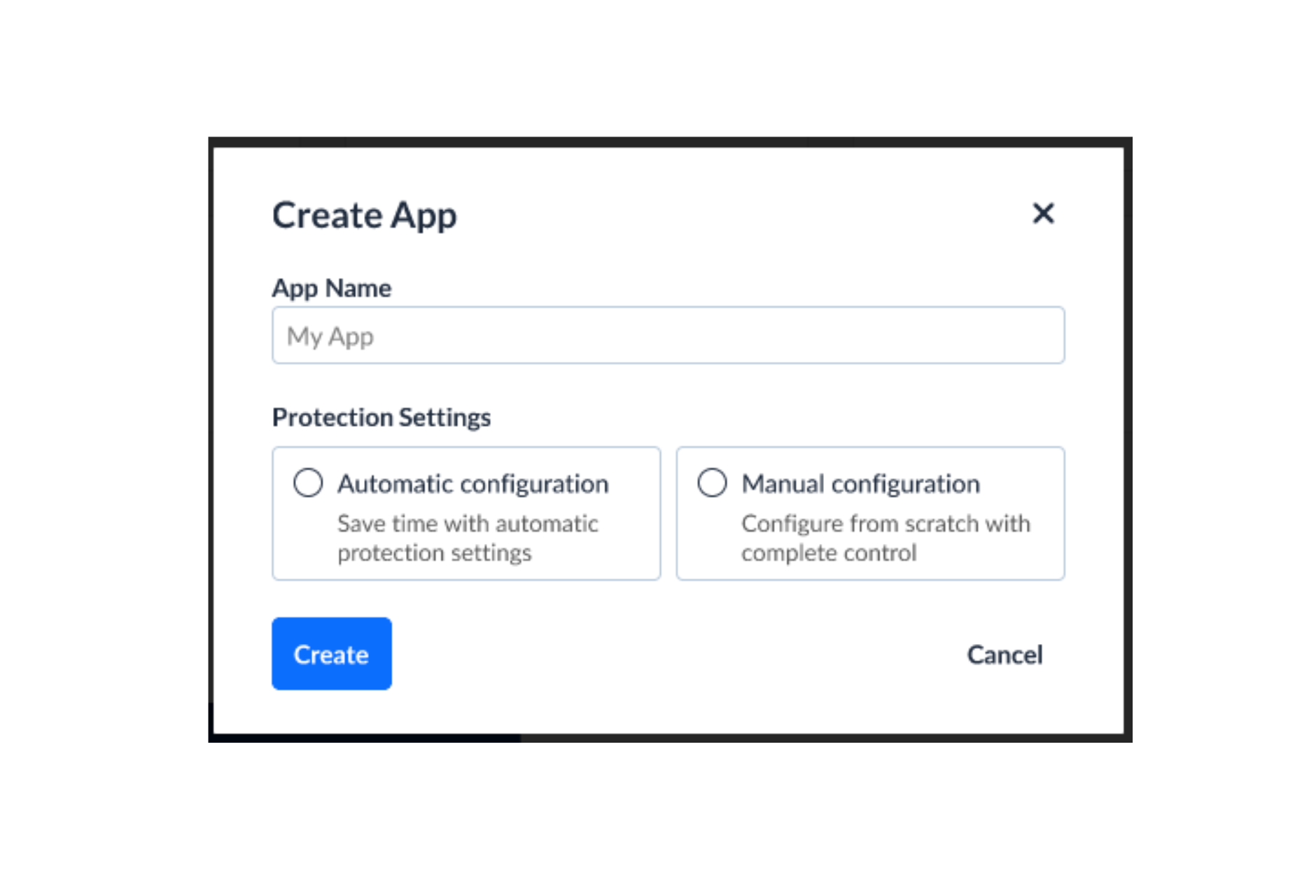
The ability for Code Integrity users to apply code protection without mandatory manual configuration will be achieved by introducing a new option called “Automatic Configuration”. This option now appears at the App Creation stage of the process.

How-does-the-One-Click-Code-Protection-feature-work

All users now have 2 ways to protect code when they create a new app:


  • Automatic configuration – users can apply an automatic protection that does not require configuration.

  • Manual configuration – users can make a customized selection of transformations and templates (this is what is currently available).

  • Experience for existing and new users

    The experience for existing and new users will be slightly different when accessing an app, depending on their plan:

    For existing users:

    • When creating a new app: users will be asked to select the desired configuration (Automatic / Manual).

    • When accessing an app that existed before this feature went live: will not be asked to select the desired configuration, landing straight in the App Builder, and the visualization will depend on their plan.

    New users:

    • When creating a new app: users will be asked to select the desired configuration (Automatic / Manual).

    • When accessing an app created after this feature is available: will not be asked to select the desired configuration, landing straight in the App Builder with the visualization according to what they selected the last time for that app.


One-Click Code Protection Benefits 


  • Simple to Use: The One-Click Code Protection feature is designed with user simplicity in mind, ensuring that anyone on the team can use it effortlessly. It enables users to safeguard their code with just a single click.

  • No Fine-Tuning Needed: One-Click Code Protection removed the need to select a template and/or manually fine-tune protection settings. Users do not need to worry about choosing the right protection strategy or adjusting parameters—everything is handled automatically. 

  • High Level of Code Protection Resilience: The feature employs advanced algorithms and security mechanisms to offer a high level of resilience against reverse engineering and malicious JavaScript attacks. This guarantees that sensitive logic, intellectual property, and proprietary algorithms within the code remain well-protected, providing peace of mind for developers and stakeholders alike.

  • Time Efficiency: The entire process takes less than 3 minutes. There’s no need for manual configuration or tweaking, which allows developers to integrate security measures into their workflow without interrupting the pace of development. This quick protection process is especially valuable in fast-moving projects, where deadlines are tight and security is paramount.

  • Framework Compatibility: All the most popular hybrid mobile frameworks can be protected without manual configuration (React Native, Vue, React, Cordova, Ionic, NativeScript, etc.)


    Here’s the full list of JavaScript frameworks:

  • Angular

  • EmberJS

  • Meteor

  • Next.js

  • Nuxt.js

  • Vue

  • React

  • React Native

  • Cordova

  • Ionic

  • NativeScript


Conclusion


This feature is quite empowering for Code Integrity users, as it provides the possibility of applying code protection without manual configuration. It’s a plug-and-play solution that will help customers apply a code protection recipe that works on the first try, without delving and wasting time into technical details or having to worry about extensive technical configuration.


Jscrambler 8.3: Anti-Debugging, ECMAScript Update

Jscrambler introduces Anti-Debugging as a standalone transformation in Code Integrity to replace the single mechanism previously bundled inside Self-Defending. This upgrade deploys nine distinct techniques to actively block reverse engineering, piracy, and malicious debugging. Unlike the old system, which only reacted after developer tools were closed, this new feature prevents attackers from debugging the code in real-time, masking event listeners, breakpoints, and fingerprinting defenses.

ECMAScript Compatibility update aligns our platform with modern ECMAScript specifications, ensuring full compatibility with the latest JavaScript syntax and coding patterns used by our customers. By supporting these advanced language features, developers can seamlessly protect their most efficient and organized code, directly helping our team close more deals and minimize customer churn.

Jscrambler 101 — Self Defending

Last updated on August 23rd, 2023

Welcome back to Jscrambler 101! A collection of tutorials on how to use Jscrambler to protect your JavaScript. These tutorials cover Jscrambler version 8.2.

Introduction: Self Defending

Last time, in Jscrambler 101 — Code Annotations, we covered Code Annotations and how they can help protect an App. This time, we will talk about Self Defending.

Attempts to tamper with an unprotected game

This is our unprotected space shooter. You’ll notice we start with 3 rockets. There’s also a “Buy Rockets” button at the top of the screen, which allows us to buy more credits and continue the game.
(0:16-0:23)

We will try to add rockets without clicking the button and, therefore, without buying them. In this case, for tutorial purposes, we don’t have any trigger to process the payment when we click the button, but if there was any, the game creator would lose money with the tampering we’re about to do.

You can see below that when we click the button, the number of rockets increases.
One of the things we can do now is inspect the button element and access the onClick function in the “Event Listeners” tab. Now, we can add a breakpoint to the function and analyze the existing cr Object for any ‘Rocket’ reference.

(0:23-0:50)

We have already developed a script to analyze the cr Object and return any property with a ‘Rocket’ reference. As such, all we have to do is paste the script on our browser’s console and execute it. By doing that, we can see the returned properties that reference ‘Rocket’ on the bottom of the console:

(0:50-1:16)

We previously recorded what property we wanted after running the script and analyzing the properties. Now, we can use this property to add rockets. In this case, we’ll be adding 10 more rockets to our game. After that, you can see a total of 14 rockets at the top of the game:

(1:25-1:51)

Conclusion

This tutorial shows how our Self-defending transformation works with anti-debugging and anti-tampering. Enjoy your testing.

Start protecting your Applications ASAP! If you have any additional questions, contact our client-side security experts.

Jscrambler 101 — Source Maps

Last updated on August 23rd, 2023

Welcome back to Jscrambler 101! A collection of tutorials on how to use Jscrambler to protect your JavaScript. These tutorials cover Jscrambler version 8.2.

Introduction: Source Maps

Last time, on Jscrambler 101 — How to use the CLI, we showed you a simple way to protect your code through our command-line interface (CLI).This time, we dive into one of Jscrambler’s most handy features: Source Maps.

What Are Jscrambler Source Maps?

If you have tried Jscrambler’s code protection features, you know that one of its protection layers makes your code extremely hard to read and reverse-engineer, mainly with advanced JavaScript obfuscation. So, a piece of JavaScript like this:

function startTime() {
    var today = new Date();
    var h = today.getHours();
    var m = today.getMinutes();
    var s = today.getSeconds();
    m = checkTime(m);
    s = checkTime(s);
    document.getElementById('txt').innerHTML =
    h + ":" + m + ":" + s;
    var t = setTimeout(startTime, 500);
}

It would look like this after being protected with Jscrambler:

B100.P=function (){return typeof B100.H.C==='function'?B100.H.C.apply(B100.H,arguments):B100.H.C;};B100.H8=function(){var u8=2;while(u8!==1){switch(u8){case 2:return{C8:function W8(n8,S8){var F8=2;while(F8!==10){switch(F8){case 11:return f8;break;case 14:f8[U8][(c8+S8*U8)%n8]=f8[c8];F8=13;break;case 5:F8=i8<n8?4:9;break;case 3:i8+=1;F8=5;break;case 8:F8=U8<n8?7:11;break;case 4:f8[(i8+S8)%n8]=[];F8=3;break;case 9:var U8=0;F8=8;break;case 13:c8-=1;F8=6;break;case 7:var c8=n8-1;F8=6;break;case 1:var i8=0;F8=5;break;case 6:F8=c8>=0?14:12;break;case 12:U8+=1;F8=8;break;case 2:var f8=[];F8=1;break;}}}(14,6)};break;}}}();B100.x8=function (){return typeof B100.H8.C8==='function'?B100.H8.C8.apply(B100.H8,arguments):B100.H8.C8;};B100.G8=function (){return typeof B100.H8.b1==='function'?B100.H8.b1.apply(B100.H8,arguments):B100.H8.b1;};B100.l8=function (){return typeof B100.H8.b1==='function'?B100.H8.b1.apply(B100.H8,arguments):B100.H8.b1;};B100.B0=function (){return typeof B100.R0.C==='function'?B100.R0.C.apply(B100.R0,arguments):B100.R0.C;};B100.t1=function (){return typeof B100.a1.C==='function'?B100.a1.C.apply(B100.a1,arguments):B100.a1.C;};B100.s8=function (){return typeof B100.H8.C==='function'?B100.H8.C.apply(B100.H8,arguments):B100.H8.C;};B100.P8=function (){return typeof B100.H8.I1==='function'?B100.H8.I1.apply(B100.H8,arguments):B100.H8.I1;};B100.q=function (){return typeof B100.H.C==='function'?B100.H.C.apply(B100.H,arguments):B100.H.C;};B100.B1=function (){return typeof B100.a1.b1==='function'?B100.a1.b1.apply(B100.a1,arguments):B100.a1.b1;};B100.b8=function (){return typeof B100.H8.w0==='function'?B100.H8.w0.apply(B100.H8,arguments):B100.H8.w0;};B100.T8=function (){return typeof B100.H8.I1==='function'?B100.H8.I1.apply(B100.H8,arguments):B100.H8.I1;};B100.H=function(){var n=function(W,E){var a=E&0xffff;var J=E-a;return(J*W|0)+(a*W|0)|0;},z=function(O,N,b){var w=0xcc9e2d51,M=0x1b873593;var G=b;var l=N&~0x3;for(var R=0;R<l;R+=4){var i=O.charCodeAt(R)&0xff|(O.charCodeAt(R+1)&0xff)<<8|(O.charCodeAt(R+2)&0xff)<<16|(O.charCodeAt(R+3)&0xff)<<24;i=n(i,w);i=(i&0x1ffff)<<15|i>>>17;i=n(i,M);G^=i;G=(G&0x7ffff)<<13|G>>>19;G=G*5+0xe6546b64|0;}i=0;switch(N%4){case 3:i=(O.charCodeAt(l+2)&0xff)<<16;case 2:i|=(O.charCodeAt(l+1)&0xff)<<8;case 1:i|=O.charCodeAt(l)&0xff;i=n(i,w);i=(i&0x1ffff)<<15|i>>>17;i=n(i,M);G^=i;}G^=N;G^=G>>>16;G=n(G,0x85ebca6b);G^=G>>>13;G=n(G,0xc2b2ae35);G^=G>>>16;return G;};return{C:z};}();B100.s1=function (){return typeof B100.a1.w0==='function'?B100.a1.w0.apply(B100.a1,arguments):B100.a1.w0;};B100.W0=function (){return typeof B100.R0.C==='function'?B100.R0.C.apply(B100.R0,arguments):B100.R0.C;};B100.w1=function (){return typeof B100.a1.I1==='function'?B100.a1.I1.apply(B100.a1,arguments):B100.a1.I1;};B100.n1=function (){return typeof B100.a1.C==='function'?B100.a1.C.apply(B100.a1,arguments):B100.a1.C;};B100.C1=function (){return typeof B100.a1.b1==='function'?B100.a1.b1.apply(B100.a1,arguments):B100.a1.b1;};B100.c1=function (){return typeof B100.a1.I1==='function'?B100.a1.I1.apply(B100.a1,arguments):B100.a1.I1;};B100.R0=function(){var j0=2;while(j0!==1){switch(j0){case 2:return{w0:function(H0){var y0=2;while(y0!==14){switch(y0){case 2:var C0='',A0=decodeURI("A$+5%25%1B%7C%07%09%0E06%5C%02*%25%25%20v%3E=$%094M%3E%00%3C2%3EM$1%12.%1AL%14%1Bj%094M%3E%1654%3CF.6%0E06%5C%07,%3E%22'M9");y0=1;break;case 5:y0=K0<A0.length?4:7;break;case 1:var K0=0,i0=0;y0=5;break;case 8:K0++,i0++;y0=5;break;case 6:return function(q0){var V0=2;while(V0!==1){switch(V0){case 2:return C0[q0];break;}}};break;case 3:i0=0;y0=9;break;case 9:C0+=String.fromCharCode(A0.charCodeAt(K0)^H0.charCodeAt(i0));y0=8;break;case 4:y0=i0===H0.length?3:9;break;case 7:C0=C0.split('^');y0=6;break;}}}('(JEPWS')};break;}}}();B100.D8=function (){return typeof B100.H8.w0==='function'?B100.H8.w0.apply(B100.H8,arguments):B100.H8.w0;};B100.b0=function (){return typeof B100.R0.w0==='function'?B100.R0.w0.apply(B100.R0,arguments):B100.R0.w0;};B100.a1=function(A1){return{I1:function(){var P1,D1=arguments;switch(A1){case B100.x8()[7][6]:P1=D1[0]*D1[2]-D1[1];break;case B100.M0()[7][12]:P1=-(D1[2]*D1[3])-D1[4]+-D1[1]+D1[0];break;}return P1;},b1:function(d1){A1=d1;}};}();B100.R1=function (){return typeof B100.a1.w0==='function'?B100.a1.w0.apply(B100.a1,arguments):B100.a1.w0;};B100.M0=function (){return typeof B100.H8.C8==='function'?B100.H8.C8.apply(B100.H8,arguments):B100.H8.C8;};function B100(){}B100.v0=function (){return typeof B100.R0.w0==='function'?B100.R0.w0.apply(B100.R0,arguments):B100.R0.w0;};B100.K8=function (){return typeof B100.H8.C==='function'?B100.H8.C.apply(B100.H8,arguments):B100.H8.C;};function startTime(){var I0=B100;var B,K,g,T,d,Y,r,I;B=new Date();K=B[I0.b0(1)]();g=B[I0.b0(7)]();T=583587531;d=-1024664412;Y=2;for(var o=1;I0.q(o.toString(),o.toString().length,44684)!==T;o++){r=B[I0.v0(4)]();g=checkTime(g);Y+=2;}if(I0.q(Y.toString(),Y.toString().length,49201)!==d){r=B[I0.v0(4)]();g=checkTime(g);}r=B[I0.v0(6)]();g=checkTime(g);r=checkTime(r);I0.C1(I0.x8()[8][12]);var o0=I0.w1(4,67,18);I0.B1(I0.x8()[4][8]);var c0=I0.w1(93,10,7,10,8);document[I0.v0(3)](I0.b0(2))[I0.v0(0)]=K+I0.b0(o0)+g+I0.b0(c0)+r;I=setTimeout(startTime,500);}

Jscrambler’s code protection prevents someone from reverse-engineering or tampering with your code, but it might seem like a burden to development teams when they want to debug their applications.This is especially relevant in cases where a problem can only be reproduced in production by running the source code. Jscrambler Source Maps allows us to achieve that. And having the code protected by Jscrambler will not be an issue.Jscrambler Source Maps enable mapping the obfuscated code back to its source code.As such, development teams can get through the debugging process of obfuscated code as if they were running the source code.It’s worth mentioning that Jscrambler’s Source Maps feature is used only for development purposes and doesn’t compromise your application’s security.

Using Jscrambler Source Maps

Jscrambler supports Source Maps either via the Web Application or through its API. Using Source Maps from previous compilation steps is also supported.Note that, in all cases, Source Maps are disabled by default.

Jscrambler Source Maps Via the Web Application

After understanding how Source Maps can benefit your specific case, setting them up is very straightforward.First, you need to access your Dashboard, from where you can click the App for which you wish to enable Source Maps.Now, click the cogwheel on the top right corner, next to Application Settings, and enable “Source Maps”, as shown below.

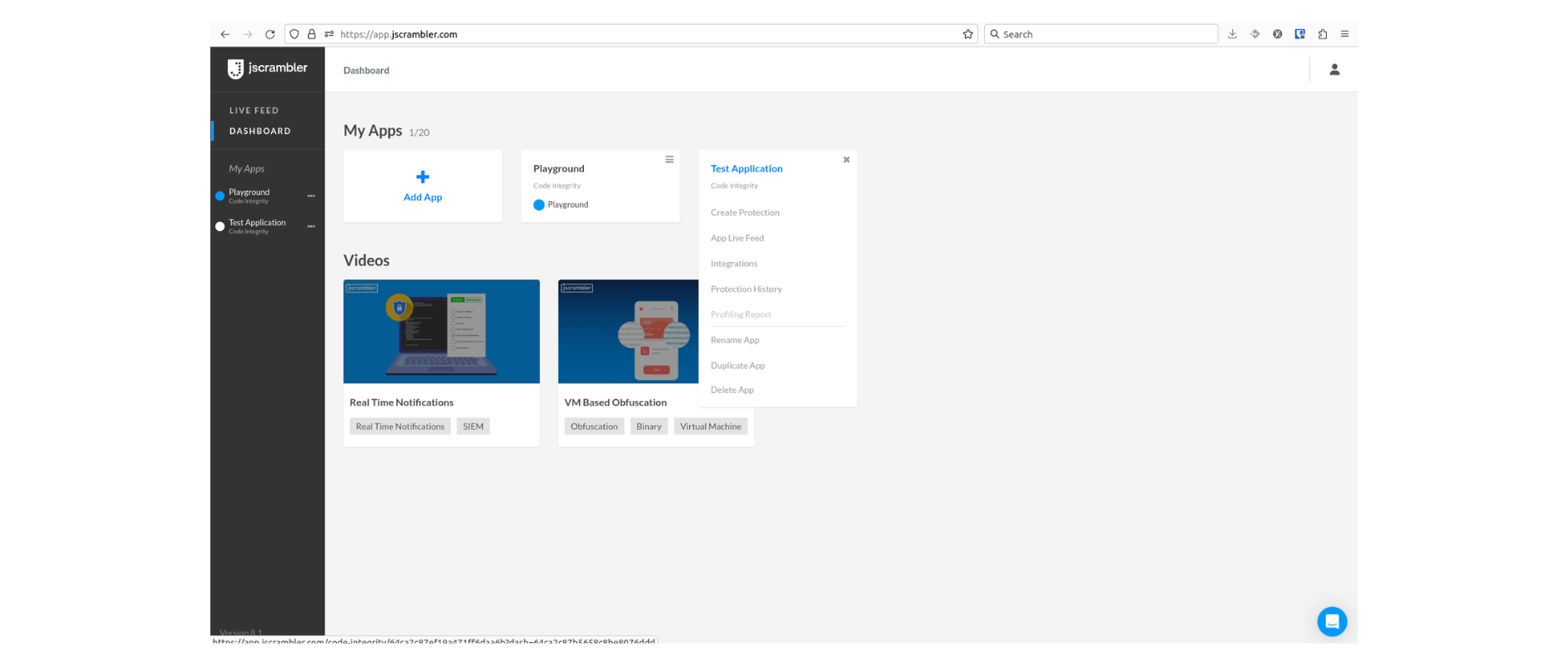
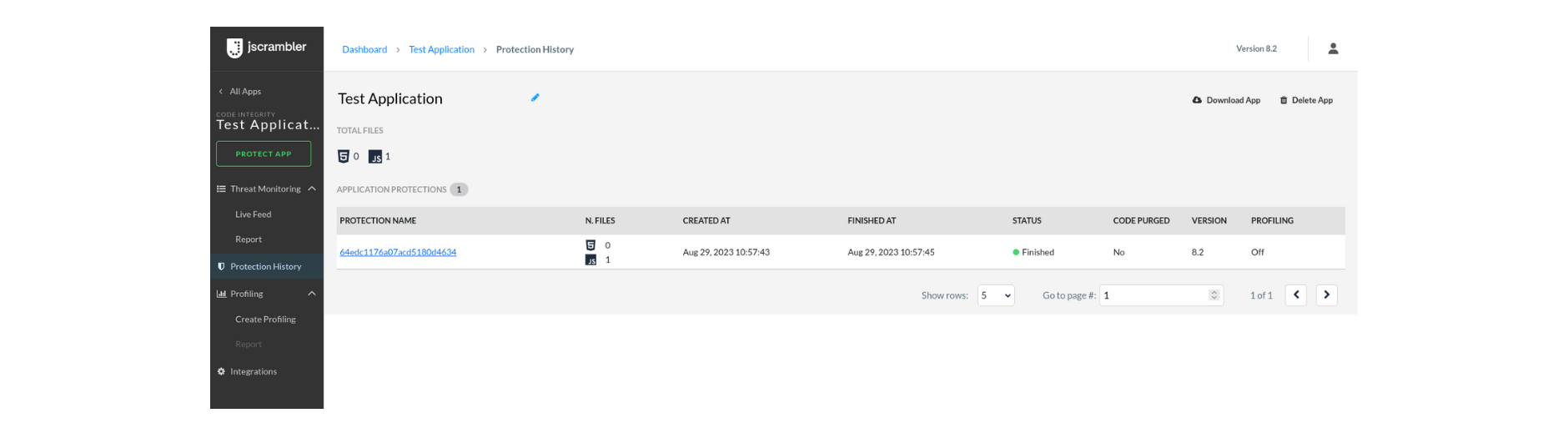
jscrambler-source-maps-via-web-applicationAfter this, all new protections to your code will have the Jscrambler Source Maps feature enabled until you decide to change it.Using Jscrambler Source Maps via the Web App has one relevant element: the source code will be embedded in the source map file. This behavior is specific to the Web app, and if you don’t want to include the source code, refer to the section below about using the API.We are ready to download the source map file. Return to the dashboard and click the icon below the App name. Then, click Protection History, as shown below:Open-Protection-HistoryThis will open a screen with the latest protections for your applications, as we show below:latest-protections-dashboard-code-integrityNow, click the ID of the protection for which you want to download the source map file. This will open a new screen with details for that specific protection. On this new screen, click on “Download Source Maps”.Download-Source-Maps-resultNow, we have the source map file, which will be used in the final section of this tutorial, with the name Including Source Maps With Your JavaScript Files.


Jscrambler Source Maps Via the API

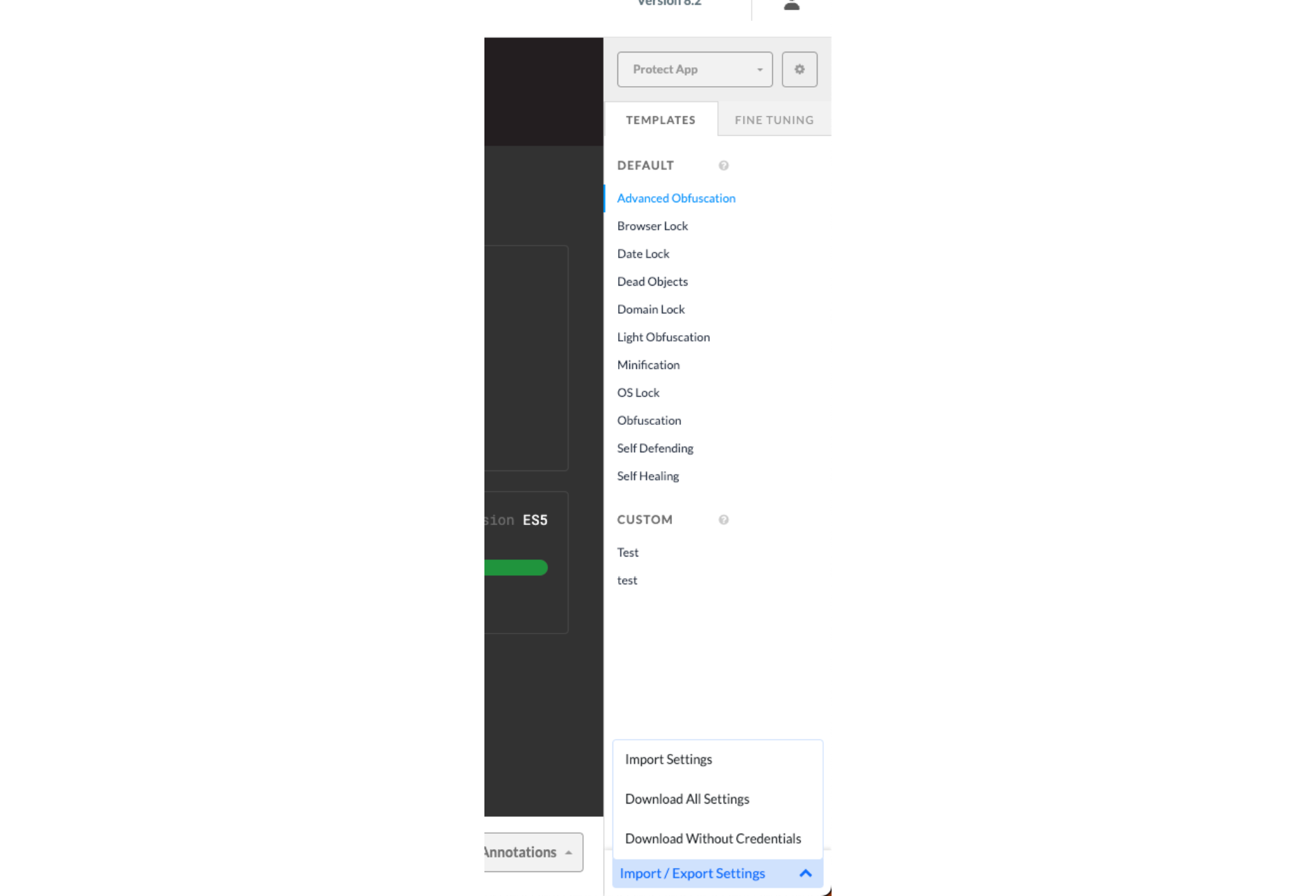
To enable Jscrambler Source Maps through the API, refer to your Jscrambler configuration file (typically, it’s jscrambler.json).If you haven’t downloaded it yet, just head over to Jscrambler’s dashboard, select the app you want, click the Import/Export Settings menu on the bottom-right, and select “Download All Settings:download-jscrambler-jsonOpen this file and activate Source Maps by adding:
"sourceMaps": {
    "sourceContent": true
  },

Your configuration file should then look similar to the one below:

{
  "keys": {
    "accessKey": "YOUR_ACCESS_KEY",
    "secretKey": "YOUR_SECRET_KEY"
  },
  "applicationId": "YOUR_APPLICATION_ID",
  "filesSrc": [
    "/path/to/src.html",
    "/path/to/src.js"
  ],
  "filesDest": "/path/to/destDir/",
  "params": [
    {
      "name": "stringSplitting"
    }
  ],
  "sourceMaps": true
}

Configuring Jscrambler Source Maps via the API enables customizing whether the source code should be embedded in the Source Map file. By default, this is set to true by the property we covered before, “sourceMaps”: true.However, if you want to prevent your original code from being included in the Source Map file, you must set the sourceContent option, as shown below:

"sourceMaps": {
  "sourceContent": false
}

Also, disabling Jscrambler’s Source Maps feature entirely via the API is as simple as omitting the sourceMaps property or setting “sourceMaps” to false.To download the Source Map file through the API, we must get our protectionId. So, if our config file is named jscrambler.json, we execute:

jscrambler -c jscrambler.json

This will generate an output similar to 59021864dd26ca0011dc94ed, which is our protectionID.Next, the Source Map file for protection 59021864dd26ca0011dc94ed can be downloaded by executing:

jscrambler -c jscrambler.json -m 59021864dd26ca0011dc94ed

This will download the Jscrambler Source Maps to a folder named jscramblerSourceMaps.

Loading Jscrambler Source Maps into the Browser’s Dev Tools

This last step is very simple. Taking as an example a single file.js, you have two options:

Using an HTTP Header when serving the JavaScript file

SourceMap: /path/to/file.js.map

Or appending a comment to the JavaScript file

/* Protected JavaScript */
//# sourceMappingURL=/path/to/file.js.map

There is another option to load source maps that doesn’t require changes to the code or HTTP headers. Read more about it in the developer resources: view and manually load source maps. Pay special attention to the “Load a source map manually “section.And that’s it! You unlocked the full benefits of using Jscrambler Source Maps for painless debugging.

Conclusion

Ensure you don’t include the Source Map files by accident in production. This would grant anyone direct access to your original code!

Enjoy your testing and start protecting your applications ASAP! If you have any additional questions contact our client-side security experts.

Jscrambler 101 – Anti-Tampering

Welcome back to Jscrambler 101! A collection of tutorials on how to use Jscrambler to protect your JavaScript. This tutorial covers Jscrambler version 8.1.


Introduction

We will explore Anti-Tampering, a new Jscrambler feature released in version 8.1. Anti-Tampering protects your application against tampering attacks.


Anti-Tampering

Before version 8.1, Jscrambler already had some transformations that included anti-tampering techniques such as Self-Defending and Self-Healing. This new transformation was made to address some of the issues that those two techniques had and to explore some new anti-tampering techniques.

Unlike previous transformations, Anti-Tampering is fully compatible with the browser’s Content Security Policy (CSP) and also works in React Native with Hermes (only the RCK technique).

This transformation also isolates the anti-tampering techniques into a single transformation. Therefore, it can be used without anti-debugging or self-healing techniques. Once tampering is detected, we can also customize the countermeasures that will be triggered.

The transformation has two different anti-tampering techniques, RCK and SKL (abstract internal names), to increase the strength of the protection. By default, both techniques are used, but they can be disabled individually. This is only possible using the CLI and a configuration file since it’s an advanced use case (check the API Parameters section of our Docs).

Tampering attack example

In this tampering attack example, we will use a car racing game as a target for the attack. Our goal is to win (have the fastest lap time) by making the car go faster (increase max speed and acceleration).

Click to see the original game with regular car speed (maximum 120 mph).

Now, we will tamper with the code to increase the car’s speed and acceleration. To do this, we will use Chrome’s dev tools to view the source code and replace the variables maxSpeed and accel with higher values.

Check out the final result of this video’s tampering with the original code.

By doing that, we can now go much faster (240 mph). Thus, we can improve our fastest lap and win the game.

Anti-Tampering protection example

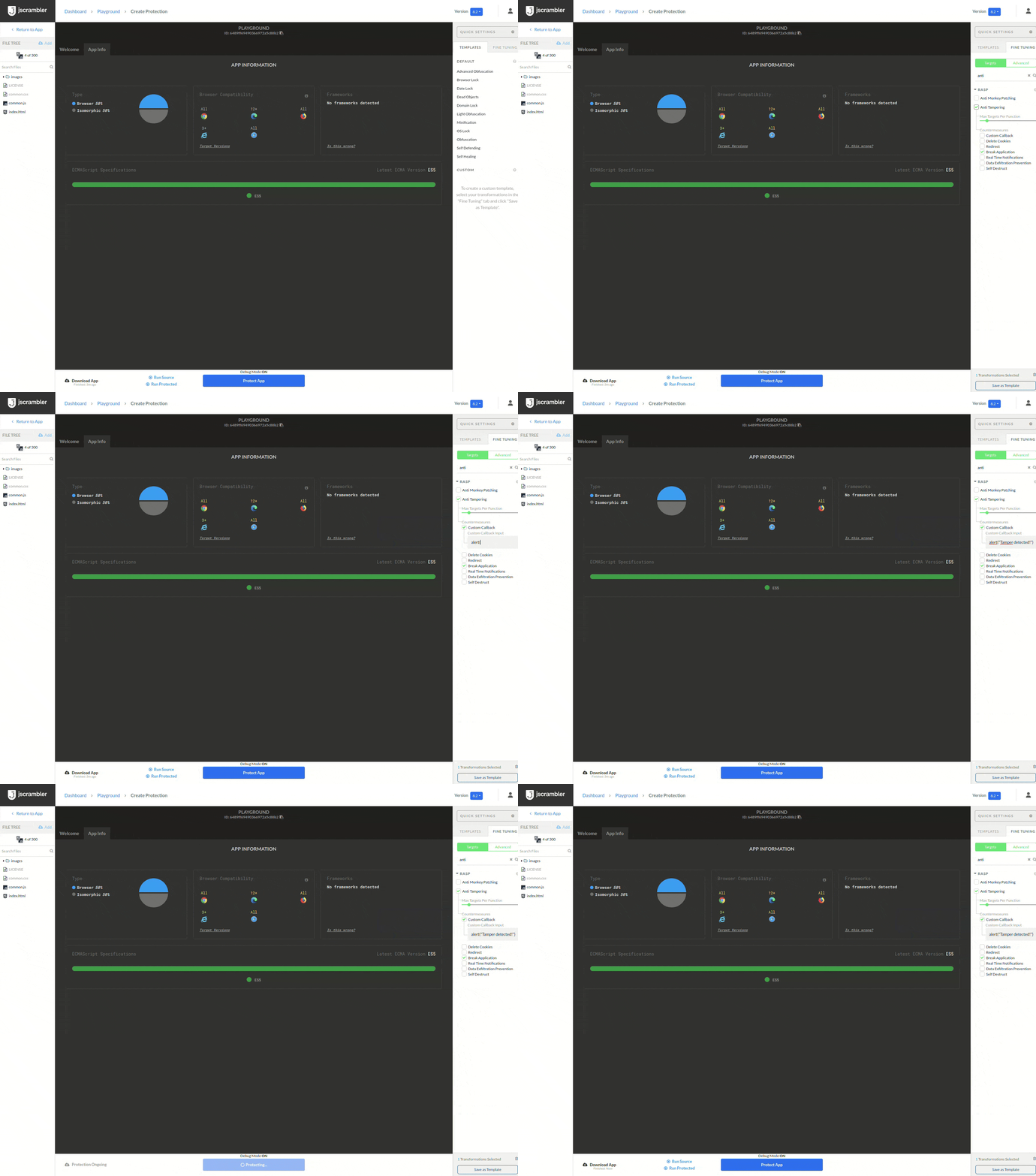
To prevent the attack, we will protect our game with Anti-Tampering. To do this, we upload our code to the Jscrambler Web App, select the Anti-Tampering transformation (in this example, we added a custom callback as a countermeasure), and click “Protect App”.

anti-tampering-protection-example-101-tutorial
Now that we have a protected version of the game, we will try to replicate the tamper we did previously. See the protected game video.

As we can see, the tamper was not successful, and the countermeasure was executed. Anti-Tampering prevented the attacker from getting an unfair advantage in the game. There are a variety of possible countermeasures that can be used to accomplish different results once the tamper is detected.

Conclusion

This new transformation allows us to have anti-tampering techniques work in more environments than before (CSP and React Native with Hermes). It is now isolated from anti-debugging and self-healing techniques.

The addition of multiple techniques (RCK and SKL) makes the transformation safer and harder to crack by an attacker, giving us more confidence in its effectiveness.

Jscrambler 8.2: Anti Monkey Patching

The new Anti-Monkey Patching transformation within the Runtime Application Self-Protection (RASP) layer prevents unauthorized runtime modifications (monkey patching) of your application’s functions. This feature is accessible via both the UI and CLI and can be deployed in two configurations:

Automatic Mode: Automatically applies anti-monkey patching protection to all Global and Top-Level functions.

Targeted Mode: Limits protection to specific areas of your codebase, configurable via two methods:

– Code Annotations: Inline annotations placed directly above the code blocks you want to secure.

– Function List: A predefined list specifying the exact names of the Global or Top-Level functions to protect.

Advanced Configuration: When using Automatic Mode, you can use Code Annotations or the Function List to create exceptions. This allows monkey patching on specific, trusted functions where runtime modification is intended by design.
Available countermeasures: Custom Callback, Delete Cookies, Redirect, Real-Time Notifications, Data Exfiltration Prevention, Self-Destruct, and Break Application.

Jscrambler 8.1: Anti-Tampering

The upgraded Anti-Tampering feature delivers a more resilient, high-performance security layer designed to fit seamlessly into modern development workflows. By removing dependencies on dynamic code execution (such as eval or the Function constructor), the transformation ensures full compatibility with strict Content Security Policies (CSP) and complex frameworks like React Native Hermes. Unlike traditional single-technique methods that create obvious attack vectors, this update distributes discreet checks across multiple areas of the codebase to eliminate single points of failure, shield against code lifting, and allow you to deploy anti-tampering independently from anti-debugging controls.

This update significantly elevates both application security and the end-user experience. Apps leveraging the new Anti-Tampering transformation benefit from reduced file sizes and faster script load times, translating directly into a smoother, more responsive user experience. Furthermore, you gain complete flexibility over threat responses with an expanded suite of active countermeasures, including Custom Callbacks, Cookie Deletion, Redirects, Real-Time Notifications, Data Exfiltration Prevention, Self-Destruct, and Break Application, allowing you to tailor your defensive posture to any runtime threat.